Contents
What Happens When You Open a Website?
Between typing an address and seeing the page, your browser runs a DNS lookup, a TCP handshake, a TLS handshake and an HTTP request. This guide walks through each step and ties it together in one sequence diagram.
How networks work — series: ① What happens when you open a website → ② Network layers → ③ Common network protocols → ④ What is a proxy? → ⑤ What is a VPN? → ⑥ VPN vs proxy → ⑦ What HTTPS encrypts → ⑧ System proxy vs TUN mode → ⑨ Split tunneling → ⑩ DNS poisoning and leaks → ⑪ Why it slows down at night → ⑫ Latency, loss and bandwidth
You type an address, hit Enter, and the page appears — usually in under a second. In that second your browser does four things in order: uses DNS to turn the domain into an IP address → opens a connection with a TCP handshake → agrees on encryption with a TLS handshake → sends an HTTP request and gets the page back. Let’s take each one apart, then put the whole thing together in one sequence diagram at the end.
Start with sending a letter
Moving information across the internet is a lot like sending an important letter. Imagine you’re writing to a friend far away and waiting for a reply:
- Look up the address: you only know your friend’s name, so you check your address book for their actual street address;
- Call ahead: before sending, you phone them — “I’m sending you a letter, are you home?” “Yes, go ahead!” — so you both know you can reach each other;
- Lock it up: the letter is private, so you lock it in a box and agree on a key only the two of you have;
- Post offices sort it: the box goes through several post offices; each one reads only the address and decides where to send it next;
- Your friend receives it: they unlock the box and read your request;
- The reply: they send their answer back the same way, and you open it to find what you asked for.
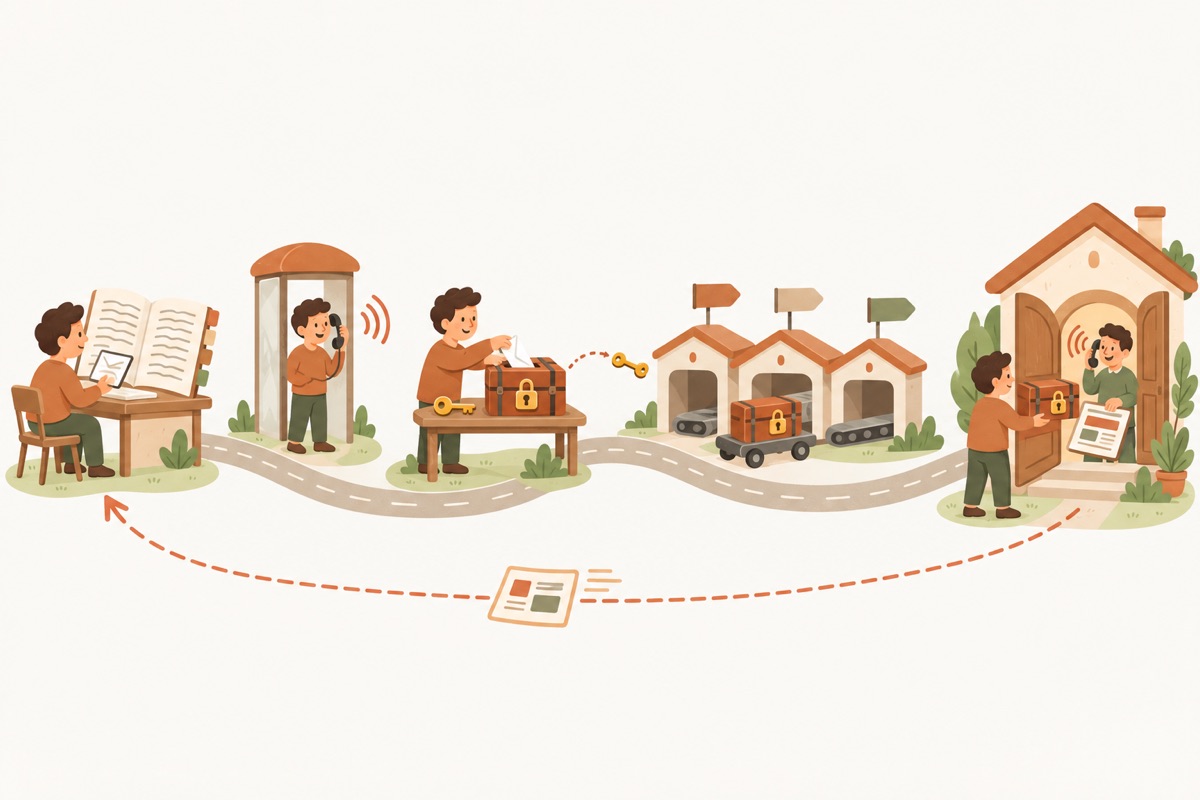
- ① Look up the addressDNS: turns the domain into an IP address
- ② Call aheadTCP handshake: both sides confirm they can talk
- ③ Lock it, share a keyTLS handshake: agree on encryption, verify the site
- ④ Post offices sort itRouting: each router forwards by destination IP
- ⑤ Friend receives itHTTP request: "please send the home page"
- ⑥ The replyHTTP response: the page comes back to the browser
Opening a web page works almost exactly the same way — each step is just a network protocol instead, and the whole thing usually takes under a second:
| Sending a letter | Loading a web page | Where it’s covered |
|---|---|---|
| Your friend’s name | A domain name (e.g. example.com) | Step 1 |
| Looking up their address | A DNS lookup, which returns an IP address | Step 1 |
| Street number + flat number | IP address + port number | Next section |
| Calling ahead to check they’re home | The TCP three-way handshake | Step 2 |
| Locking the box and agreeing on a key | The TLS handshake, which sets up encryption | Step 3 |
| Post offices along the way | Routers | ”How does a packet cross dozens of routers?” |
| The letter and the reply | The HTTP request and response | Step 4 |
Two basics first: IP addresses and ports
Every device on the internet has an IP address — think of it as a street address that tells the network where to deliver a packet. But one server can run many programs at once (a website, email and so on), so you also need a port number to say which program on that machine should get it, like an apartment number in a building:
- HTTPS websites use port 443 by default; old, unencrypted HTTP uses port 80;
- You don’t normally see the port in the address bar because the browser fills in the default for you.
So visiting a website really means talking to port 443 at some IP address. The catch is that we remember names like example.com, not strings of numbers. Which brings us to step one.
Step 1: DNS turns the name into an IP address
DNS (the Domain Name System) is the internet’s phone book: it translates domain names into IP addresses. The browser checks a series of places and stops as soon as it finds an answer:
- Its own cache — if you visited recently, it already knows;
- The operating system’s cache and its hosts file;
- A DNS resolver — usually run by your ISP or router, or a public one. If it doesn’t know either, it asks on your behalf, one level at a time: first a root server (“who handles .com?”), then the .com servers (“who handles example.com?”), and finally example.com’s authoritative server, which gives the actual IP address.
The answer is cached for a while (as long as the site’s TTL setting allows), which is why a second visit usually skips this step. The full lookup chain is covered in Common network protocols.
Step 2: The TCP handshake checks both sides can talk
With the IP address in hand, the browser has to say hello and open a TCP connection. TCP’s job is to make sure data arrives complete and in order, resending anything that gets lost. Setting up a connection takes three messages — hence the “three-way handshake”:
- Browser: “I’d like to connect.” (SYN)
- Server: “Got it — I’m ready too.” (SYN-ACK)
- Browser: “Great, let’s go.” (ACK)
Why three? Each side needs proof that what it sends gets through and what the other side sends gets through. Drop any one message and one side is left unsure.
Step 3: The TLS handshake agrees on encryption
When the address starts with https, there’s one more round before any real data moves: a TLS handshake. It does two jobs — proving the server really is that website, and agreeing on a key only the two of you know. With TLS 1.3, today’s standard:
- The browser sends a ClientHello: the encryption algorithms it supports, plus its share of the key exchange;
- The server replies with a ServerHello: the algorithm it picked and its own key share, along with its certificate;
- The browser checks the certificate — was it issued by a trusted authority, is it still valid, does the name match? If so, both sides use the exchanged values to compute the same session key independently. The key itself never crosses the network;
- Both sides send Finished to confirm nobody tampered with the handshake.
From here on, everything the two sides exchange is encrypted with that session key.
Step 4: The HTTP request and response fetch the page
Connection open, encryption agreed — now the browser can say what it actually wants. It sends an HTTP request such as “GET / — please send the home page”, along with details like the browser type, language and cookies. The server answers with an HTTP response: a status code (200 for success, 404 for not found, 500 for a server error) and the page’s HTML.
As the browser reads the HTML, it finds references to images, stylesheets and scripts, so it fires off more requests. A typical page needs dozens or even hundreds of them. They reuse the existing connection, and with HTTP/2 and HTTP/3 they can run in parallel. Once everything has arrived, the browser assembles it into the page you see.
How does a packet cross dozens of routers?
All of the data above is chopped into packets. There’s no single cable from your computer to the server — packets pass through your home router, your ISP’s network, and national or international backbones, usually a dozen or more routers along the way.
Each router does just one thing: it reads the packet’s destination IP address, checks its routing table, and passes the packet to the next hop that’s closer to the destination. It’s like a parcel depot that only decides where to send a parcel next, without knowing the whole route.
You can see the path for yourself with a built-in command:
# macOS / Linux
traceroute example.com

# Windows (in Command Prompt)
tracert example.com
Each line of output is one router on the way, and the milliseconds show how long a packet took to reach it and come back. A sudden jump at one hop usually means that stretch is congested or very long — an undersea cable, for example.
The whole thing in one diagram
Here are all four steps in a single sequence diagram: your browser on the left, the DNS server in the middle, the web server on the right. Time flows downward, and thick lines are encrypted data:
| Step | What happens | Why it’s needed |
|---|---|---|
| ① DNS query | The browser asks a DNS server for the domain’s IP address | Networks route by IP address, not by name |
| ② DNS answer | The DNS server returns the IP (asking the root, TLD and authoritative servers if it has to) | Now the browser knows where to go |
| ③ SYN | The browser asks to connect to the site’s port 443 | Starts the TCP handshake |
| ④ SYN-ACK | The server confirms and says it’s ready | Proves the browser → server direction works |
| ⑤ ACK | The browser confirms it heard back | Proves the server → browser direction works; the connection is open |
| ⑥ ClientHello | The browser lists its algorithms and sends its key share | Starts the TLS handshake |
| ⑦ ServerHello + certificate | The server picks an algorithm and sends its key share and certificate | Lets the browser verify the site and derive the key |
| ⑧ Check cert, derive key | The browser checks the certificate is trusted and matches the domain, then computes the session key | Stops impostor sites; the key never travels over the network |
| ⑨ Finished | The browser confirms the handshake (the server’s Finished already came with ⑦) | Confirms nothing was tampered with |
| ⑩ GET / | The browser sends an encrypted HTTP request | Actually asks for the page |
| ⑪ 200 OK + page | The server returns the page, encrypted | The browser gets the HTML |
| ⑫ Render | The browser parses the HTML, fetches images, styles and scripts, and draws the page | You see the finished page |
On a normal connection, steps ① to ⑨ take just tens to a few hundred milliseconds. When the server is overseas, every round trip crosses an ocean and the handshakes slow down noticeably — one of the main reasons foreign websites can feel slow to open.
Related reading
FAQ
Why does a site load faster the second time?
Several steps get skipped. The IP address is already cached, so there's no DNS lookup; the browser reuses existing connections, and TLS session resumption skips most of the handshake; images and scripts are cached locally too.
What's the difference between http and https?
https adds the TLS encryption step. Over plain http, page content crosses the network in the clear, so anyone along the way can read or tamper with it. Over https it's encrypted between you and the site. Almost every site uses https today.
A page just keeps spinning — how do I tell which step is stuck?
Press F12 to open your browser's developer tools, go to the Network tab and reload. Click the first request and open Timing. DNS Lookup, Initial connection, SSL and Waiting for server response map to the DNS, TCP, TLS and HTTP steps in this guide — whichever one is unusually long is where the problem is.
Don't have Pangolin yet?
Available for iPhone / iPad, Mac, Windows and Android. New accounts get a free 7-day Pro trial.
Download the app