Contents
Accounts, sign-in and security
Sign up with your email and get a free 7-day Pro trial, sign in on multiple devices, reset or change your password and email, and manage signed-in devices.
All you need to sign up for Pangolin is an email address, and the same account works on iPhone, iPad, Mac, Windows and Android. The screenshots here are from the iPhone app; the sign-in screen looks the same on every platform.
Sign up in two steps
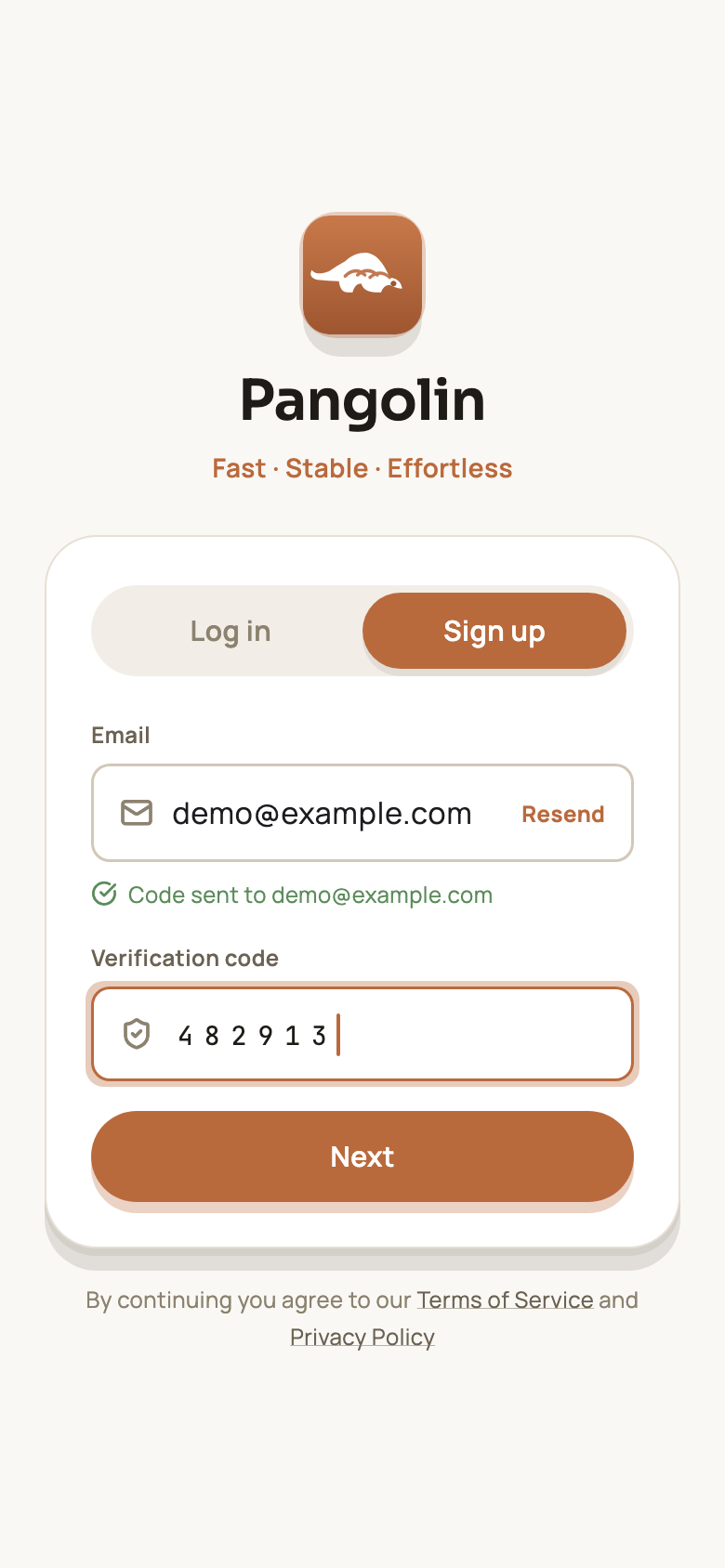
Step 1: Email and verification code
- Switch to Sign up at the top of the sign-in screen;
- Enter your email and tap Send code next to it;
- Check your inbox, type the 6-digit code into the Verification code field and tap Next.
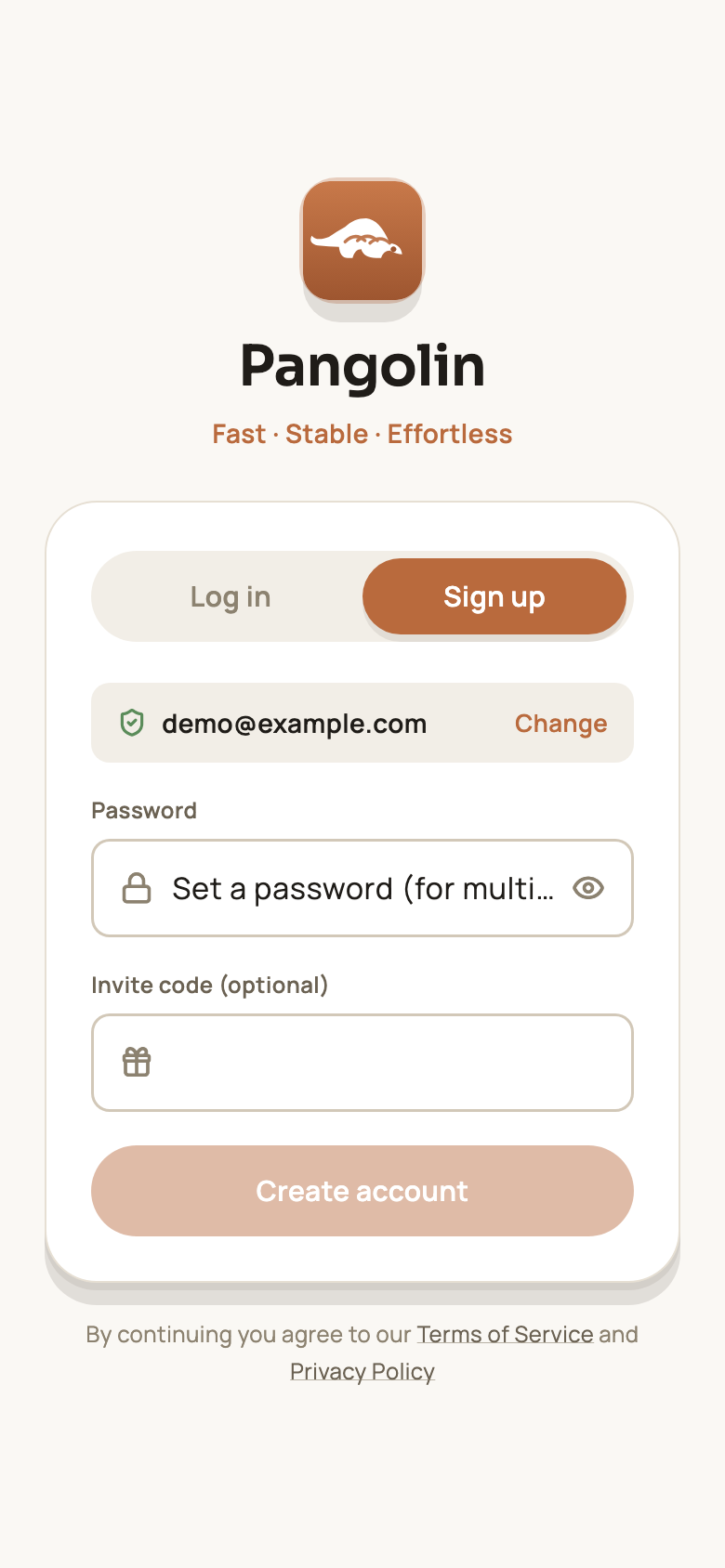
Step 2: Set a password
- Choose a password (at least 8 characters) — you’ll use it to sign in on your other devices;
- If a friend gave you an invite code, enter it under Invite code (optional) — you both get a reward;
- Tap Create account.
Your new account automatically gets 7 days of Pro, free, with every feature unlocked.
Log in
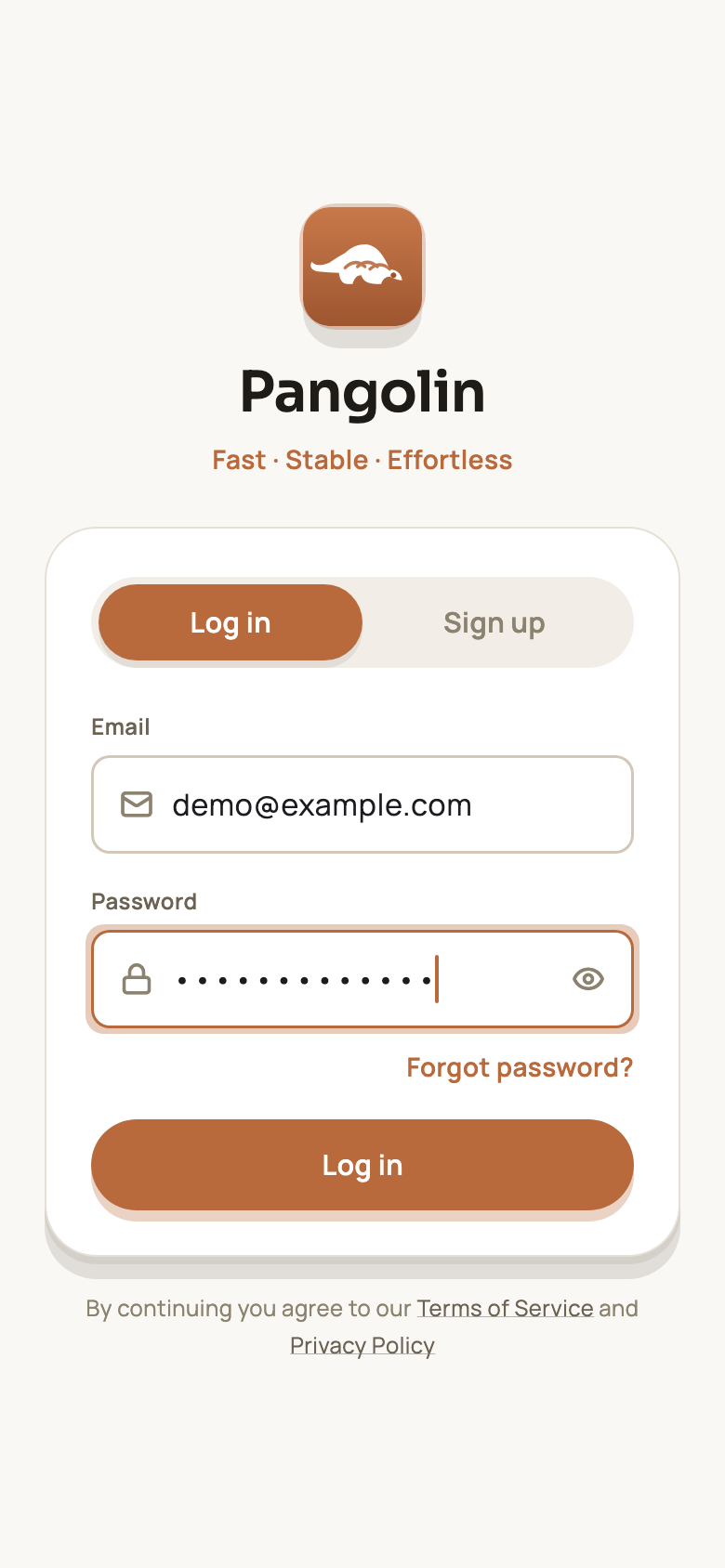
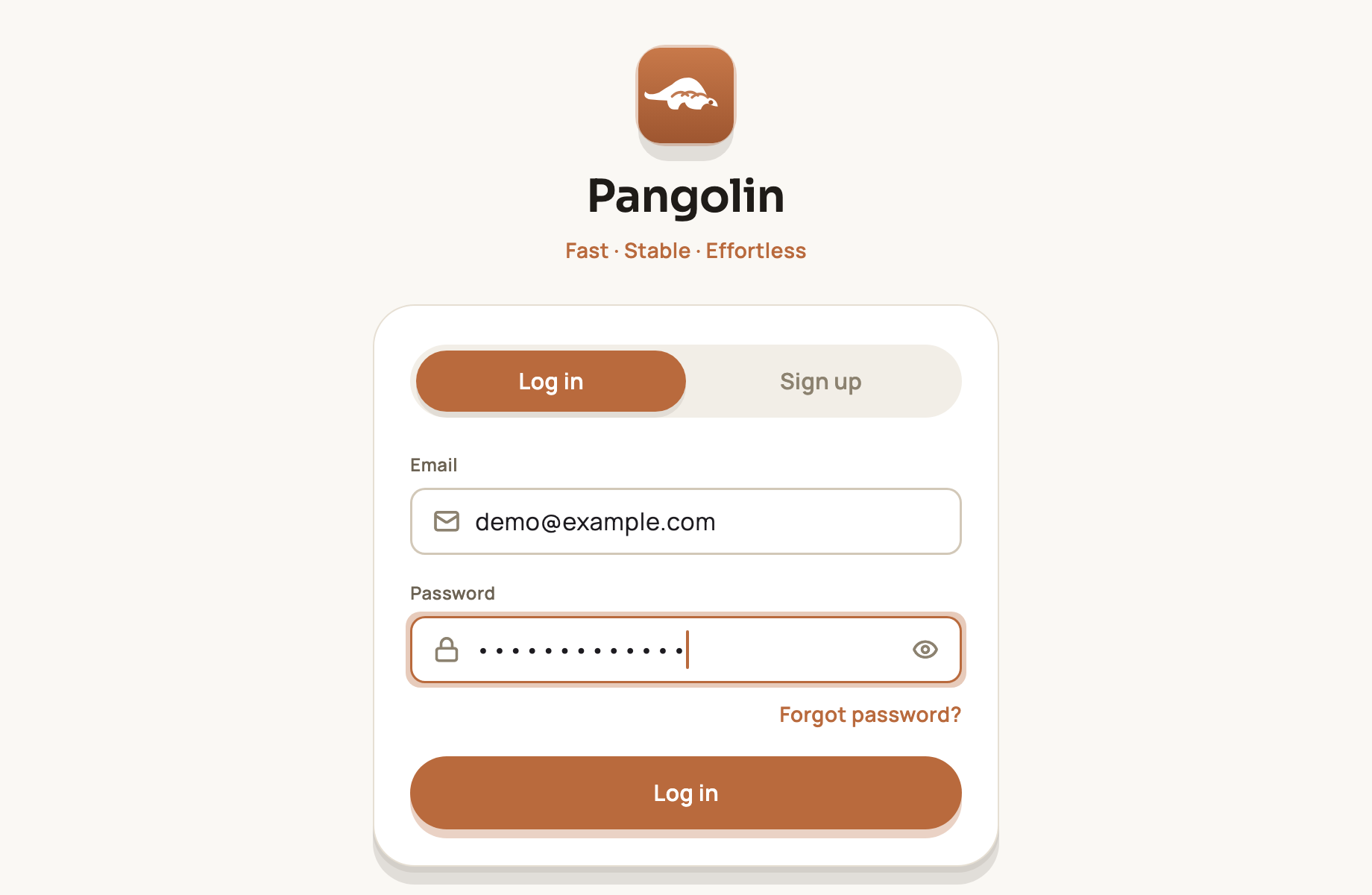
Enter your email and password on the sign-in screen and tap Log in. You can sign in to the same account on several devices — 3 on the Pro plan.
Forgot your password
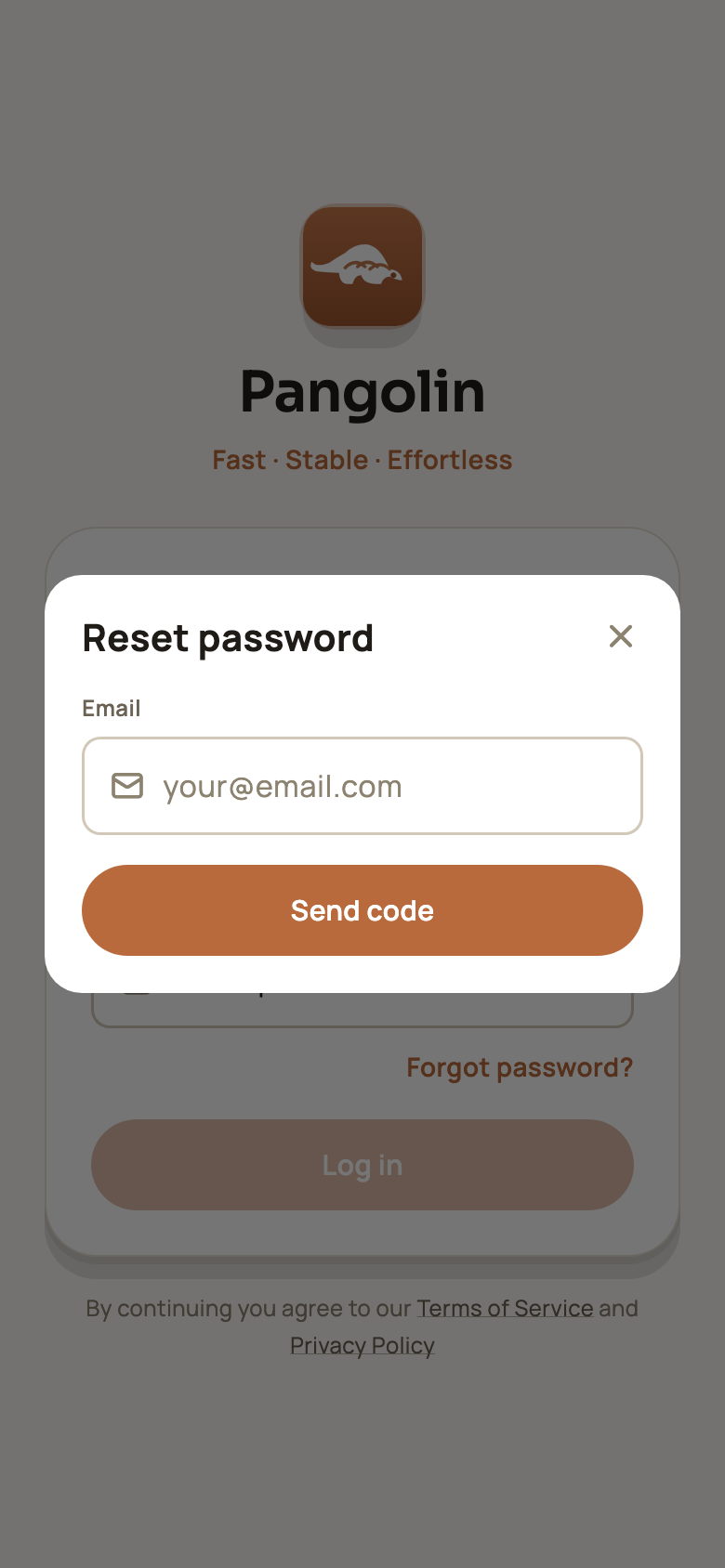
Tap Forgot password? under the password field. In the Reset password screen, enter your account email, tap Send code, then enter the code and choose a new password. Sign in with the new password afterwards.
Change your password or email
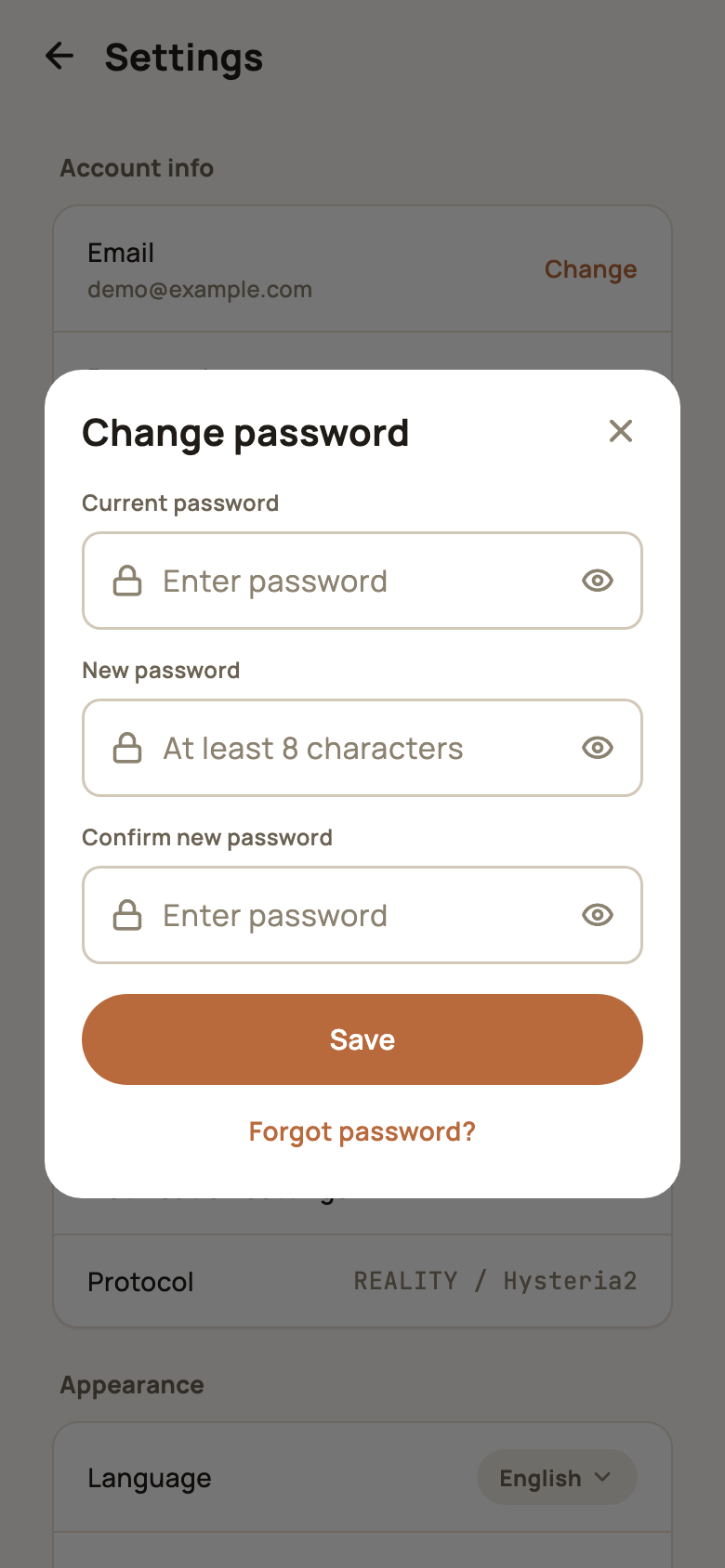
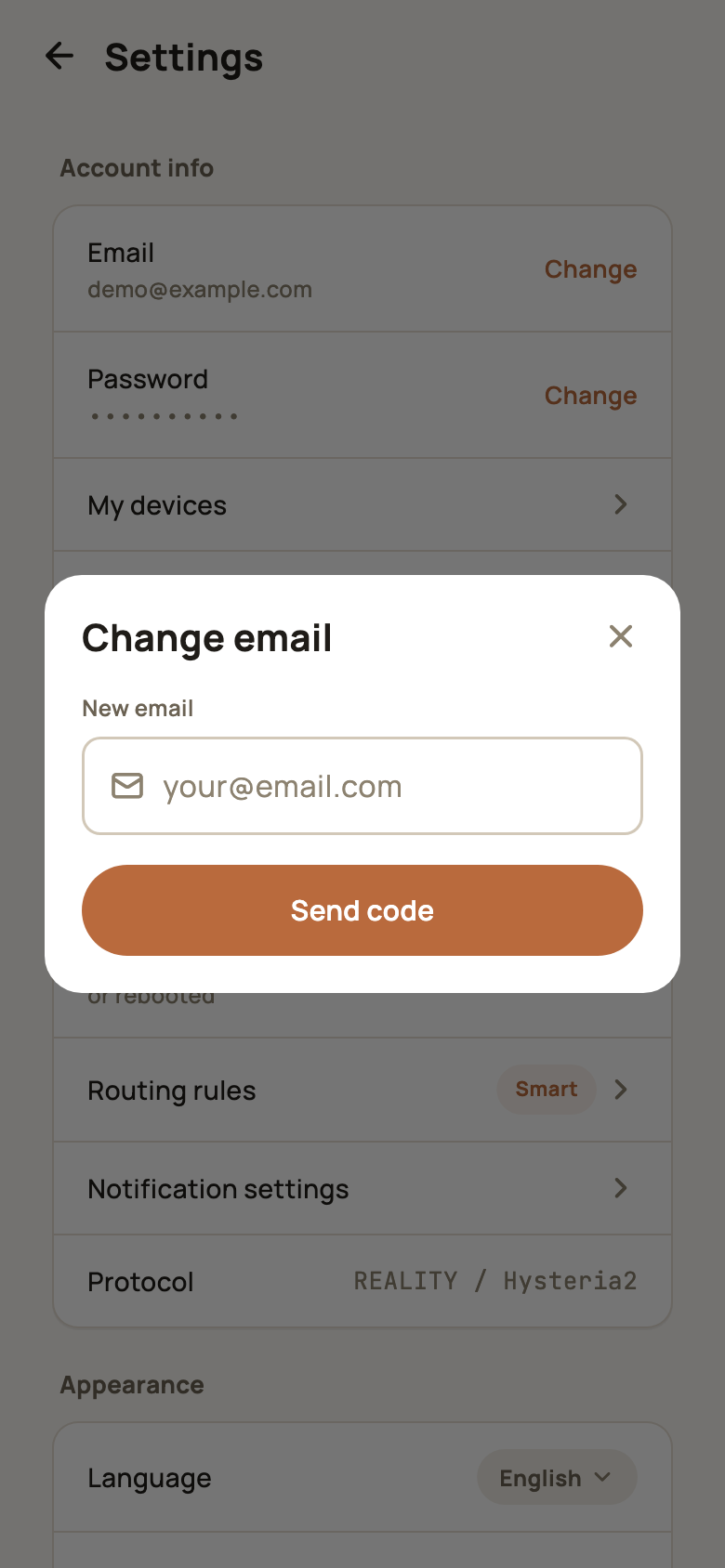
Once signed in, go to Account → Settings. Under Account info:
- Password → Change: enter your current password and your new one twice, then tap Save;
- Email → Change: enter the new address, tap Send code and verify it. From then on, sign in with the new email.
Manage signed-in devices
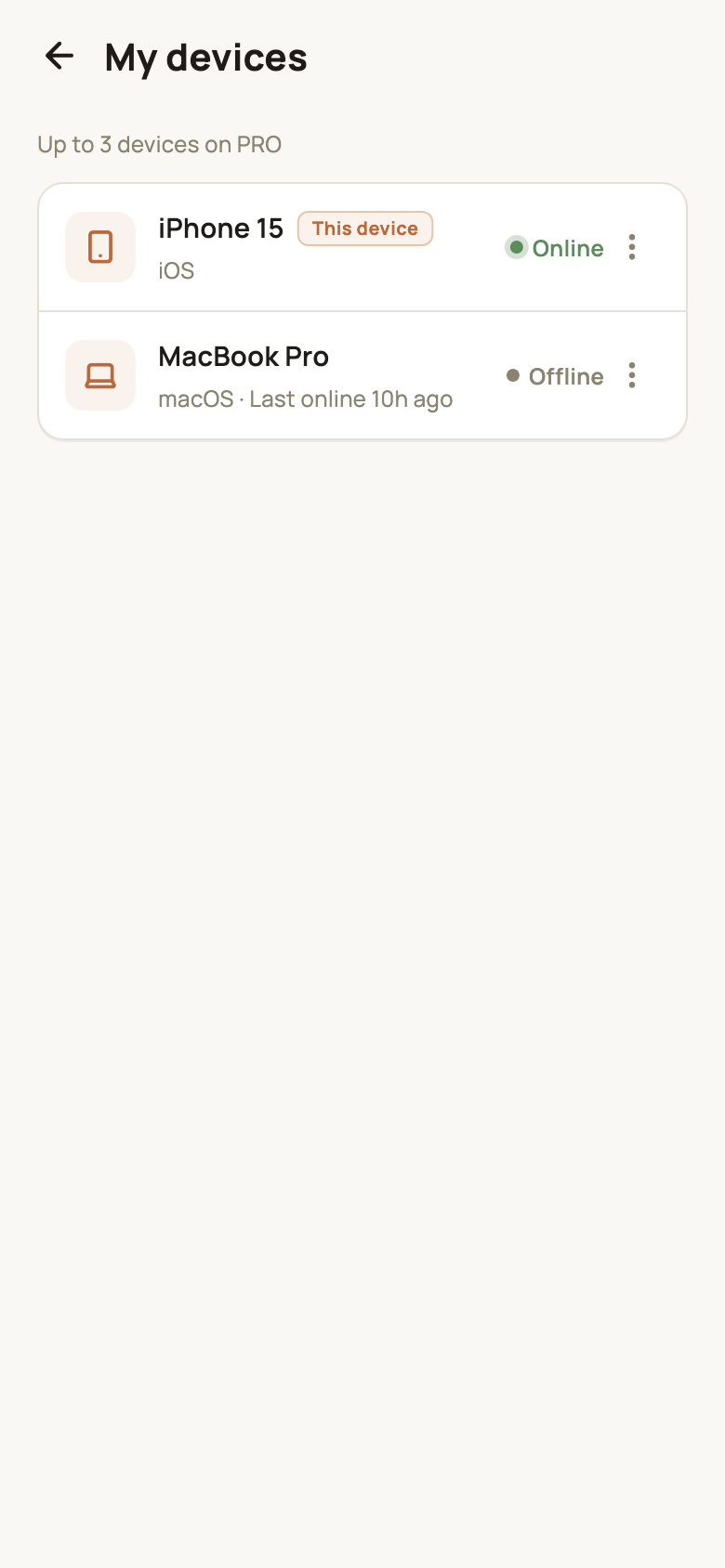
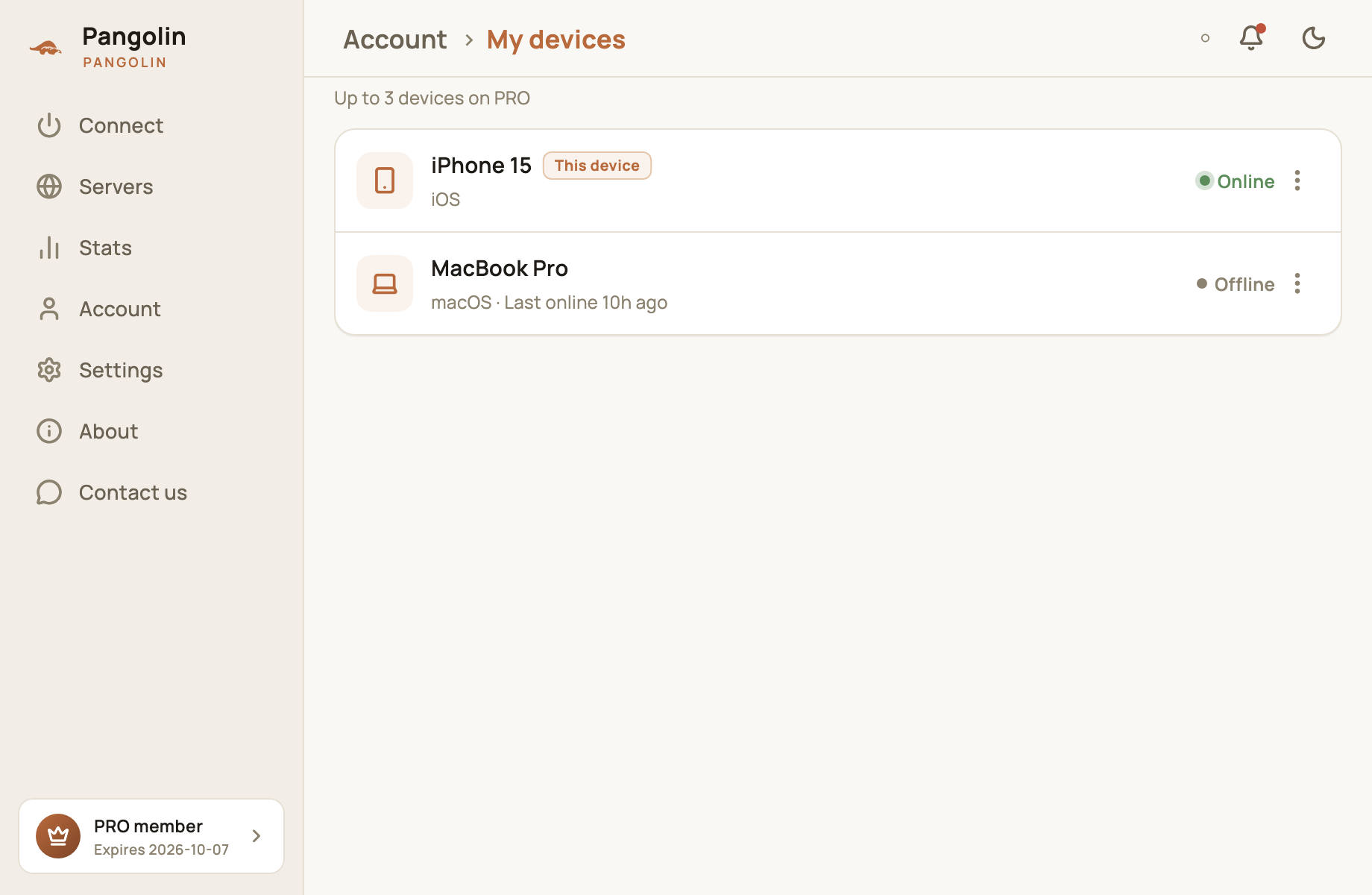
Settings → My devices lists every device that has signed in to your account:
- The device you’re using is marked This device;
- Each device shows whether it’s Online or Offline, and offline devices show when they were last online;
- Tap ⋮ next to a device to:
- Rename it to something easy to recognize;
- Force logout: sign it out — it stays in the list but has to sign in again;
- Clear login info: remove it from the list entirely.
Got a new phone, or lost one? Open My devices on another device and choose Clear login info for the old one. It can no longer use your account.
If this device gets signed out from another device, the app tells you This device was signed out. Just sign in again.
Two-step verification (optional)
Two-step verification adds a second lock to your account: even if someone learns your password, they can’t sign in without the code from your phone.
Turn it on: two places, pick either
- In the app: Settings → Two-step verification (the row shows the current status: Off / On);
- On the web user center: the Security page ( https://pangolin.yanmeiai.com/user/security/ ).
Turn it on in the app
- Open Settings → Two-step verification and tap Turn on two-step verification;
- A QR code appears. On desktop (Windows / Mac), scan it with an authenticator app (such as Google Authenticator, Microsoft Authenticator or 1Password) on another device. On a phone (iPhone / Android), tap Add to authenticator to add the account straight to the authenticator app on that phone; if none is installed, you’ll be told to copy the key and add it manually;
- You can also tap Copy key and paste the Key into your authenticator by hand;
- Enter the 6-digit code your authenticator shows and tap Verify and turn on;
- Once only, 10 one-time recovery codes are shown. Tap Copy all to keep them; on Windows and Mac you can also tap Save as file. When they are safe, tap I have saved them. If you try to leave while the codes are on screen, the app asks you to confirm you’ve saved them. Each recovery code works once.
Turn it on in the web user center
- On the Security page, click Turn on two-step verification;
- Click Click to show QR code to reveal the QR code (it’s hidden by default) and scan it with an authenticator app — or type in the Manual key shown on the page;
- Enter the 6-digit code your authenticator shows and click Confirm & enable;
- Once only, the page shows 10 one-time recovery codes (format
xxxx-xxxx). Click Copy all or Download .txt (saved aspangolin-recovery-codes.txt), then click I’ve saved them. Each recovery code works once.
The second step when you sign in
On the web and in the app, after your password, enter the 6-digit code from your authenticator, or a recovery code. A wrong code can be retried (up to 5 times); after that, or after about 5 minutes, you’re sent back to enter your password again. After 10 wrong codes within 15 minutes, the account is temporarily locked for 15 minutes.
Accounts with two-step verification on need app v1.2.27 or later; older versions show “please update the app”.
Recovery codes left
Once it’s on, both the app’s Two-step verification page and the web Security page show how many recovery codes you have left; when they run out, the app shows a red hint: “No recovery codes left. Please regenerate”. Tap Regenerate recovery codes and enter a 6-digit code to get a new set; the old ones stop working.
Turn it off
On the app’s Two-step verification page or the web Security page, tap Turn off two-step verification and enter a 6-digit code or a recovery code.
If you lose your phone
- You have recovery codes: sign in with one, then turn two-step verification off in the app’s Two-step verification page or on the web Security page (a recovery code is accepted there too) and turn it on again with your new phone;
- You have no recovery codes: email pangolin@yanmeiai.com from the email address on your account. After we verify your identity manually, support will reset two-step verification for you.
Tip: save your recovery codes in a password manager or print them, and keep them apart from your phone.
Sign out
Go to Settings → Account info and tap Sign out. Your membership and settings live in your account, so everything comes back when you sign in again.
FAQ
I didn't get the verification code.
Check your spam folder first — some providers take a minute or two to deliver. If it still hasn't arrived, tap Resend or sign up with a different email.
Can I use the account I created on my phone on my computer?
Yes. One account works on every platform — just sign in on your computer with the same email and password.
Where do I enter an invite code?
There's an "Invite code (optional)" field at the bottom of step 2 of sign-up, where you set your password. If you downloaded the app from a friend's link, it may already be filled in.
Don't have Pangolin yet?
Available for iPhone / iPad, Mac, Windows and Android. New accounts get a free 7-day Pro trial.
Download the app