Contents
Usage stats and notifications
See your data and connection time for the last 30 days, 7 days and today on Pangolin's Stats screen, filter by device, and keep up with credits, updates and offers in Notifications.
Usage stats
The Stats screen shows how much data and time your account has used.
- Phone: Stats in the bottom bar;
- Desktop: Stats in the sidebar.
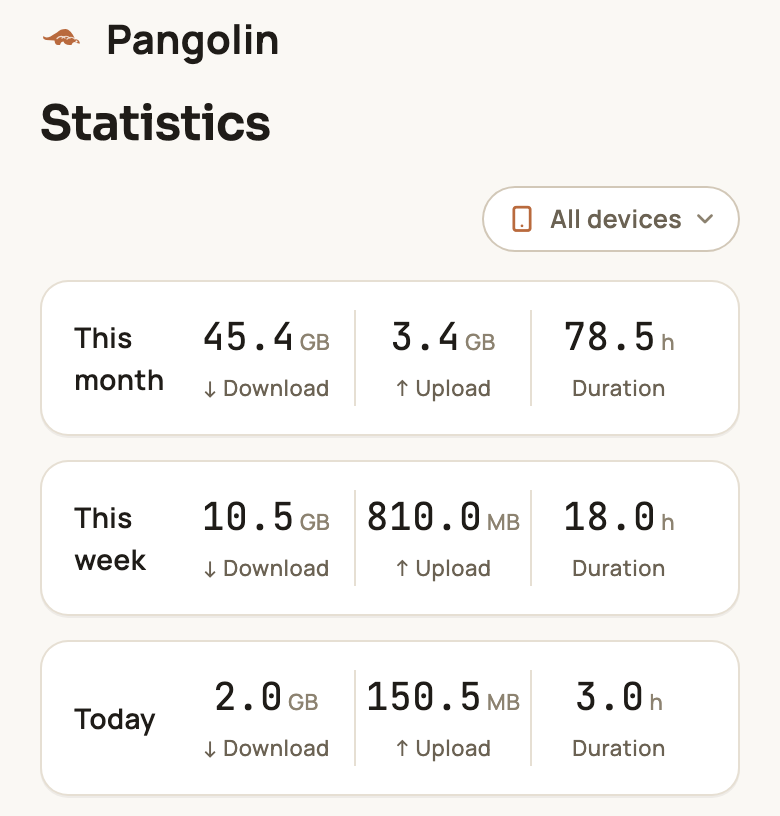
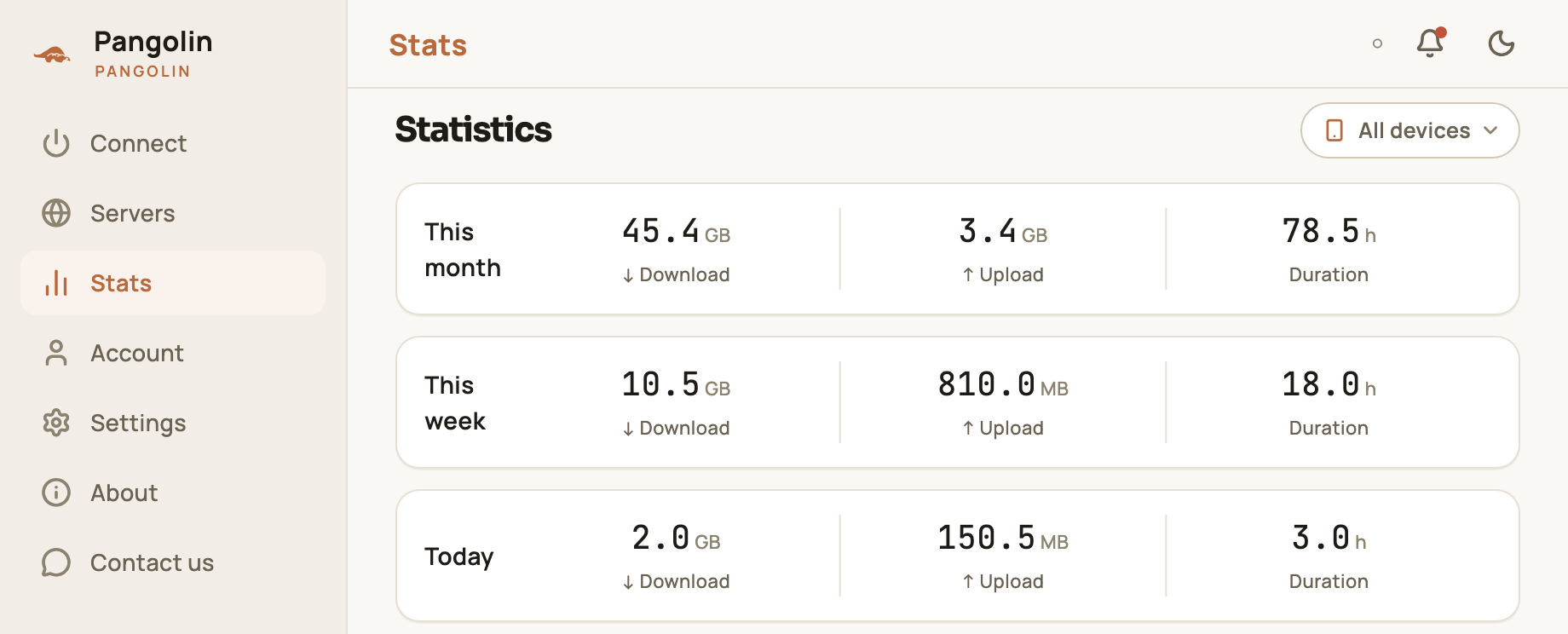
The three cards cover:
| Card | Period |
|---|---|
| This month | The last 30 days |
| This week | The last 7 days |
| Today | Today (by UTC date, which starts at 08:00 Beijing time) |
Each card shows Download (data received), Upload (data sent) and Duration (hours connected). Anything under 1 GB is shown in MB. Below the cards, the Last 2 weeks chart plots your total data per day, so you can spot your busy days.
By device: tap All devices in the top-right corner to pick a single device — the cards and chart then count only that device. Switch back to All devices to see your whole account.
Stats lag slightly: they update about once a minute. On a phone, pull down on the screen to refresh right away.
Pro includes 100 GB of high-speed data a day; the free plan includes 500 MB a day across all devices — see Free plan limits.
Notifications
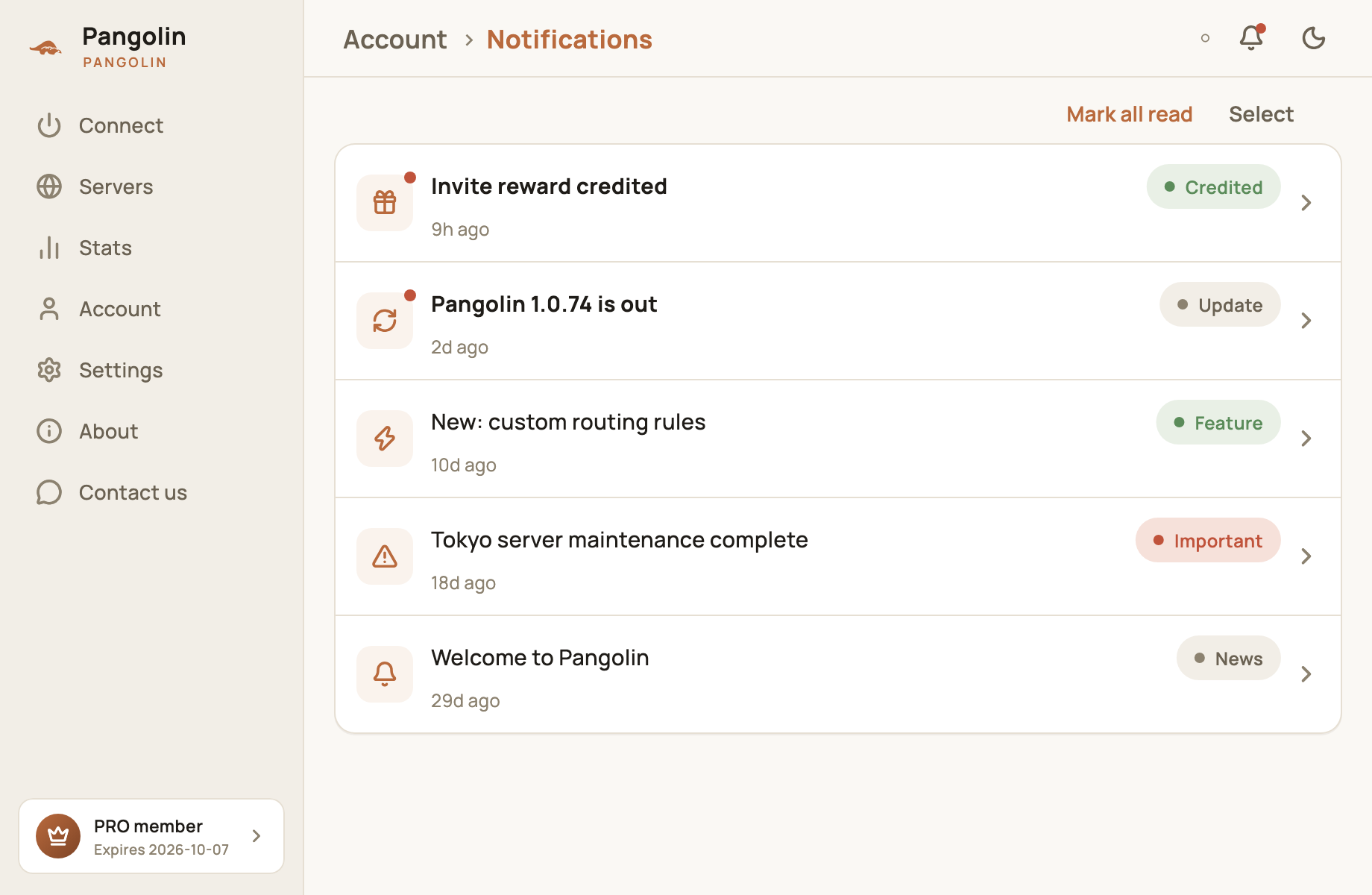
Pangolin uses notifications to tell you about credited rewards, new versions, new features, server maintenance and special offers.
Where to find them:
- Phone: Account → Notifications, or the bell in the top-right corner of the Account screen;
- Desktop: the bell in the top-right corner of the window.
When you have unread notifications, the bell and the Notifications row show a red dot.
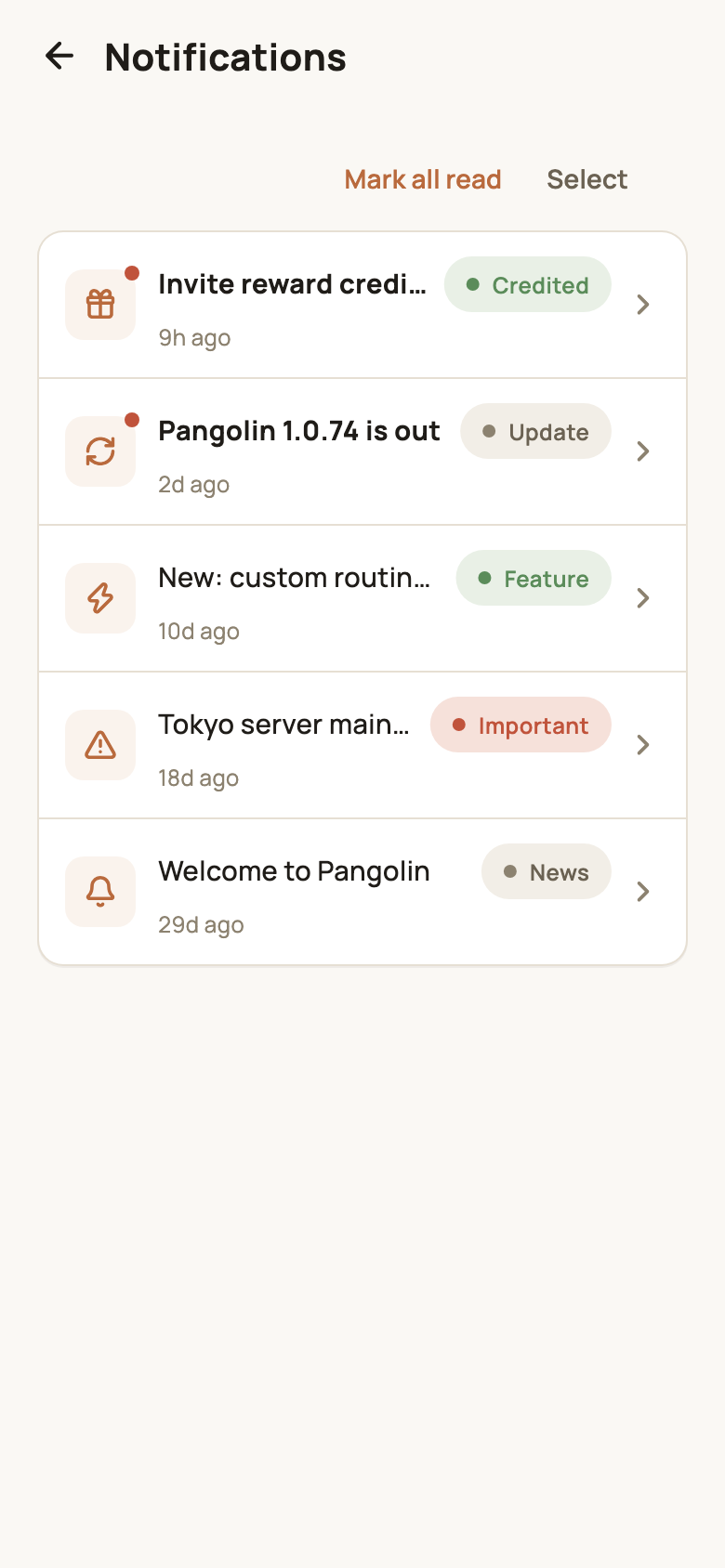
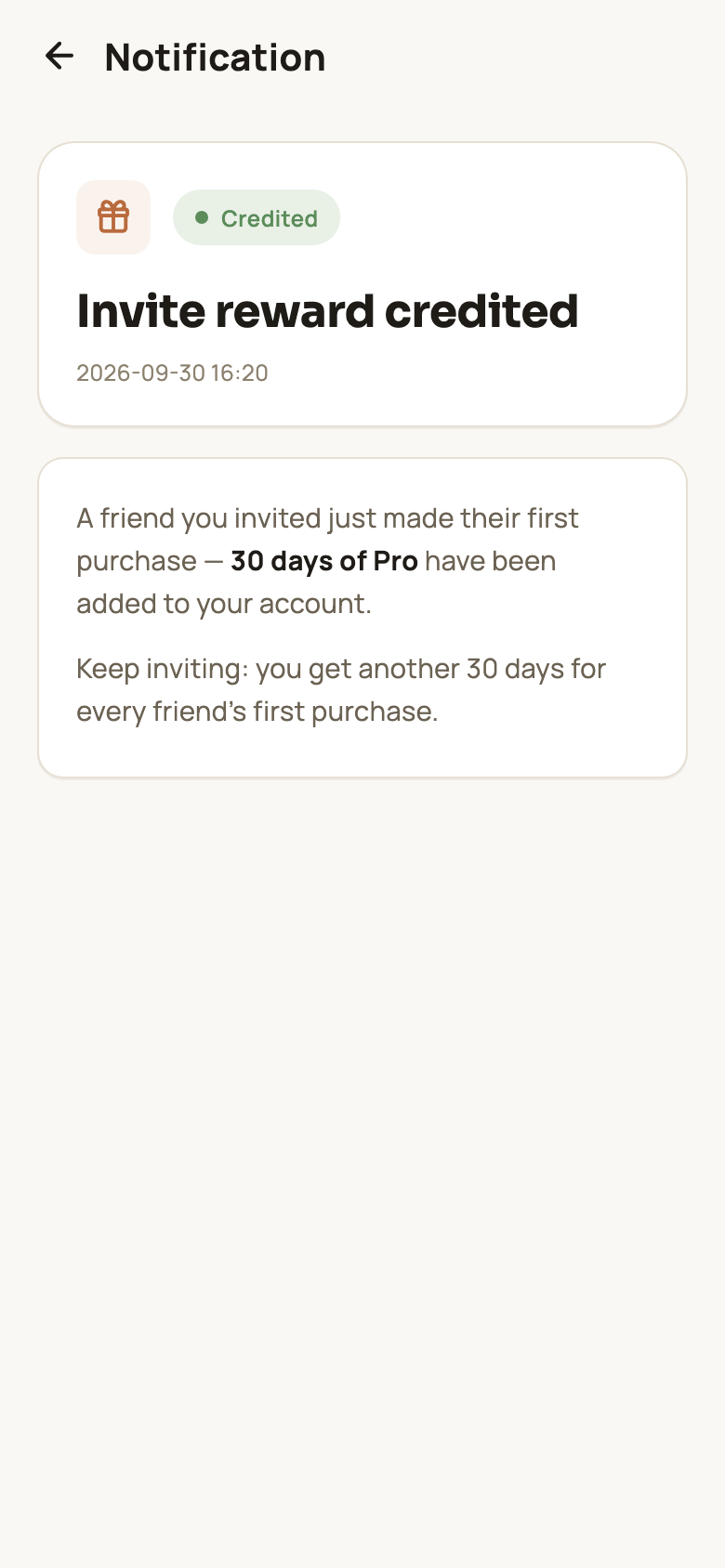
Every notification carries a tag:
| Tag | What it’s about |
|---|---|
| Credited | Invite rewards, Pro days or points added to your account |
| Update | A new version is out — the notification has an Update now button |
| Feature | New features |
| Important | Server maintenance, service changes and other things worth knowing |
| Promo | Special offers |
| News | Other announcements |
What you can do:
- Read one: tap it to open it — it’s marked as read as soon as you do. Notifications with an external link have an Open link button at the bottom;
- Mark all read: clears every red dot at once;
- Delete: tap Select to pick several and delete them; on a phone you can also swipe left on a single notification.
Don’t want a certain kind of notification? Turn that category off in Settings → Notification settings — for example, turn off Promo if you don’t want offers. See Settings explained.
FAQ
How often do the stats update?
About once a minute. Data you just used may take a minute or two to appear — pull down on the Stats screen to refresh.
How do I get rid of the red dot on notifications?
Opening a notification marks it as read. You can also tap Mark all read at the top of the list to clear everything at once.
Don't have Pangolin yet?
Available for iPhone / iPad, Mac, Windows and Android. New accounts get a free 7-day Pro trial.
Download the app