Contents
Get started in 3 minutes
Download the app, create an account, allow the network setup and tap Connect — four steps to your first connection.
Pangolin runs on iPhone / iPad, Mac, Windows and Android, and the app looks and works almost the same everywhere. Getting connected for the first time takes four steps.
Step 1: Download the app
Go to the Download section and pick your device:
| Platform | Requirements | How it installs | Guide |
|---|---|---|---|
| iPhone / iPad | iOS / iPadOS 15 or later | Through Apple’s TestFlight | iPhone / iPad |
| Mac | macOS 12 or later | Download a .zip, drag the app into Applications | Mac |
| Windows | Windows 10 / 11 | Run the installer | Windows |
| Android | Android 9 or later | Install the APK | Android |
Step 2: Open the app and skim the intro
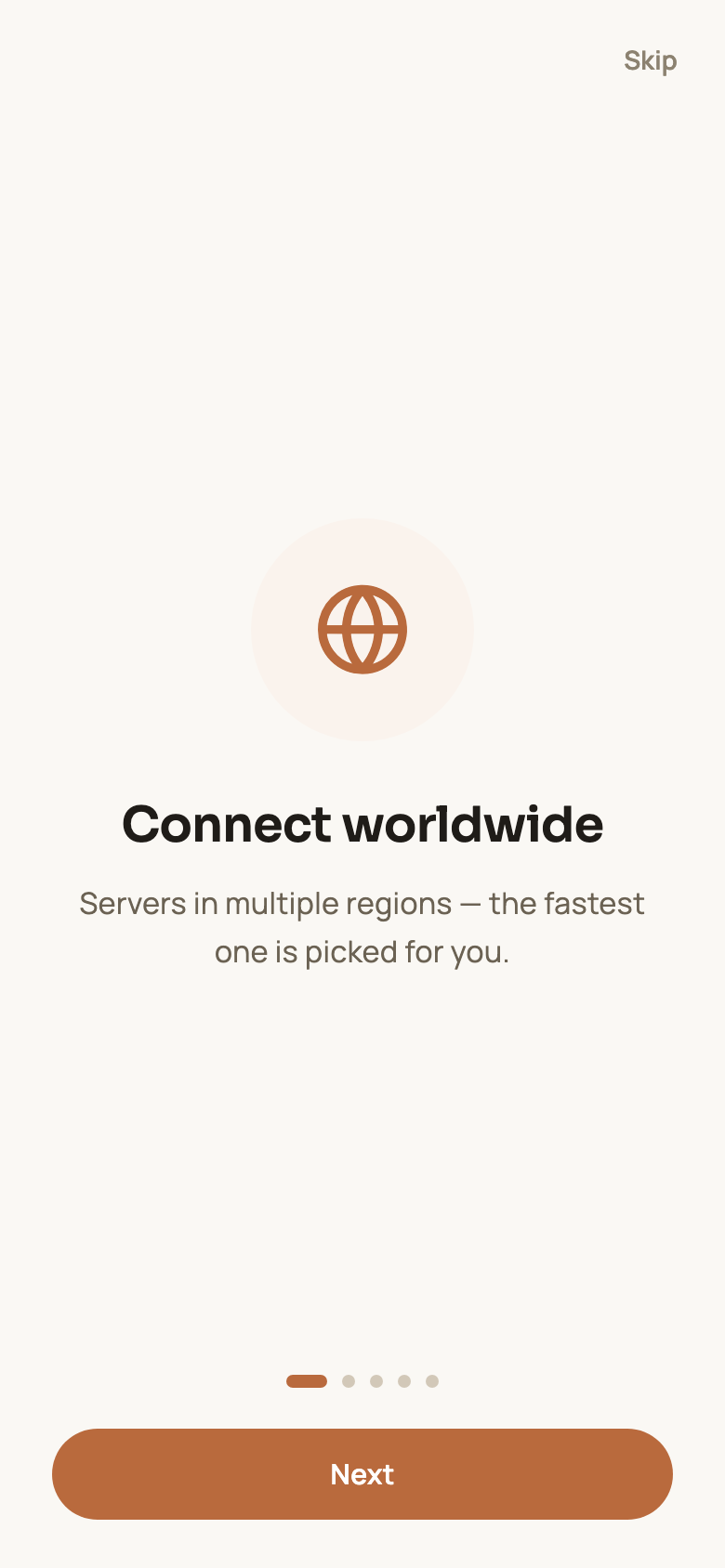
The first time you open Pangolin you’ll see five short intro screens — one-tap connect, smart routing, the free 7-day trial, the network permission and privacy. Swipe through them (or tap Skip in the top-right corner) to reach the sign-in screen. The intro only shows up once.
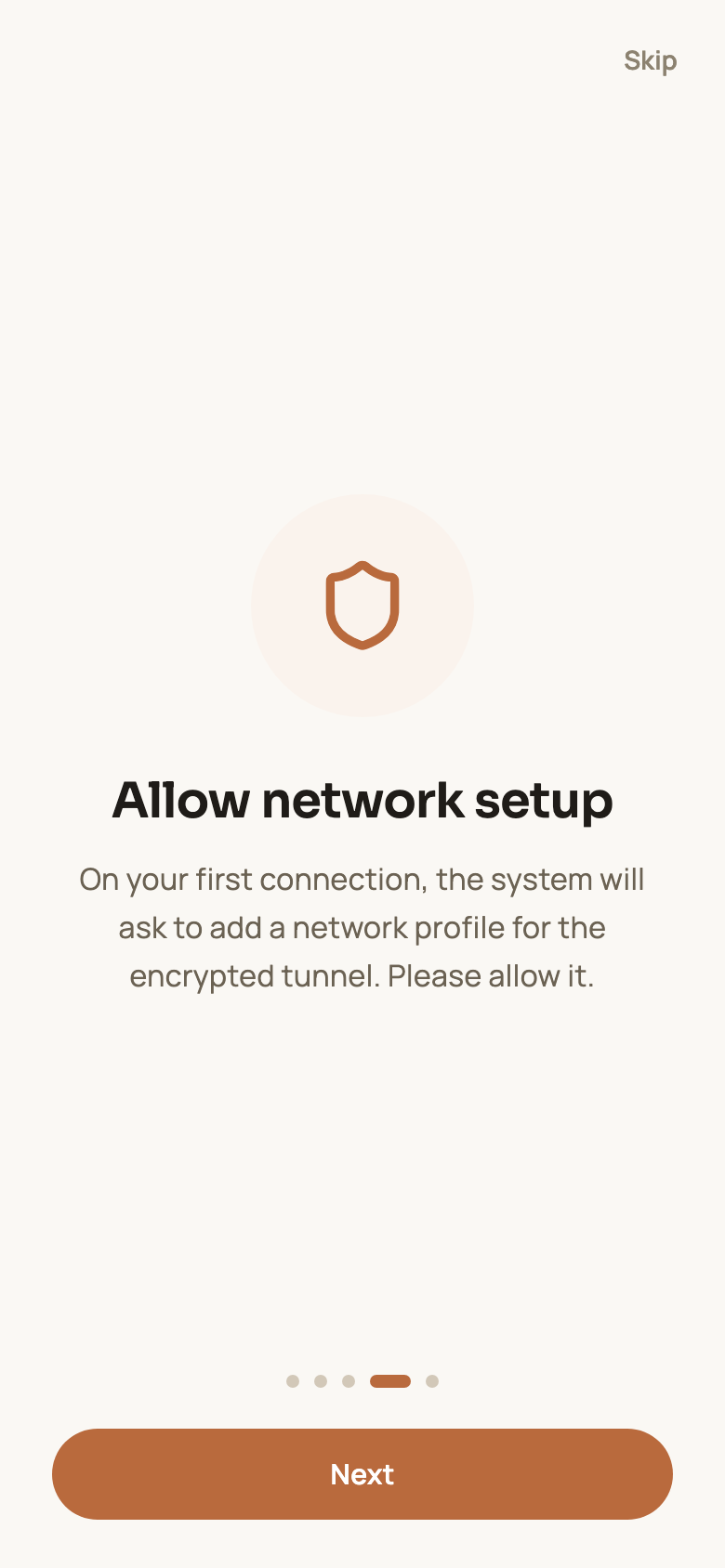
The Allow network setup screen is a heads-up: the first time you connect, your system will ask permission to add a network configuration so Pangolin can build its encrypted tunnel. Every app of this kind needs it — just allow it when asked.
Step 3: Create an account
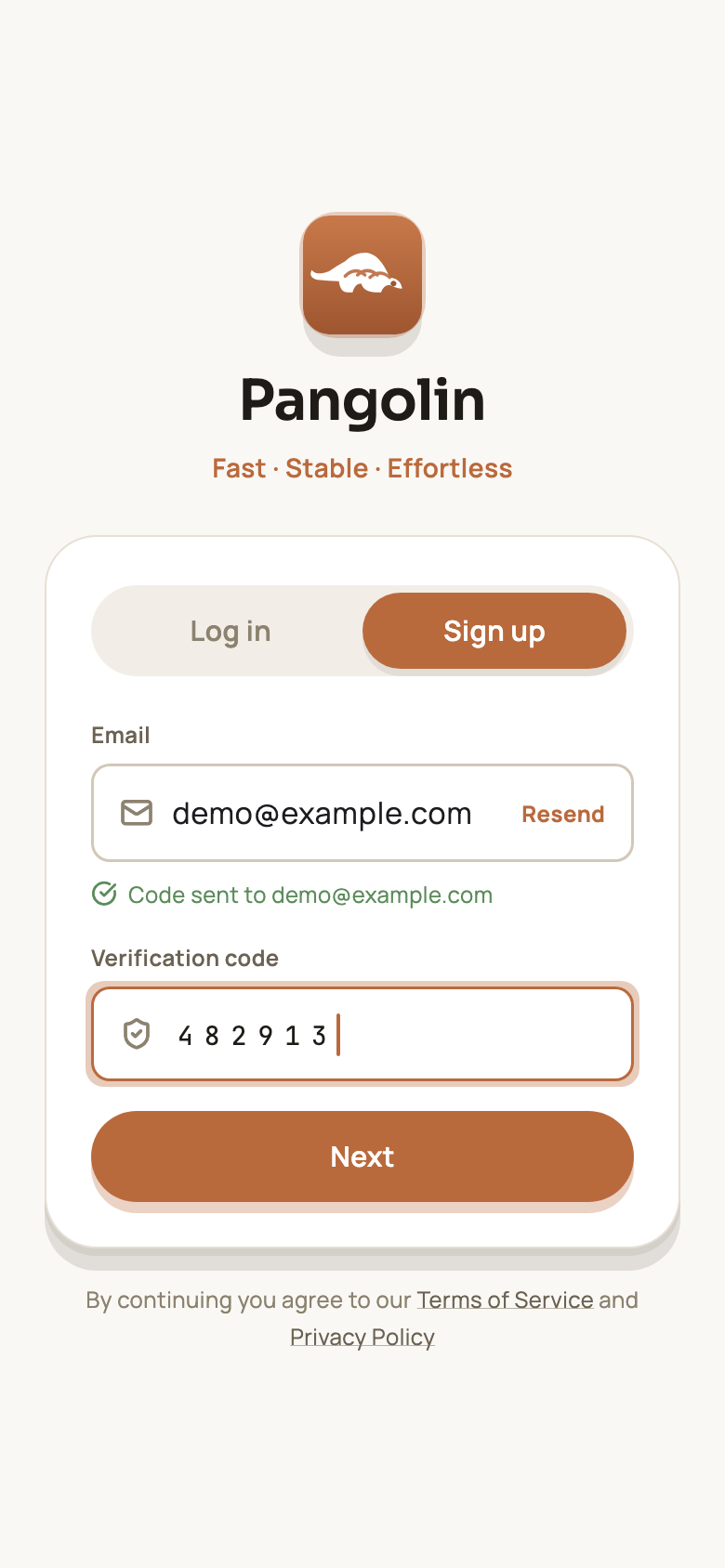
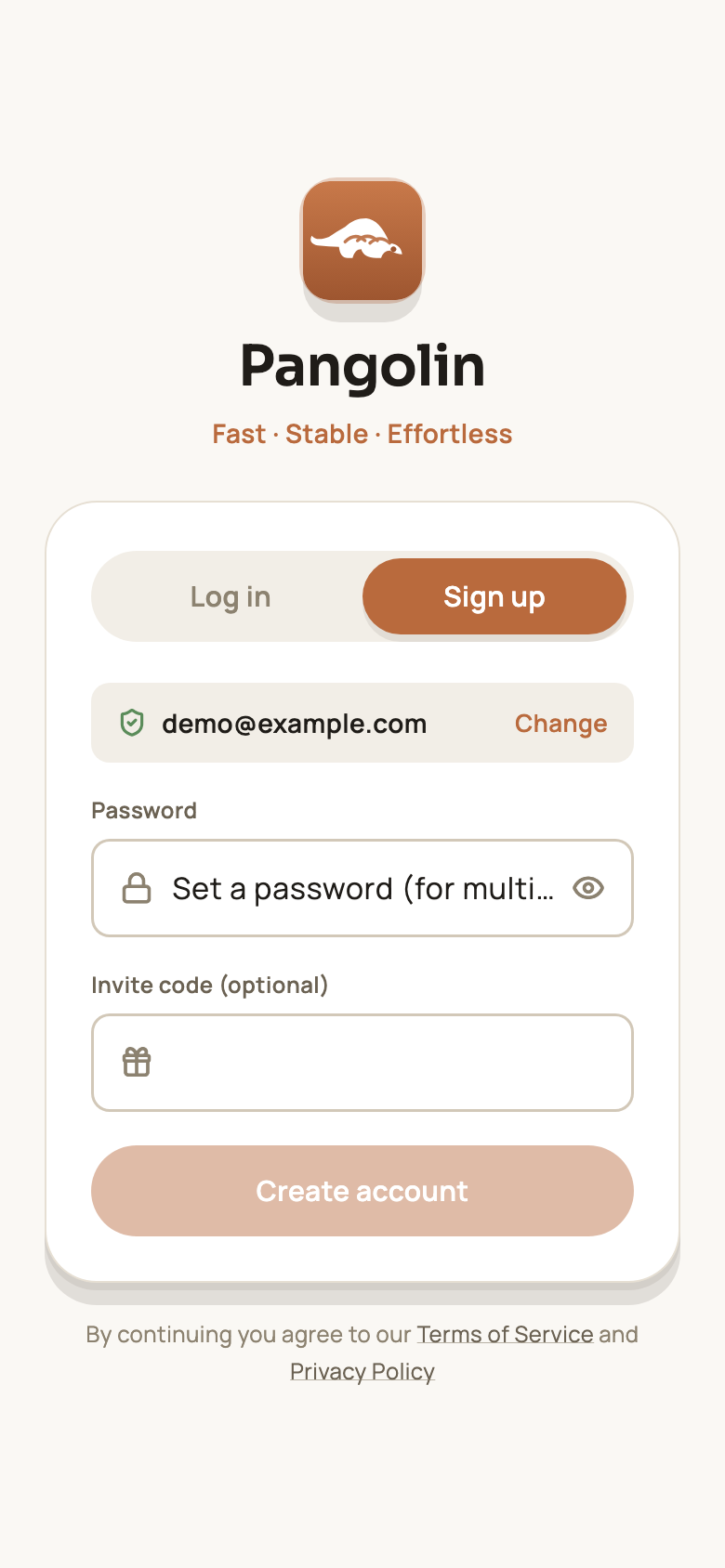
On the sign-in screen, switch to Sign up, enter your email and tap Send code. Type in the 6-digit code from the email, tap Next, then choose a password. That’s it — your new account comes with 7 days of Pro, free.
For everything about signing up, logging in and resetting your password, see Accounts, sign-in and security.
Step 4: Tap Connect
Back on the Connect screen, tap the big button in the middle. On your first connection, your system asks whether to allow Pangolin to add a VPN configuration — tap Allow (on iPhone you may need to enter your passcode or use Face ID).
When the button turns green and reads Connected · Encrypted, you’re all set.
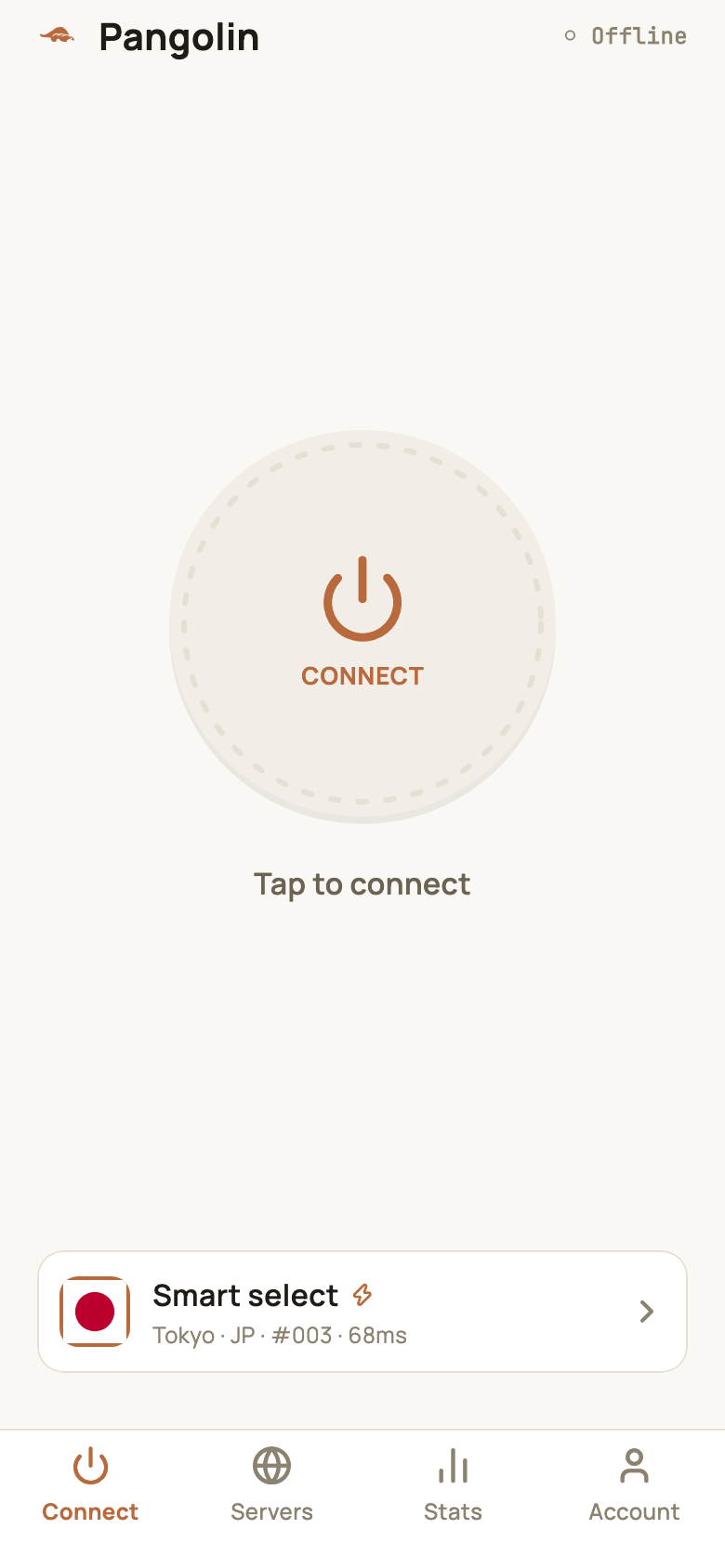
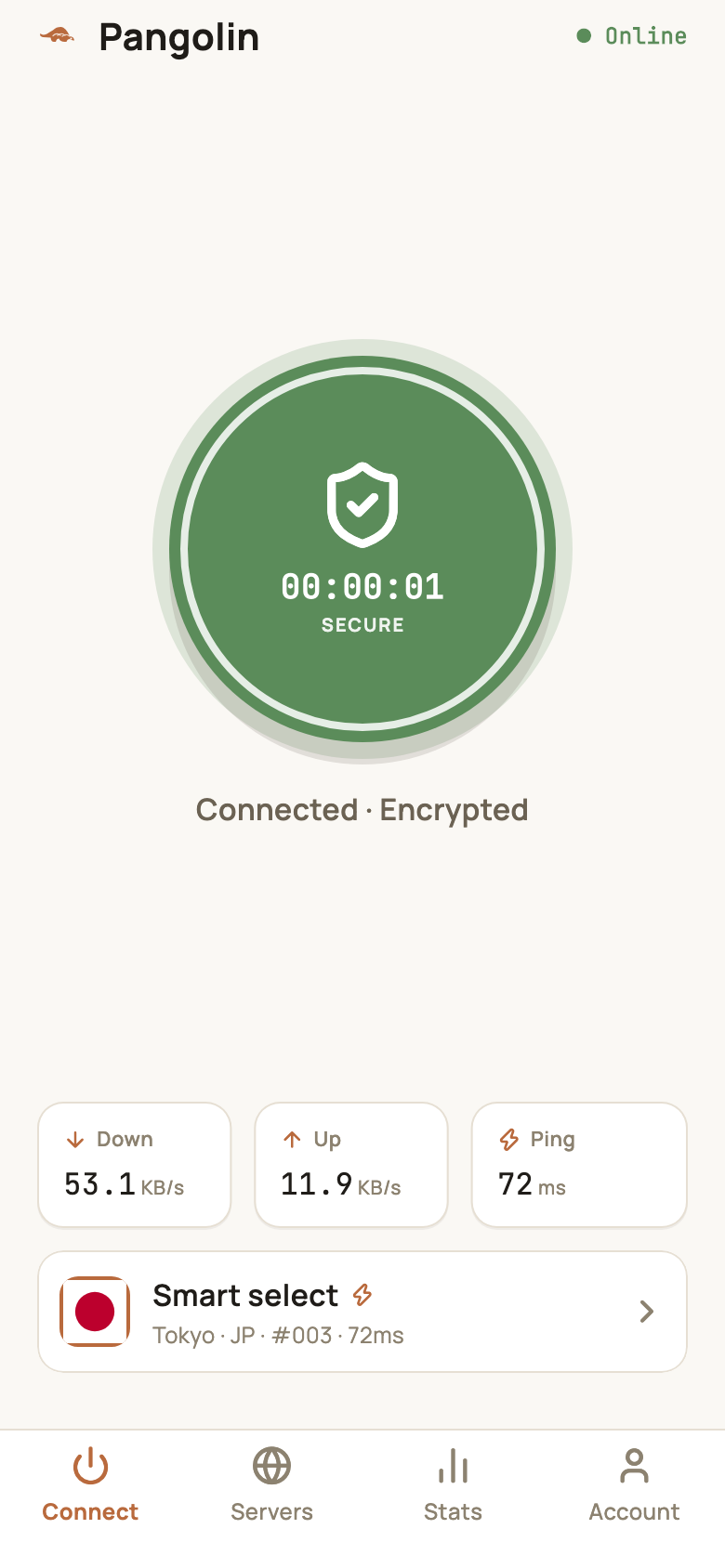
Server selection defaults to Smart select: Pangolin picks the lowest-latency server for your current network, so most of the time you never need to switch by hand.
What’s next
- Pick servers yourself and learn what the numbers on the Connect screen mean: Connecting and switching servers
- Launch at startup, Always-on, smart routing and other settings: Settings explained
FAQ
Do I have to pay to sign up?
No. All you need is an email address. Every new account starts with a free 7-day Pro trial with full access to every feature.
How many devices can I use one account on?
You can sign in on iPhone, iPad, Mac, Windows and Android with the same account. How many devices you can use depends on your plan — 3 on Pro.
Will sites in China get slower while I'm connected?
No. Smart routing is on by default, so sites and apps in mainland China connect directly without going through the tunnel.
Don't have Pangolin yet?
Available for iPhone / iPad, Mac, Windows and Android. New accounts get a free 7-day Pro trial.
Download the app