Contents
Settings explained: what every option does
A walkthrough of every option on Pangolin's Settings screen — account, connection and appearance — plus routing rules, notification settings and the About page.
Where to find Settings:
- iPhone / Android: Account → Settings;
- Mac / Windows: Settings in the sidebar.
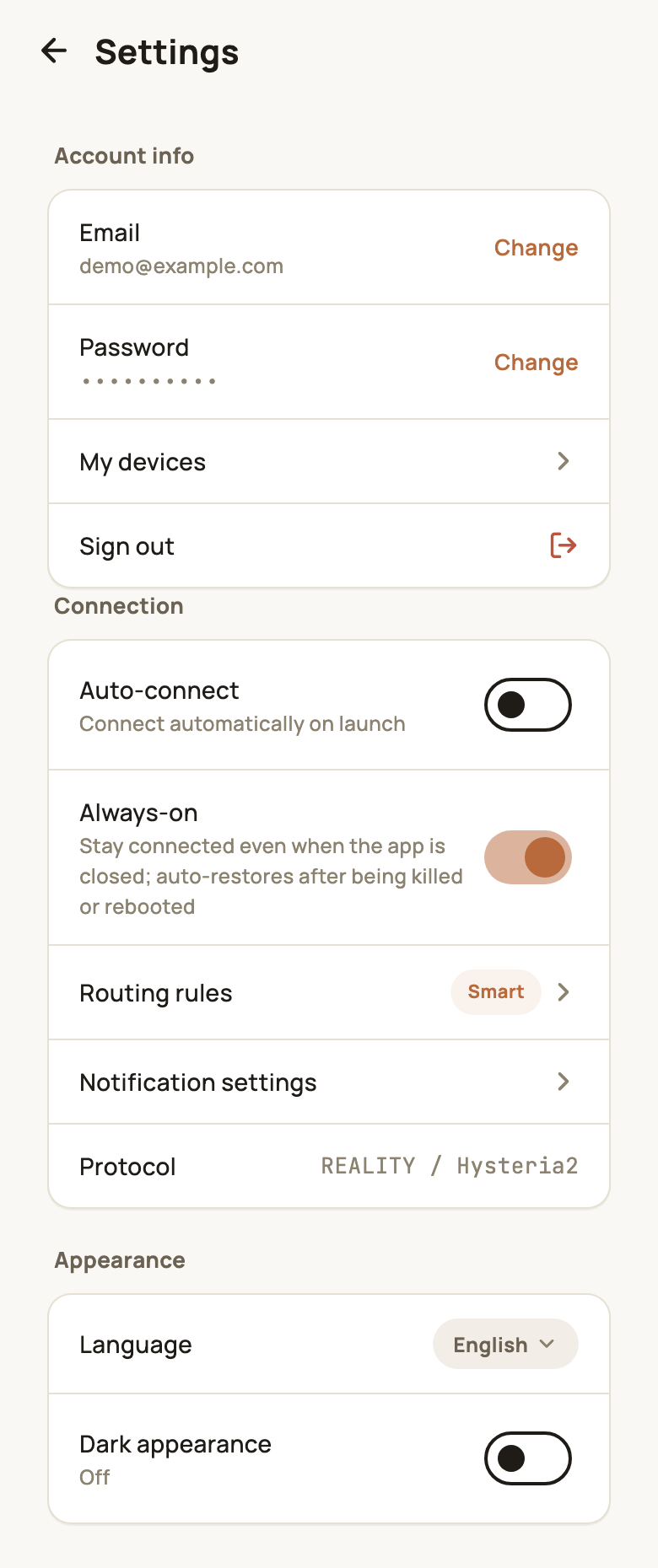
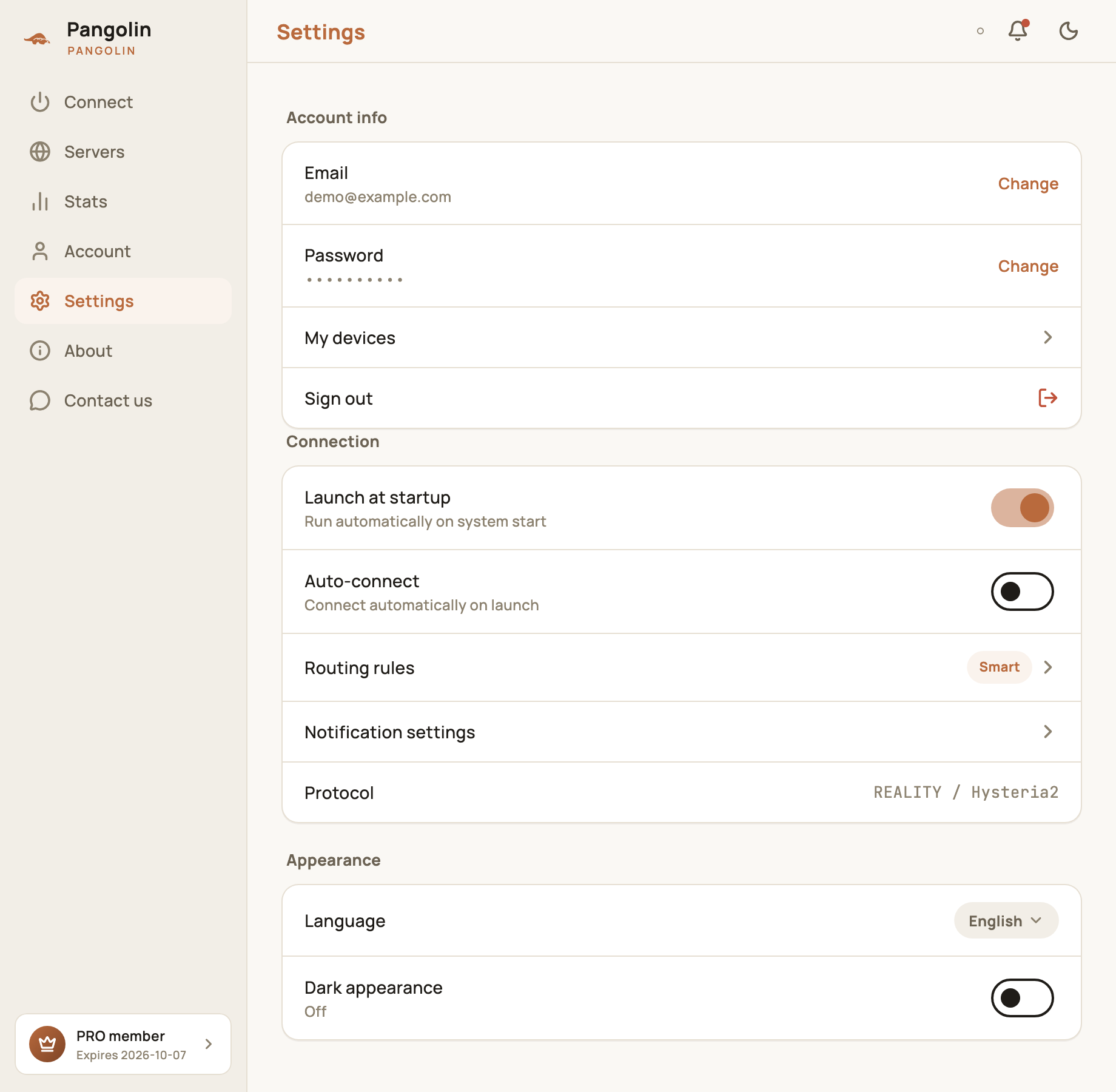
The phone and desktop apps differ slightly: Launch at startup is desktop-only, and Always-on is phone-only.
Account info
| Option | What it does |
|---|---|
| Email · Change | Switch to a different sign-in email (you’ll verify the new one) |
| Password · Change | Set a new password after entering your current one |
| My devices | See, rename or sign out your signed-in devices |
| Sign out | Sign out on this device |
For step-by-step instructions, see Accounts, sign-in and security.
Connection
| Option | Platform | What it does |
|---|---|---|
| Launch at startup | Desktop | Opens Pangolin when you log in to your computer |
| Auto-connect | All | Connects to your last server (or Smart select) as soon as the app opens |
| Always-on | Phone · Pro | Keeps you connected even when the app isn’t open, and reconnects automatically if the system closes the app or the phone restarts. On the free plan it shows an Upgrade button instead |
| Routing rules | All | Decides which sites connect directly and which go through the tunnel; the tag on the right shows the current mode (see below) |
| Notification settings | All | Choose which kinds of notifications you get |
| Protocol | All | The connection protocol in use. For information only — nothing to set |
Want to be connected from the moment you start up? On a computer, turn on both Launch at startup and Auto-connect. On a phone, turn on Always-on. On Android you also need to enable Always-on VPN in the system settings — tapping the option takes you straight there.
Routing rules
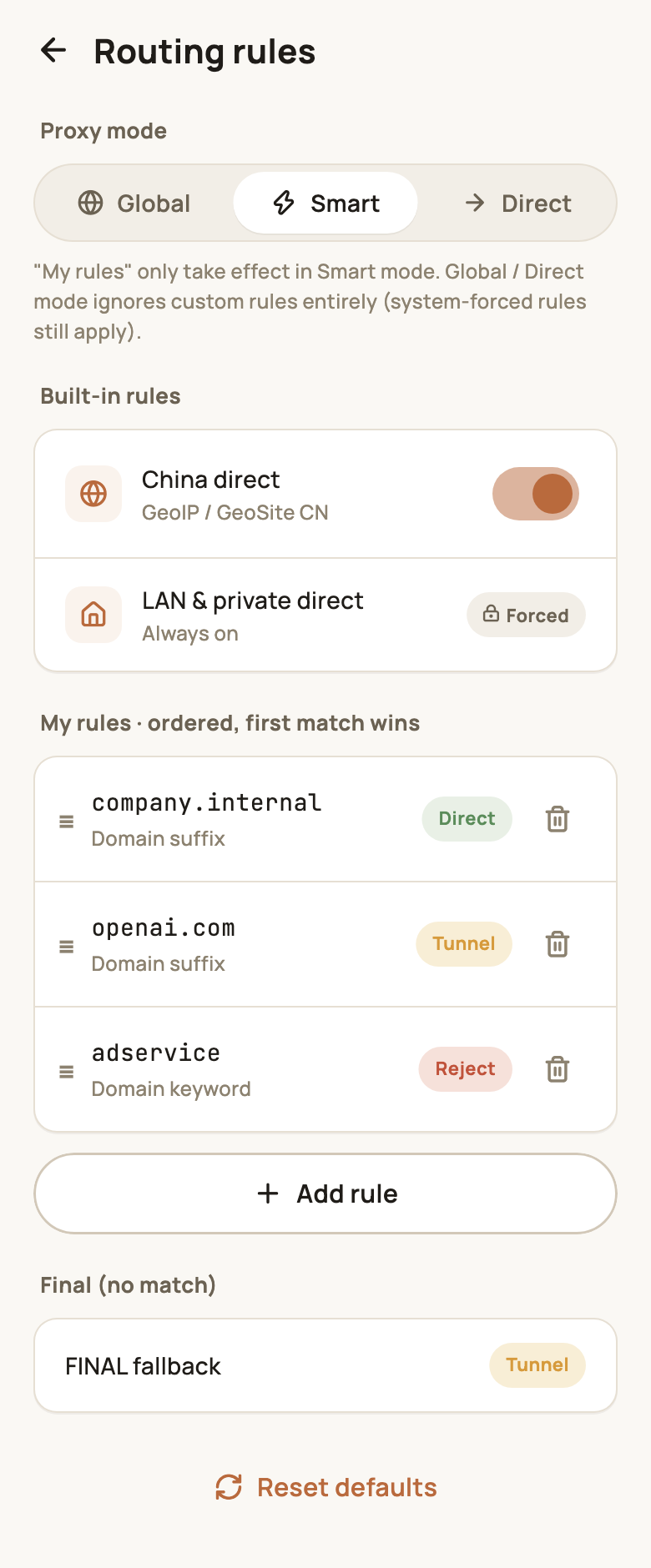
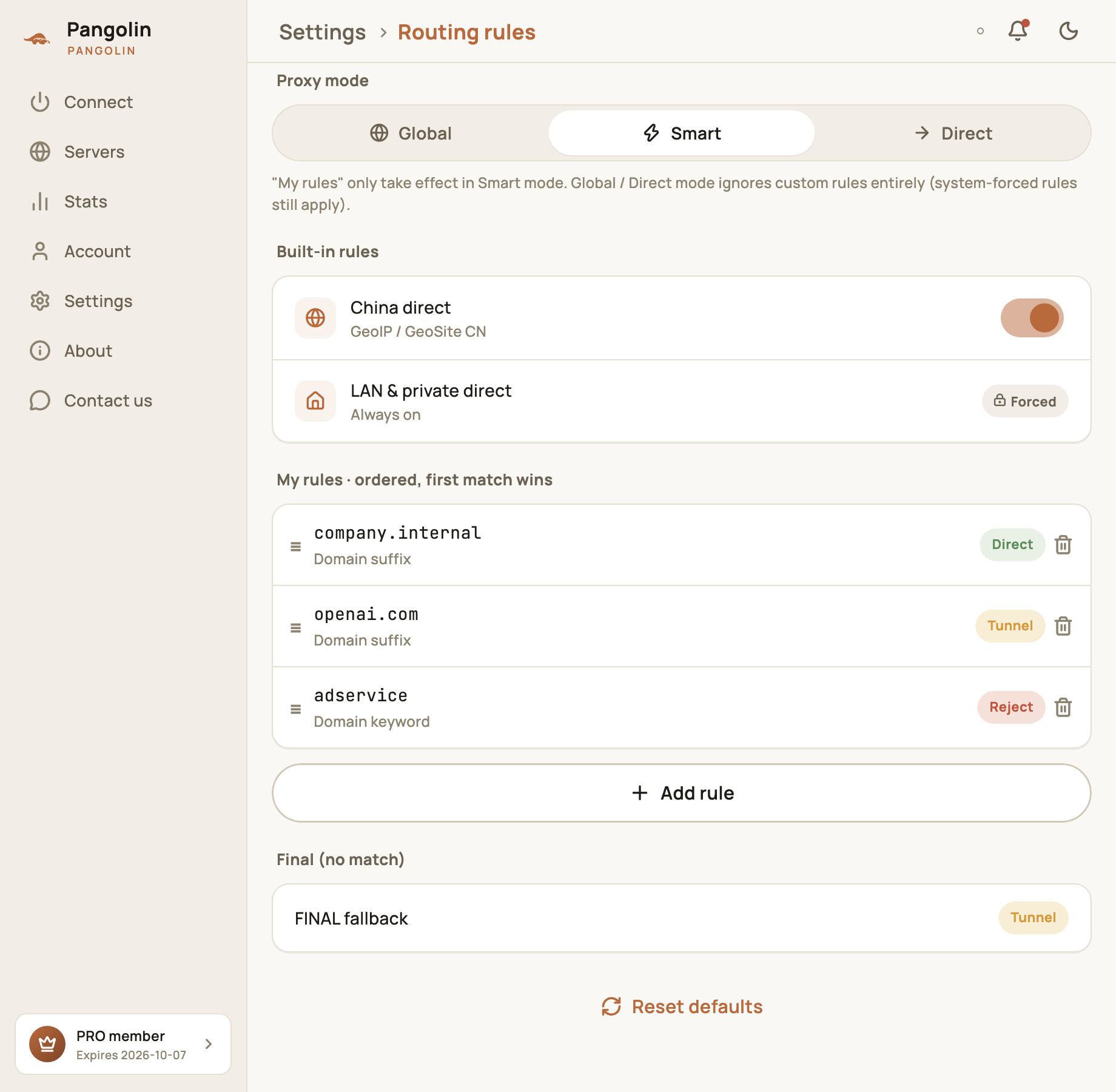
Tap Routing rules to open the rules page. The three proxy modes are at the top:
| Mode | What happens | Best for |
|---|---|---|
| Smart (default) | Sites and apps in mainland China connect directly; overseas services go through the tunnel | Everyday use |
| Global | Everything goes through the tunnel | Temporarily, when an overseas service misbehaves |
| Direct | Nothing goes through the tunnel | Temporarily, when troubleshooting your network |
Rules apply in this order:
- Built-in rules: LAN & private direct is always on and can’t be turned off, so printers, your router’s admin page and other local devices keep working. China direct can be switched on or off;
- My rules: rules you add yourself, checked top to bottom — the first match wins;
- Final (no match): what happens to traffic that matches none of the above.
My rules only apply in Smart mode; Global and Direct ignore them. For adding rules, rule types and examples, see Routing rules in depth.
Appearance
| Option | What it does |
|---|---|
| Language | Six interface languages: 简体中文, English, 日本語, 한국어, Русский, Español |
| Dark appearance | Switch between dark and light mode |
Notification settings
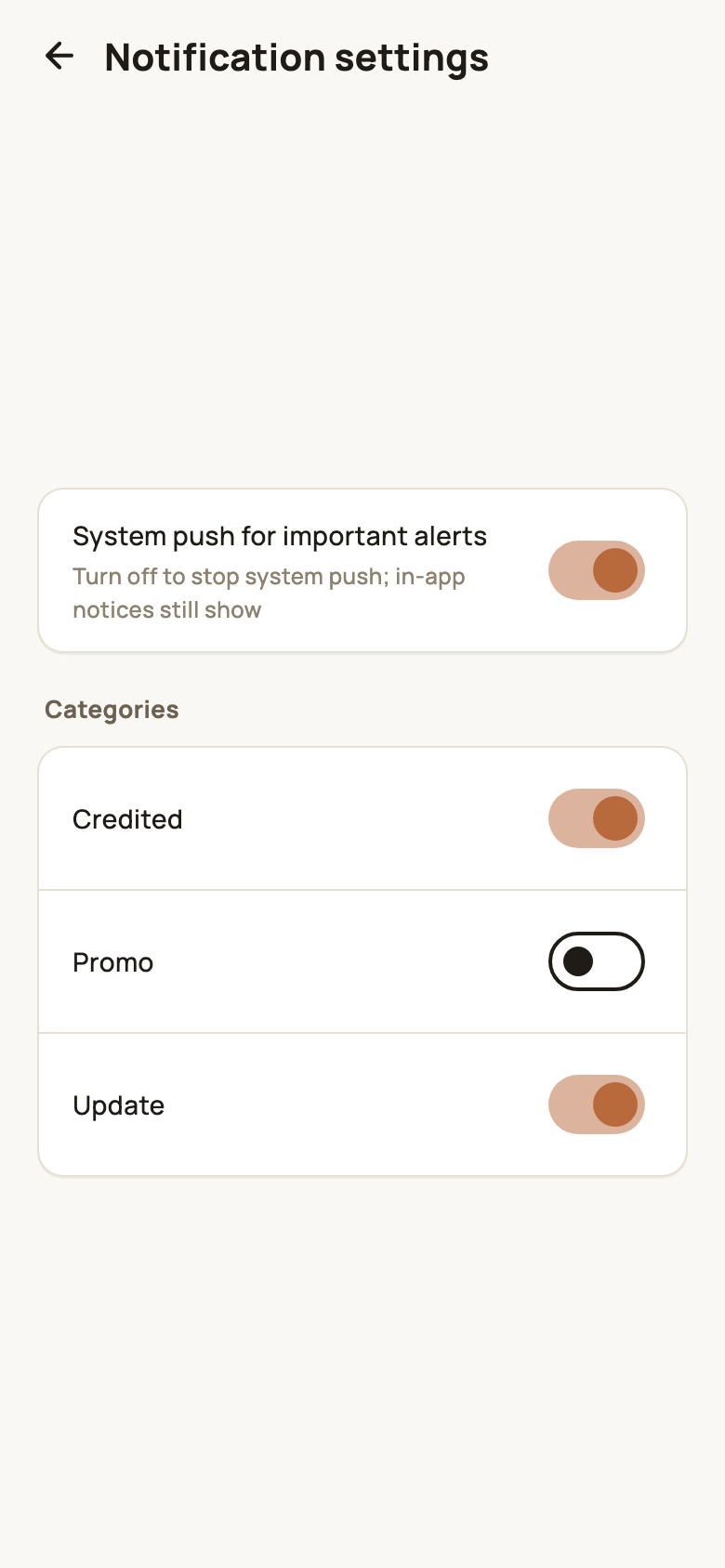
- System push for important alerts: turn it off and you’ll still see notices in the app’s Notifications, but won’t get system push alerts;
- Categories: choose which kinds to receive — for example Credited (rewards and membership credited), Promo (offers) and Update (new versions).
About
The About page (Account → About on phones, in the sidebar on desktop) has:
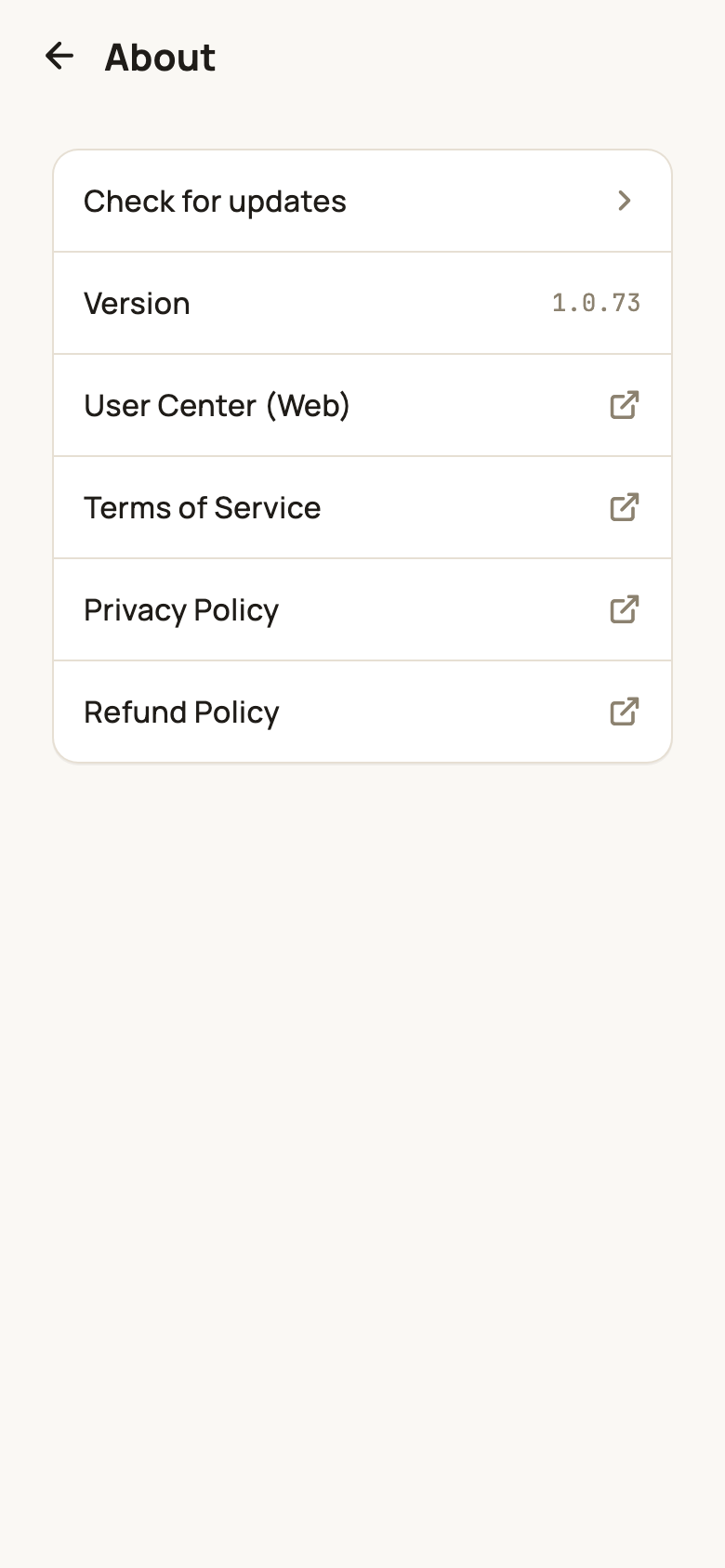
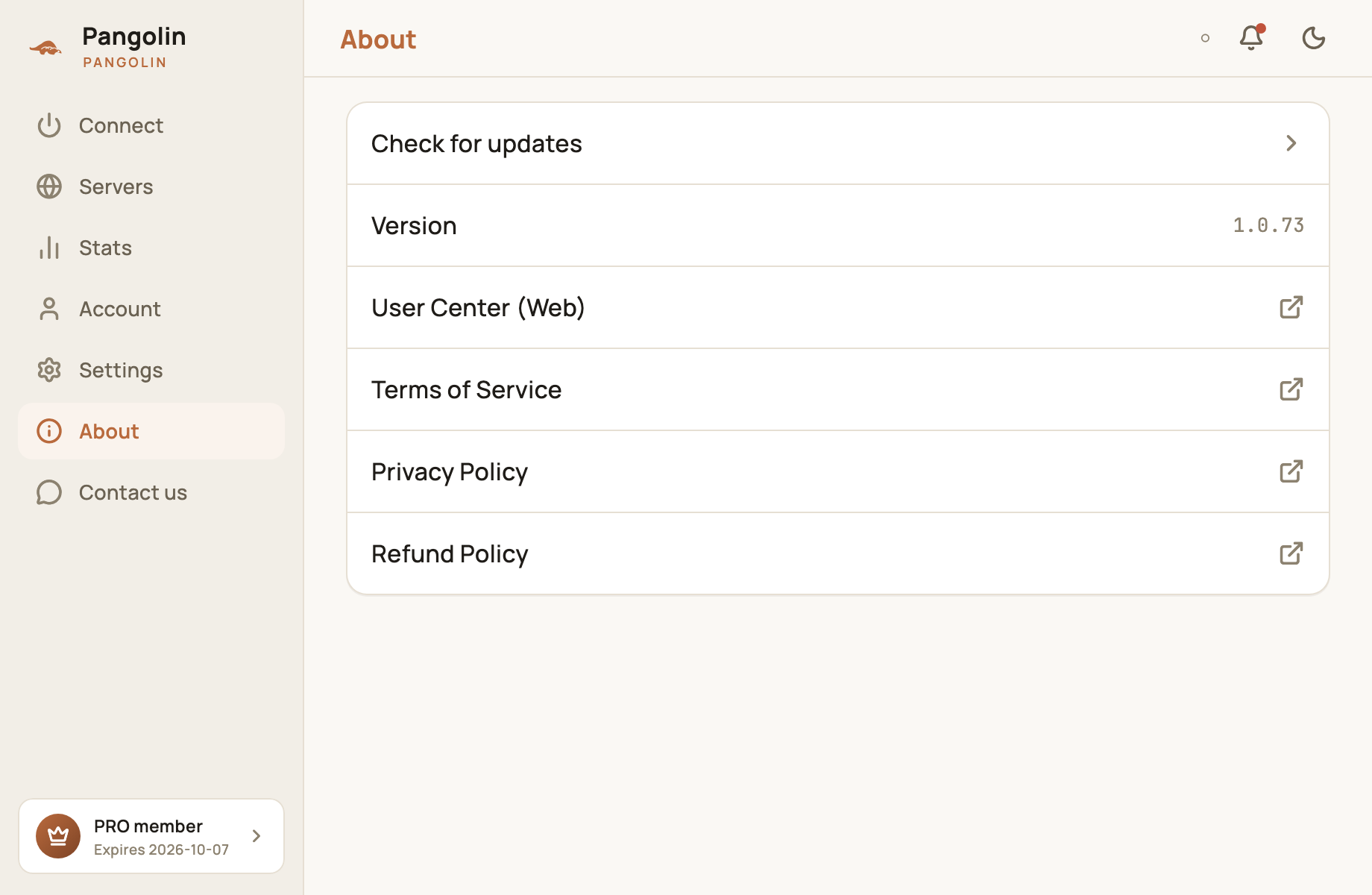
- Check for updates: see whether a new version is out;
- Version: the version you’re running;
- User Center (Web): opens the web user center in your browser, where you can manage your subscription and see your orders;
- Terms of Service, Privacy Policy, Refund Policy.
FAQ
Smart, Global or Direct — which should I use?
Use Smart for everyday browsing. Sites in mainland China connect directly and everything else goes through the tunnel, which gives the best speed and compatibility. Only switch to Global temporarily if a particular overseas service misbehaves.
Do my settings sync to my other devices?
Routing rules are saved to your account and sync to every device. Launch at startup, Auto-connect, language and so on are per-device.
Don't have Pangolin yet?
Available for iPhone / iPad, Mac, Windows and Android. New accounts get a free 7-day Pro trial.
Download the app