Contents
The web User Center: manage your account in a browser
Sign in to the Pangolin User Center in your browser to check your plan and usage, buy or renew Pro, redeem codes, see your orders, invite friends, turn on two-step verification and manage devices.
The web User Center is the browser version of your Pangolin account. It’s the easiest place to buy Pro, check your orders, turn on two-step verification and manage devices from a computer.
Address: https://pangolin.yanmeiai.com/user/ (you can also click Log in at the top right of our website).
Sign in
One tap from the app (no password needed)
On the app’s About page (Account → About on phones, in the sidebar on desktop), tap User Center (Web). It opens the web User Center in your browser, already signed in to your current account.
Sign in in the browser
Use the email and password you registered with in the app:
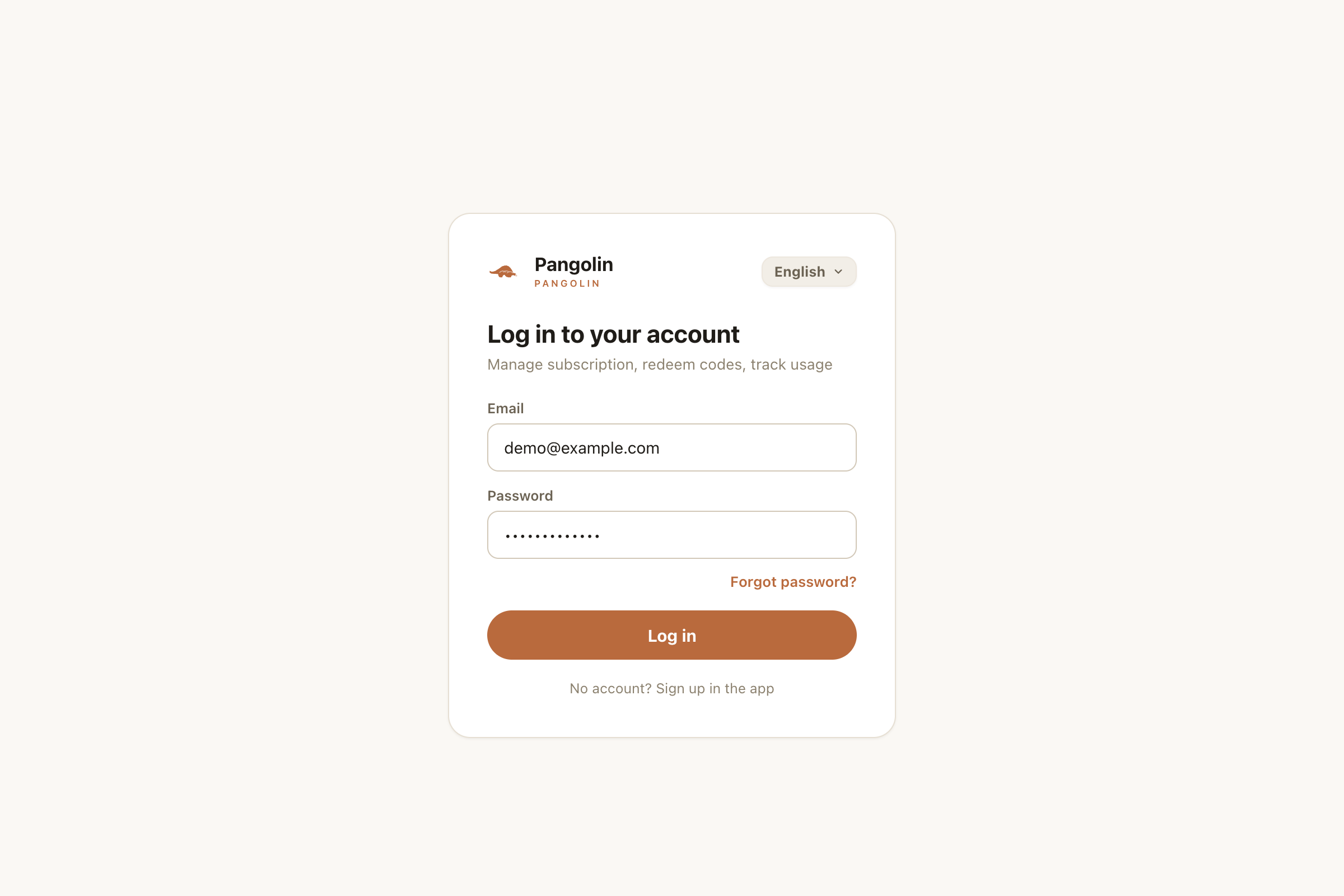
- No account yet? Sign up in the app first;
- Forgot your password? Reset it from the app’s sign-in screen with Forgot password? and an email code — see Accounts, sign-in and security;
- After too many wrong attempts your account is temporarily locked, and the page shows a countdown. Try again once it runs out.
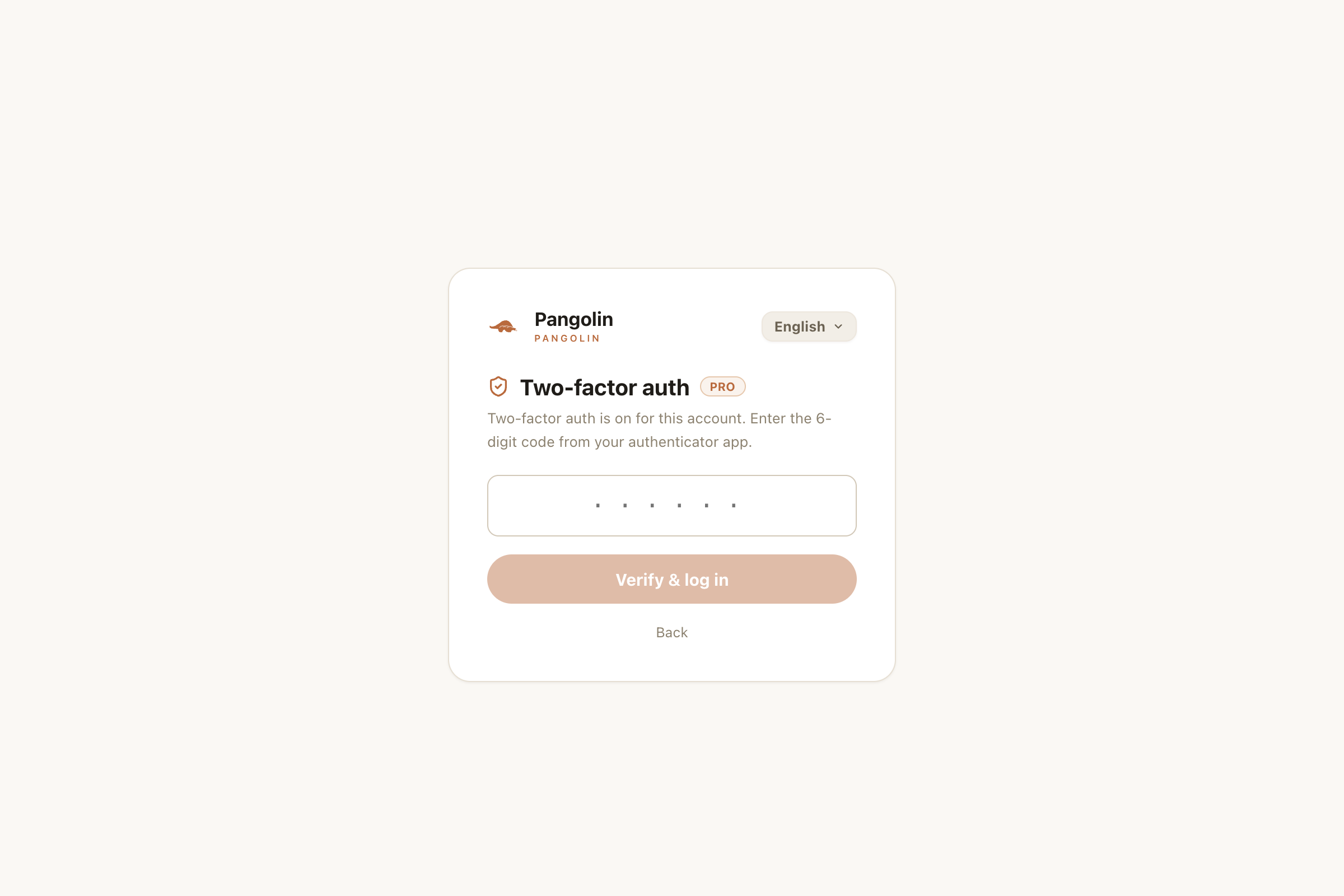
If you’ve turned on two-step verification, you’ll also enter the 6-digit code from your authenticator app after your password:
Overview
After signing in you land on the Overview:
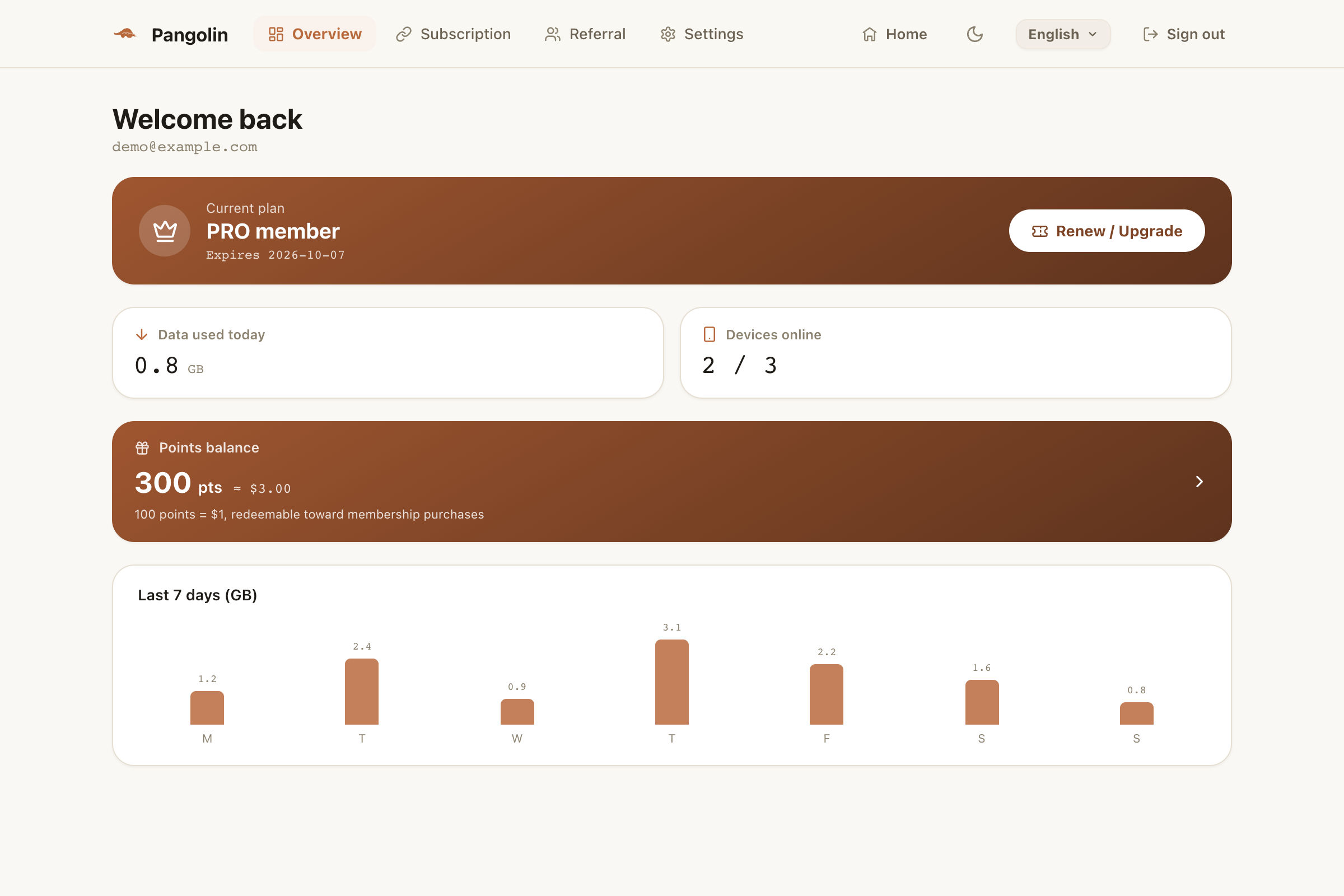
- Current plan: shows when Pro expires; Renew / Upgrade on the right takes you straight to checkout;
- Data used today and Devices online (in use / limit);
- On the free plan you’ll also see Time left today — see Free plan limits;
- Points balance: click it to go to Referral;
- Last 7 days: a bar chart of your daily data.
Subscription: buy, redeem and orders
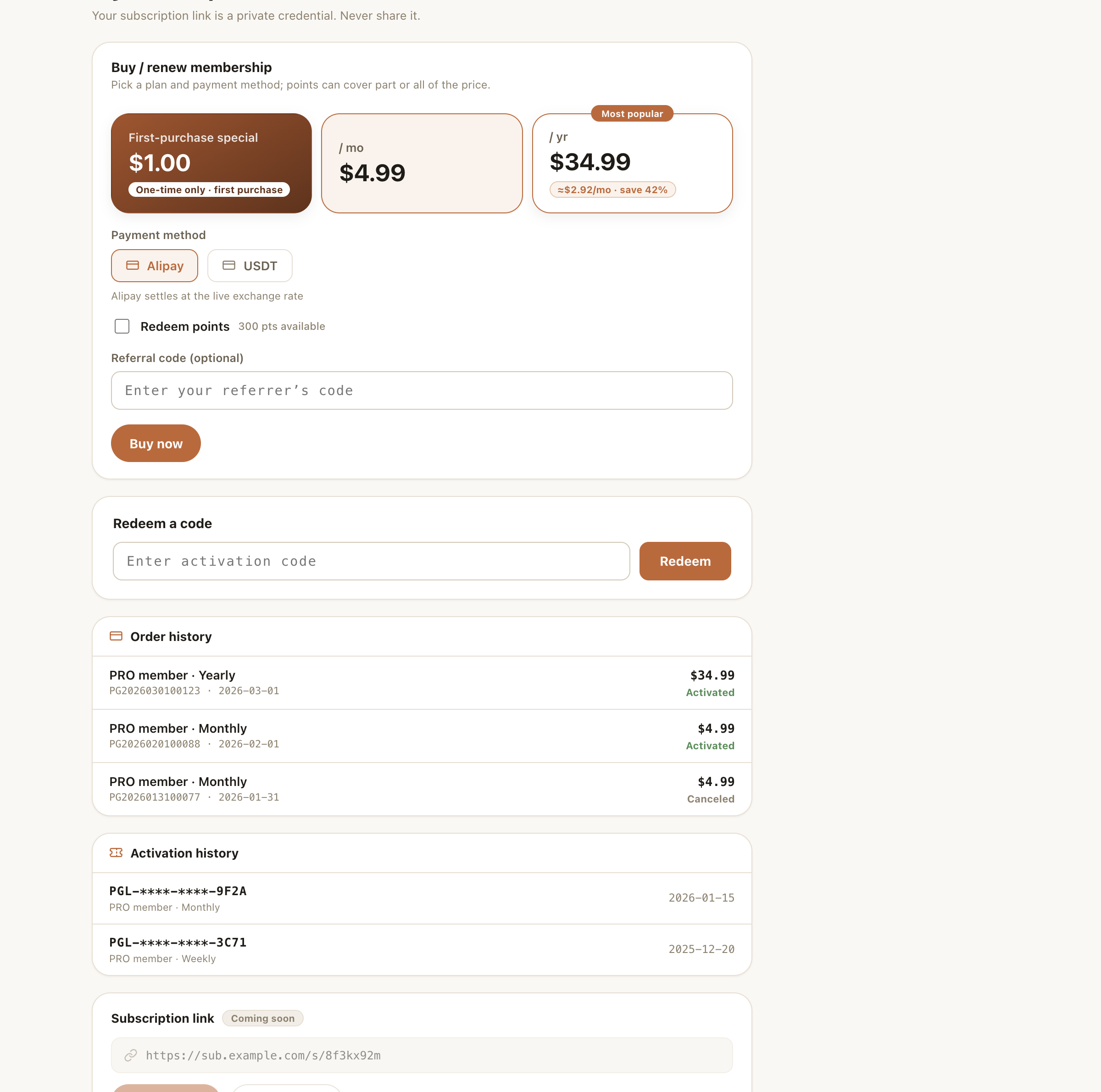
Everything to do with paying lives on the Subscription page:
Buy or renew Pro
- Pick a plan: the First-purchase special ($1.00, once per account), monthly $4.99 or yearly $34.99;
- Payment method: Alipay (charged in RMB at the live exchange rate);
- Tick Redeem points if you want to use points — 100 points = $1, and enough points can cover the whole price;
- Referral code (optional): if a friend referred you, enter their invite code here and they’ll get points worth 10% of what you pay for this order. Enter it every time you buy;
- Click Buy now and follow the instructions on the page to pay. Pro activates automatically once you’ve paid.
It’s the same payment flow as in the app — see Buying Pro.
Redeem a code
Paste your activation code into Redeem a code and click Redeem. The Pro days are added right away.
Order and activation history
- Order history: every purchase with its plan, order number, date, amount and status (Awaiting payment / Activated / Canceled / Expired);
- Activation history: the codes you’ve redeemed (partly hidden), what they unlocked and when.
Referral
The Referral page shows your invite code and invite link (click Copy link to share), how many people you’ve invited and how many have paid, your total rebate, the reward rules, your points balance, and every rebate and redemption.
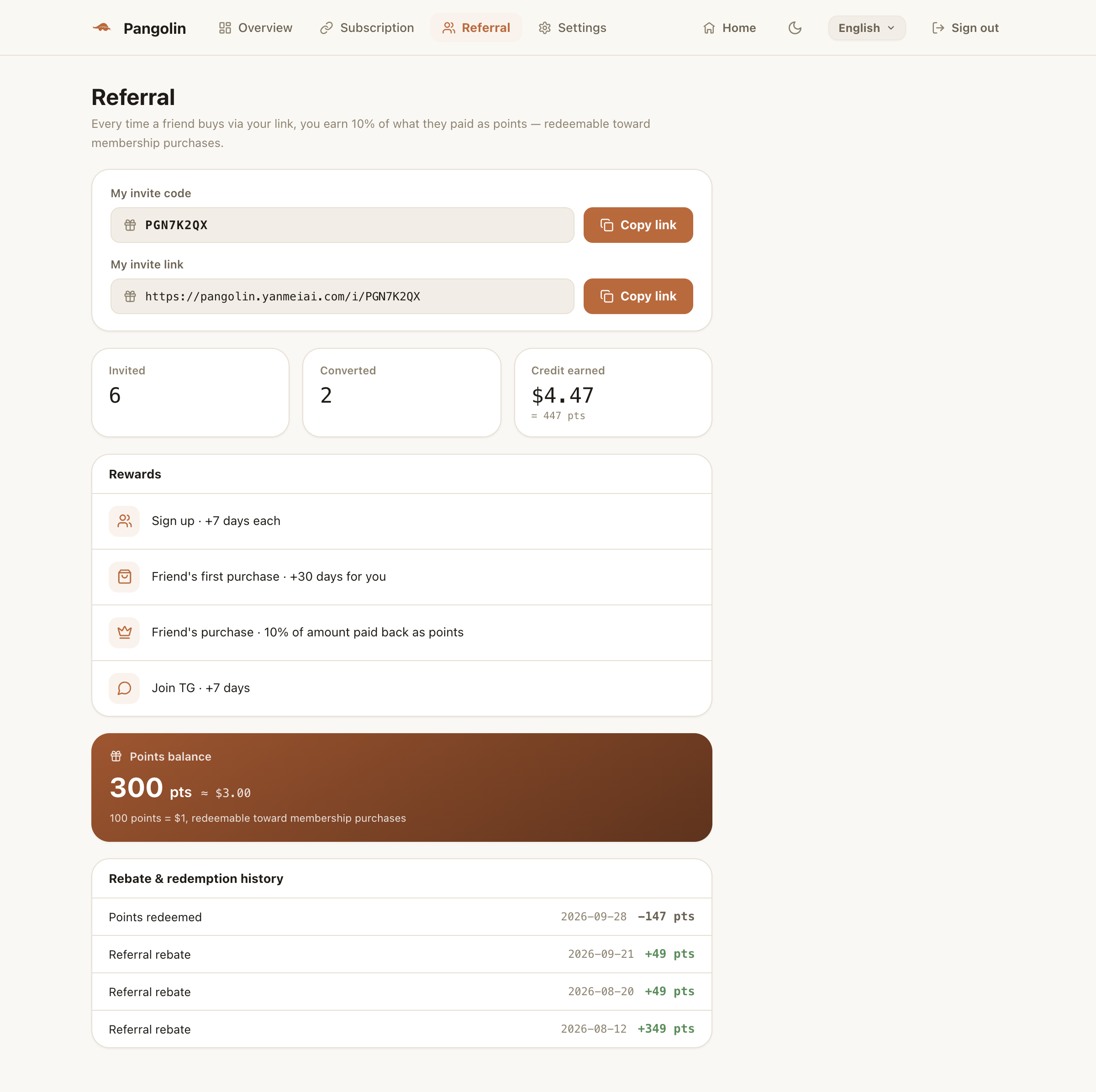
For the reward rules and how to use points, see Points and invites.
Settings
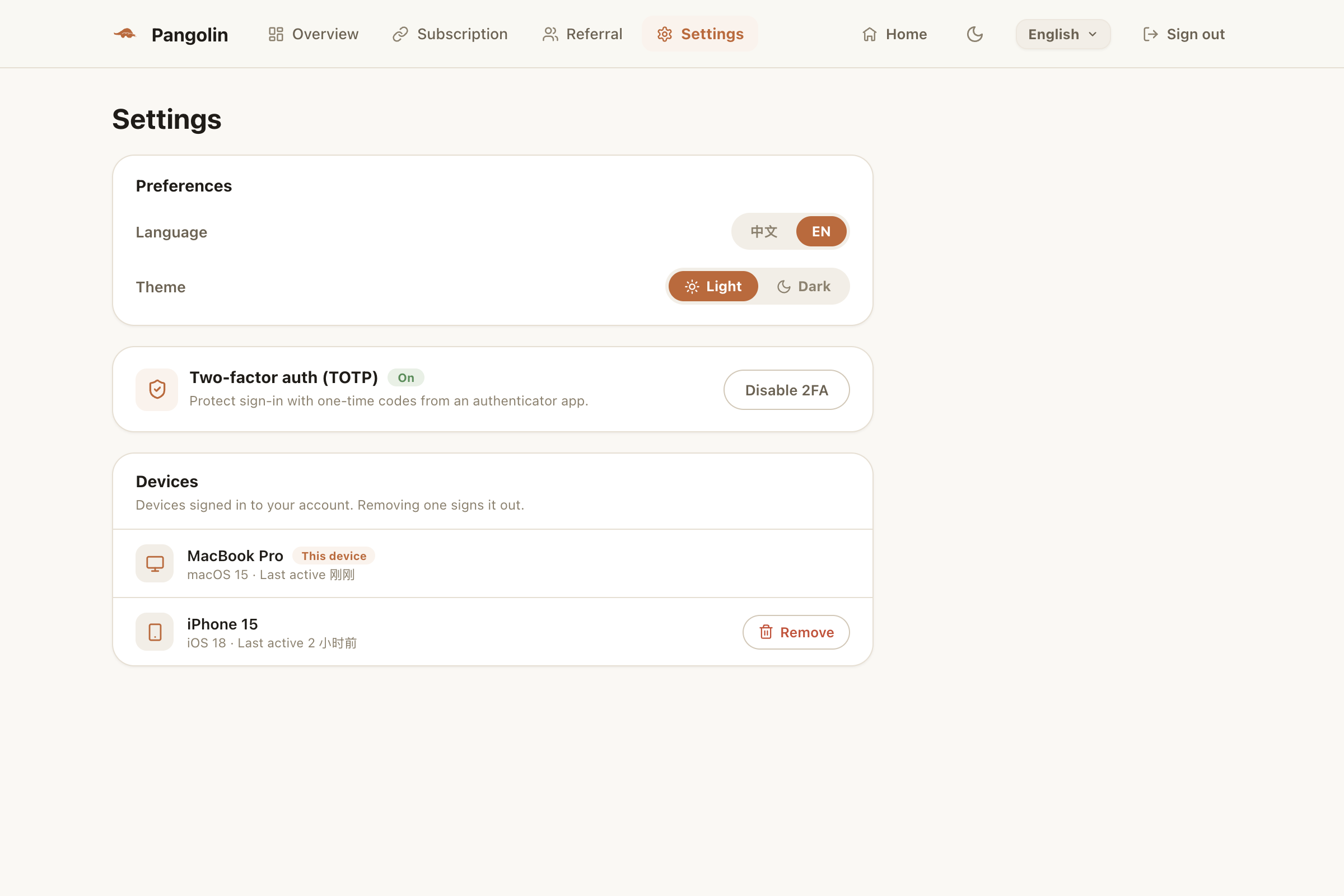
- Preferences: language (中文 / English) and theme (light / dark);
- Two-step verification: on the Security page, see below;
- Devices: every device signed in to your account, with the one you’re browsing on marked This device. Click Remove next to another device and confirm to sign it out — it will have to sign in again. For how devices are counted, see Device limit.
Turn on two-step verification
With two-step verification on, signing in takes a one-time code as well as your password, so nobody can get in even if they learn your password.
- Install any authenticator app on your phone (Google Authenticator, Microsoft Authenticator and so on);
- On the Security page, click Turn on two-step verification;
- Scan the QR code on the page with your authenticator, or type in the key shown;
- Enter the 6-digit code your authenticator shows and click Confirm & enable.
Look after your authenticator: move your accounts to the new phone before switching phones. To turn it off, click Turn off two-step verification on the Security page and enter a current code.
Sign out
Click Sign out at the top right to sign out of the web User Center. It doesn’t sign you out of the app.
FAQ
Is it the same account as in the app?
Yes. Sign in with the email and password you registered in the app — your plan, points and devices are exactly the same on both.
Can I sign up on the web?
For now, please sign up in the app. Once you have an account, use it to sign in to the web User Center.
Does Pro bought on the web work in the app?
Yes. It's added to your account the moment you pay and applies to every device — no need to restart the app.
Don't have Pangolin yet?
Available for iPhone / iPad, Mac, Windows and Android. New accounts get a free 7-day Pro trial.
Download the app