Contents
Install on iPhone / iPad (TestFlight)
Install Pangolin through Apple's TestFlight, allow the VPN configuration on first connect, and keep the beta up to date.
The iPhone and iPad app is currently distributed through TestFlight, Apple’s official channel for beta apps. Builds still go through Apple’s review, and once installed Pangolin works like any other app.
- Requires iOS / iPadOS 15 or later
- A full App Store release is on the way (launching in the US store first)
Step 1: Install TestFlight
Search the App Store for TestFlight and install Apple’s free TestFlight app.
Step 2: Install Pangolin from the public link
On your iPhone or iPad, open the Download section and tap Beta on the iOS / iPad card. That takes you to TestFlight’s public invite page — tap Accept, then Install.
Tip: open the link on the iPhone or iPad you’re installing on. On a computer you’ll only see an instructions page.
Step 3: Open the app and sign up
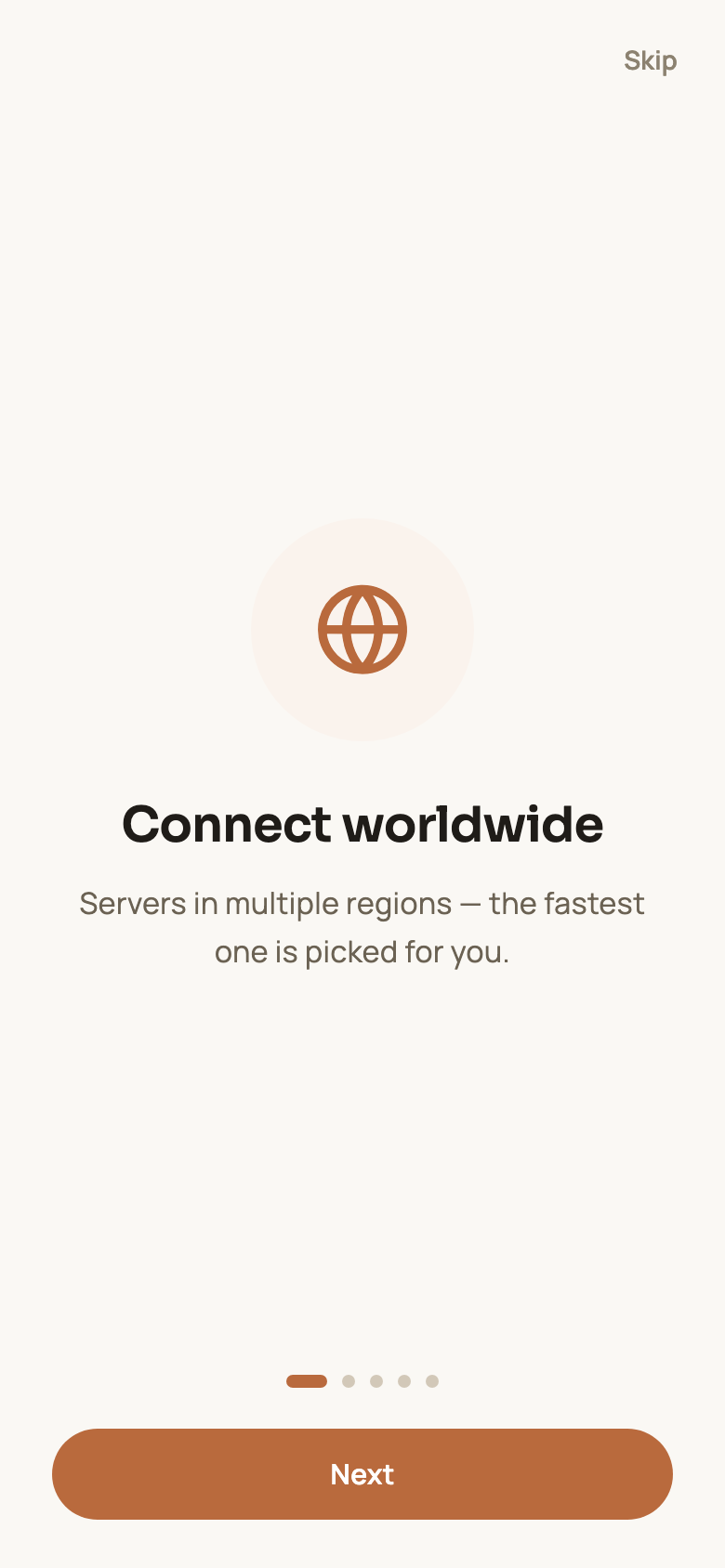
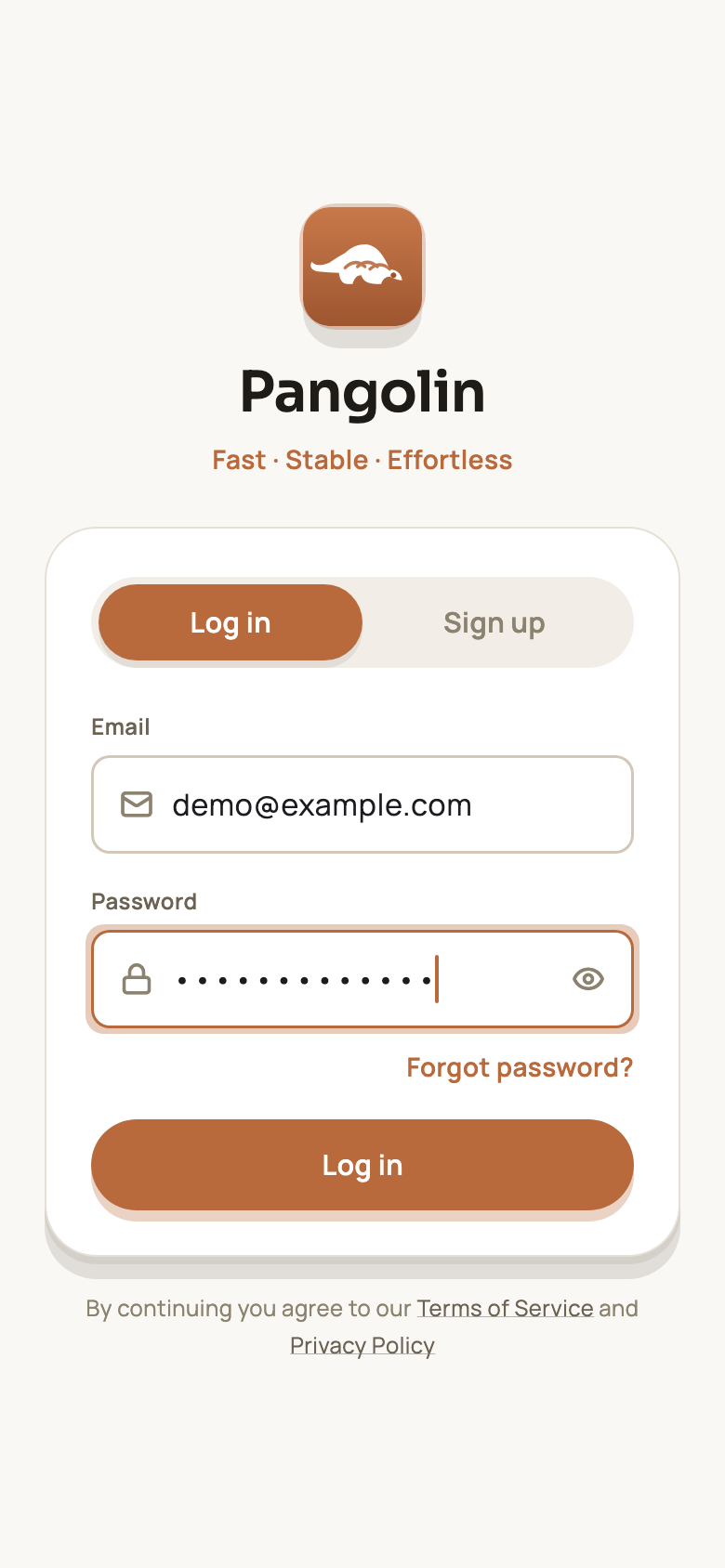
The first launch shows a few short intro screens (tap Skip in the top-right corner if you like), then the sign-in screen, where you can sign up or log in. See Accounts, sign-in and security for the sign-up steps.
Step 4: Allow the VPN configuration on first connect
Tap the button in the middle of the Connect screen. The first time, iOS shows a system prompt: “Pangolin” Would Like to Add VPN Configurations.
- Tap Allow;
- Enter your passcode, or confirm with Face ID / Touch ID.
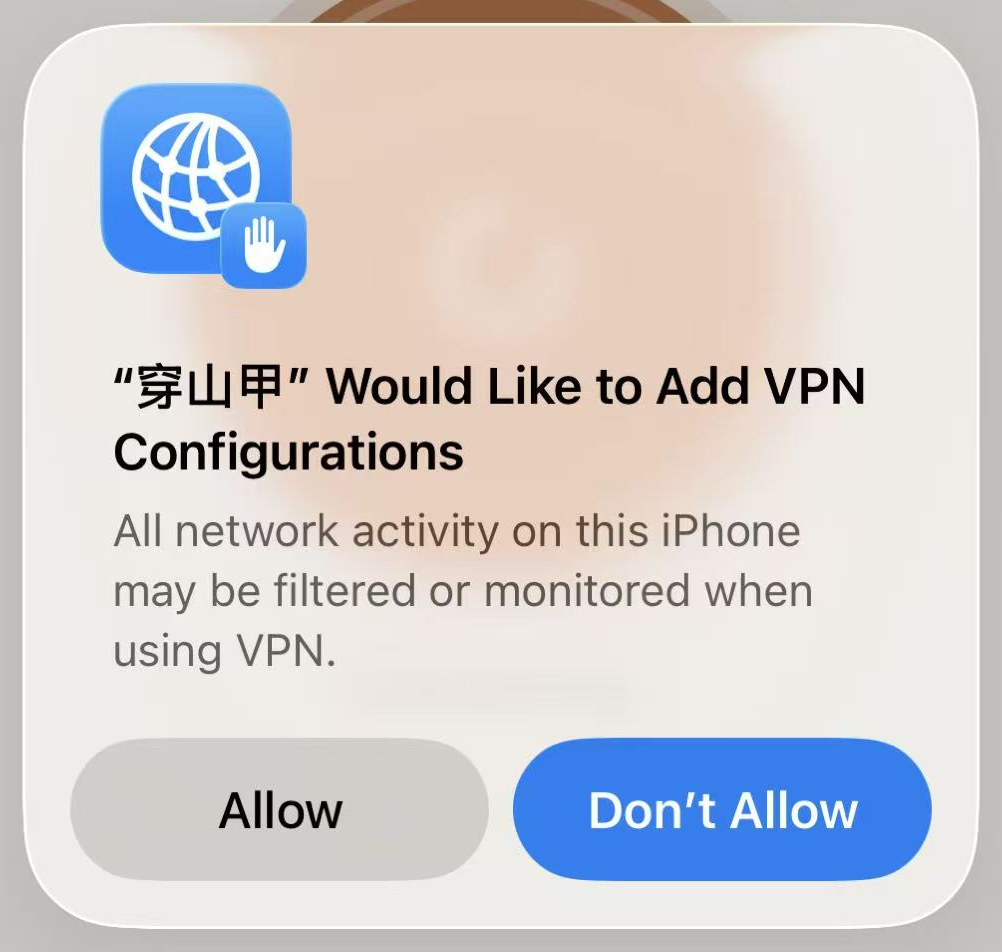
You only have to do this once. The configuration then appears under Settings → General → VPN & Device Management → VPN. Don’t delete it, or you’ll be asked to allow it again next time you connect.
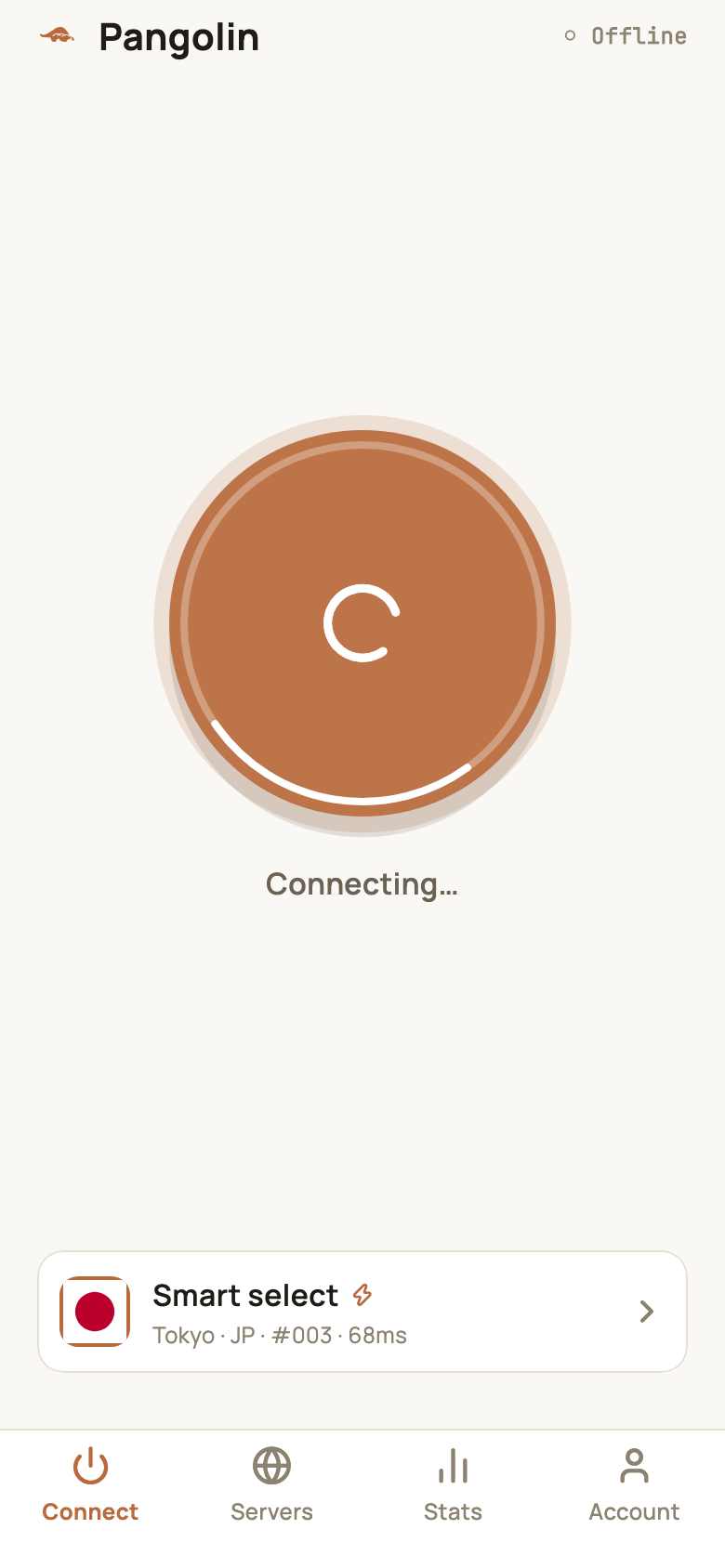
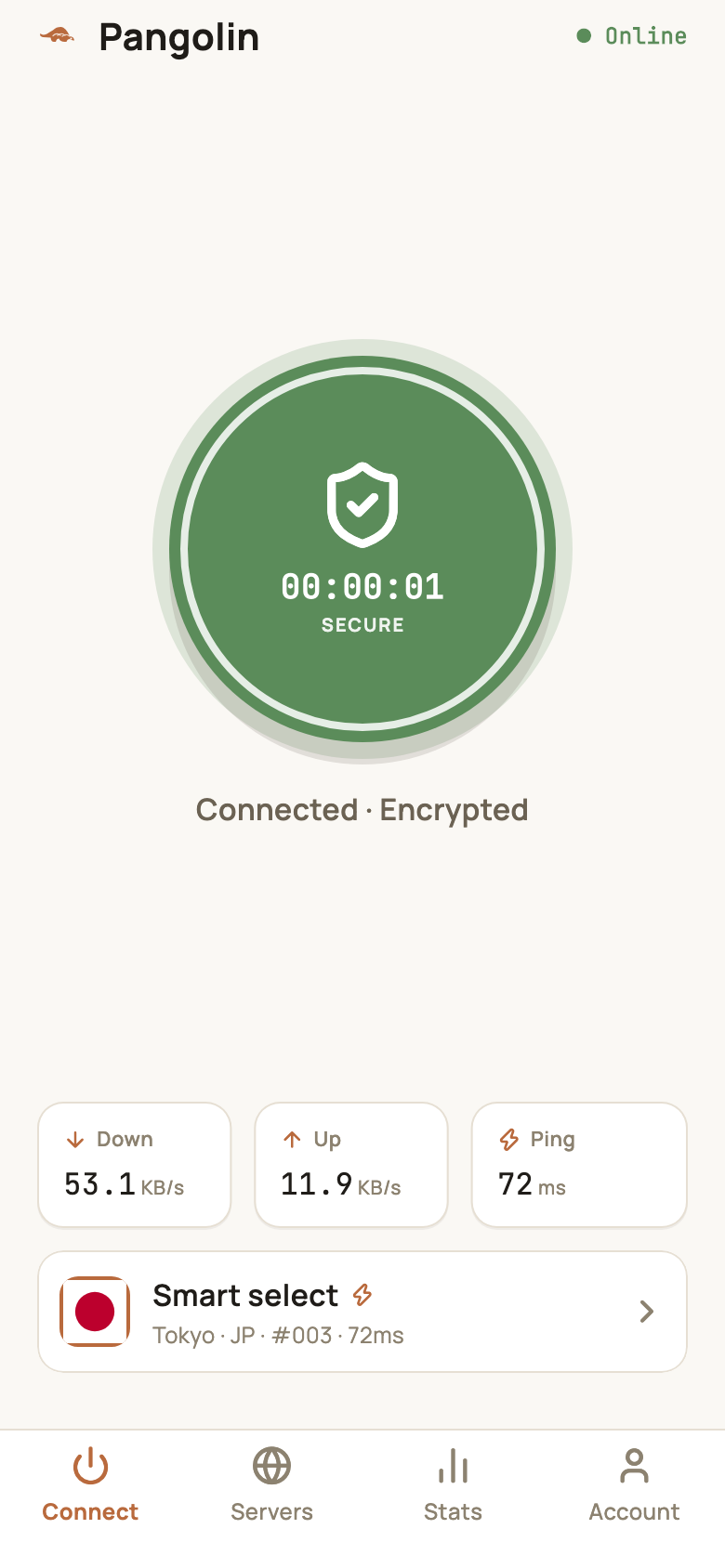
Once connected, a small VPN icon appears in the status bar. iOS keeps the connection running, so switching apps or locking the screen won’t disconnect you.
Updates and expiry
- Each TestFlight build is valid for 90 days. When a new one is out, TestFlight sends a notification — open TestFlight and tap Update.
- We recommend turning on Automatic Updates for Pangolin in TestFlight.
- Updating never touches your account, membership or settings.
Troubleshooting
| Problem | What to do |
|---|---|
| The link says “This beta is full” | The tester slots are temporarily used up. Try again later, or reach us on our Telegram channel |
| Tapping Connect never shows the permission prompt and keeps failing | Delete Pangolin’s configuration under Settings → General → VPN & Device Management → VPN, then go back to the app, connect and allow it again |
| Some apps won’t load while connected | Check smart routing and your routing rules — see Settings explained |
For more on connecting, see Connecting and switching servers.
FAQ
Is TestFlight safe?
TestFlight is Apple's own platform for beta apps. Builds are reviewed by Apple and delivered from Apple's servers, and once installed they behave like any other app.
What happens when the beta expires?
Each TestFlight build is valid for 90 days. We ship a new build before that, so just update in TestFlight — your account and settings stay as they are.
Does it work on iPad?
Yes. Use the same TestFlight link on your iPad; the layout adapts to the larger screen.
Don't have Pangolin yet?
Available for iPhone / iPad, Mac, Windows and Android. New accounts get a free 7-day Pro trial.
Download the app