Contents
Routing rules in depth: send sites direct, through the tunnel, or block them
Everything about Pangolin's routing rules — the three proxy modes, the order rules are checked in, the six rule types with examples, adding, reordering, deleting and resetting rules, and common setups.
Routing rules decide which sites and apps connect directly, which go through the encrypted tunnel, and which are blocked. Most people never need to touch them — the default Smart mode works well. When a particular site needs special handling, add your own rules as described here.
Where: Settings → Routing rules (Account → Settings on phones, in the sidebar on desktop).
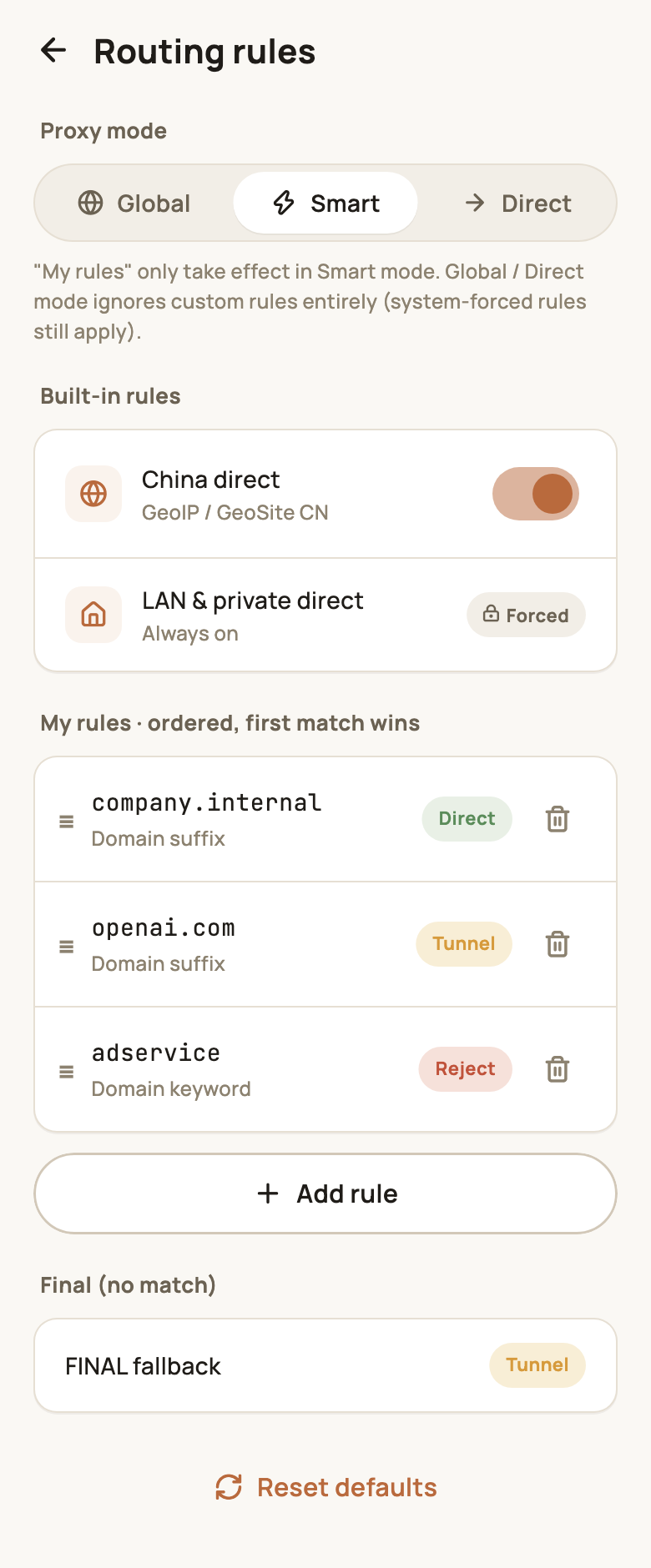
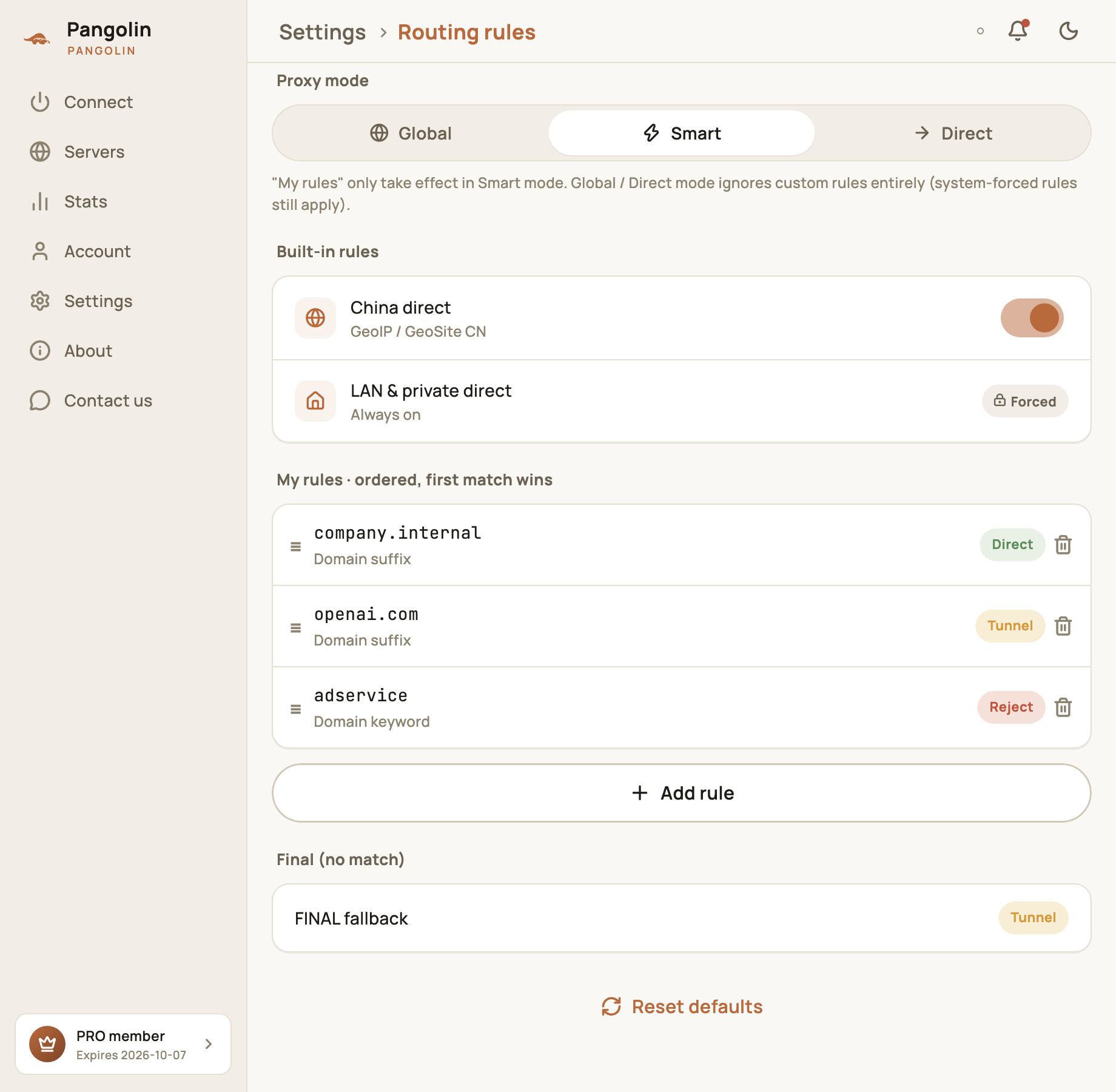
The three proxy modes
| Mode | What happens | My rules |
|---|---|---|
| Smart (default) | Sites and apps in mainland China connect directly, overseas services go through the tunnel, and your rules handle the rest | Applied |
| Global | Everything goes through the tunnel | Ignored |
| Direct | Nothing goes through the tunnel | Ignored |
Global and Direct are all-or-nothing — handy for a quick test, but use Smart day to day.
The order rules are checked in
Every connection is checked against the rules from top to bottom, and the first match wins:
- Built-in rules
- LAN & private direct: marked 🔒 Forced and can’t be turned off, so your router’s admin page, printers, NAS and other local devices keep working;
- China direct: sites and IPs in mainland China connect directly (GeoIP / GeoSite CN). You can turn this off.
- My rules: the rules you add, in list order — the first match wins;
- Final (no match): anything that matches nothing above goes through the tunnel by default.
Add a rule
Tap Add rule under My rules. In the dialog:
- Choose a rule type;
- Enter the value (a domain, IP range and so on);
- Choose an action: Direct, Tunnel or Reject (block it outright);
- Tap Save.
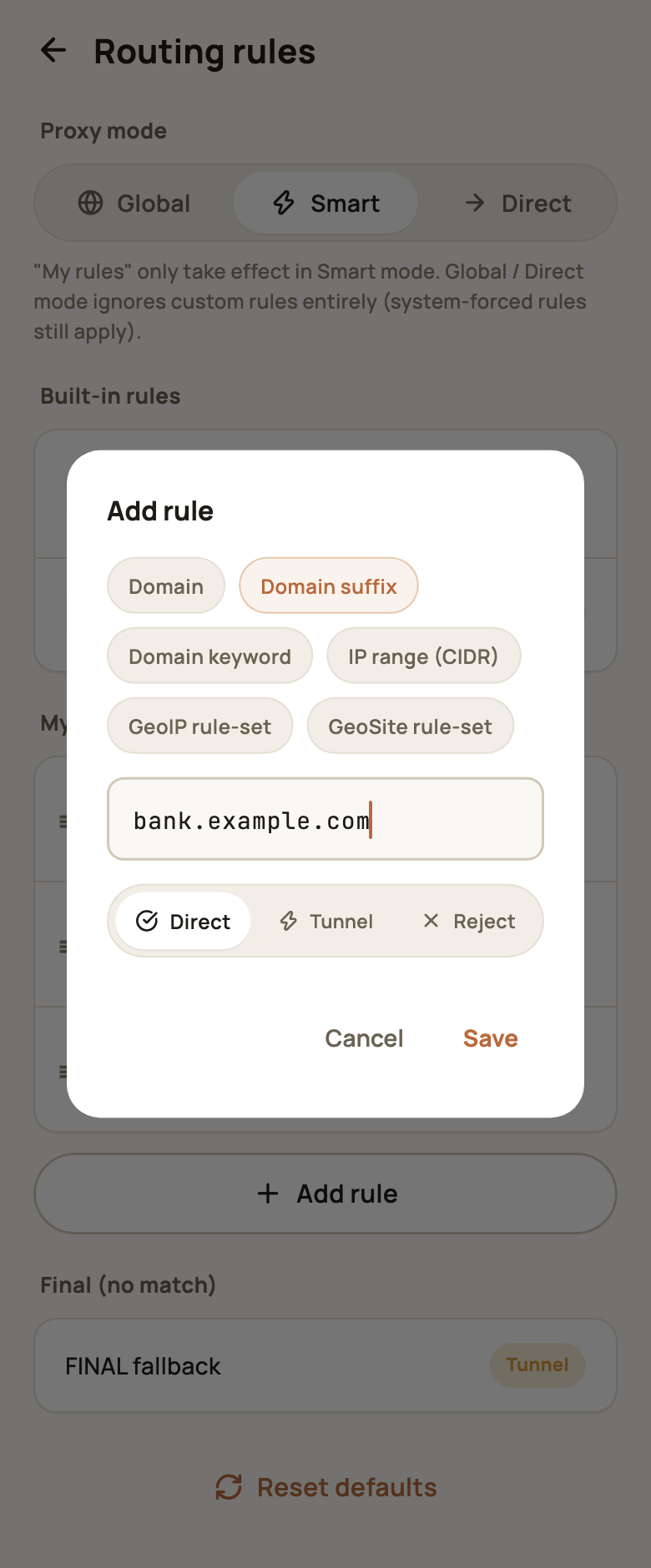
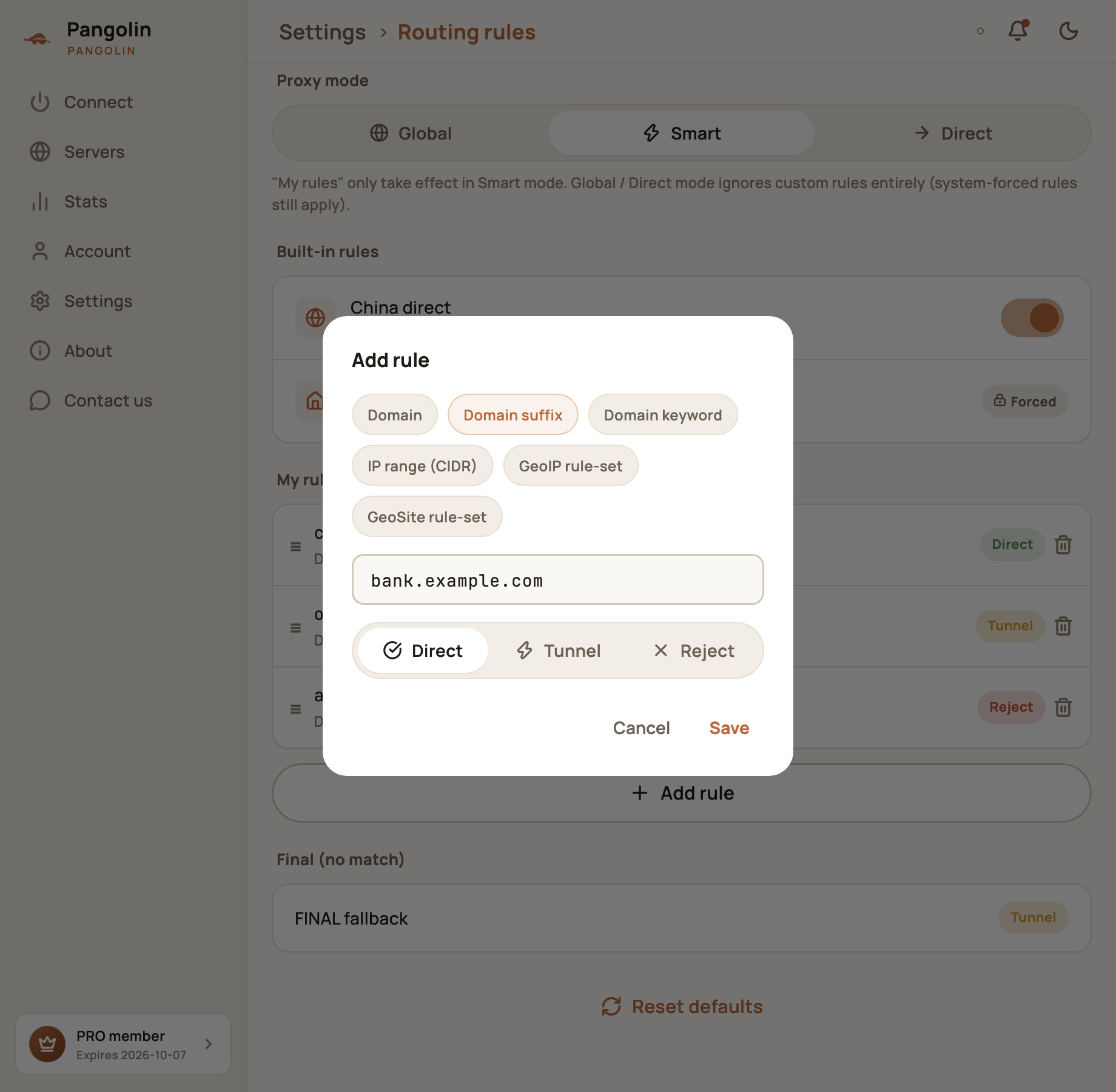
Rules are saved to your account straight away. If you’re connected, the app reconnects once (the Connect screen briefly shows “Rules updated, reconnecting…”) so the new rules take effect.
The six rule types
| Type | Matches | Example value |
|---|---|---|
| Domain | Exactly this domain, nothing else | www.example.com |
| Domain suffix | The domain and every subdomain under it | example.com (also matches a.example.com and b.c.example.com) |
| Domain keyword | Any domain containing this text | adservice |
| IP range (CIDR) | A range of IP addresses | 203.0.113.0/24; for a single IP, use 203.0.113.8/32 |
| GeoIP rule-set | IPs by country | Only cn (mainland China IPs) for now |
| GeoSite rule-set | Sites by category | Only cn (common mainland China sites) for now |
Domain suffix is usually the one you want: one rule covers every subdomain of a site. Use Domain only when you need to target one specific subdomain.
Rules you can’t add
- If an IP range is malformed, or a GeoIP / GeoSite value isn’t
cn, you’ll see Invalid format under the field and can’t save; - A Direct IP range can’t be
0.0.0.0/0or::/0(that would mean everything goes direct — use Direct mode instead), and can’t overlap172.16.0.0/12, which is reserved for the tunnel; - Each account can have up to 200 rules.
Manage your rules
- Reorder: press and drag the ≡ handle on the left. Rules are checked top to bottom, so put more specific rules higher;
- Delete: tap the trash icon on the right;
- Hints under a rule:
- Overridden by a rule above: a rule higher up has exactly the same type and value, so this one will never be used — you can delete it;
- ⚠ Forced to tunnel by the system; this rule is inactive: this domain or IP is covered by a system rule, so your setting won’t apply;
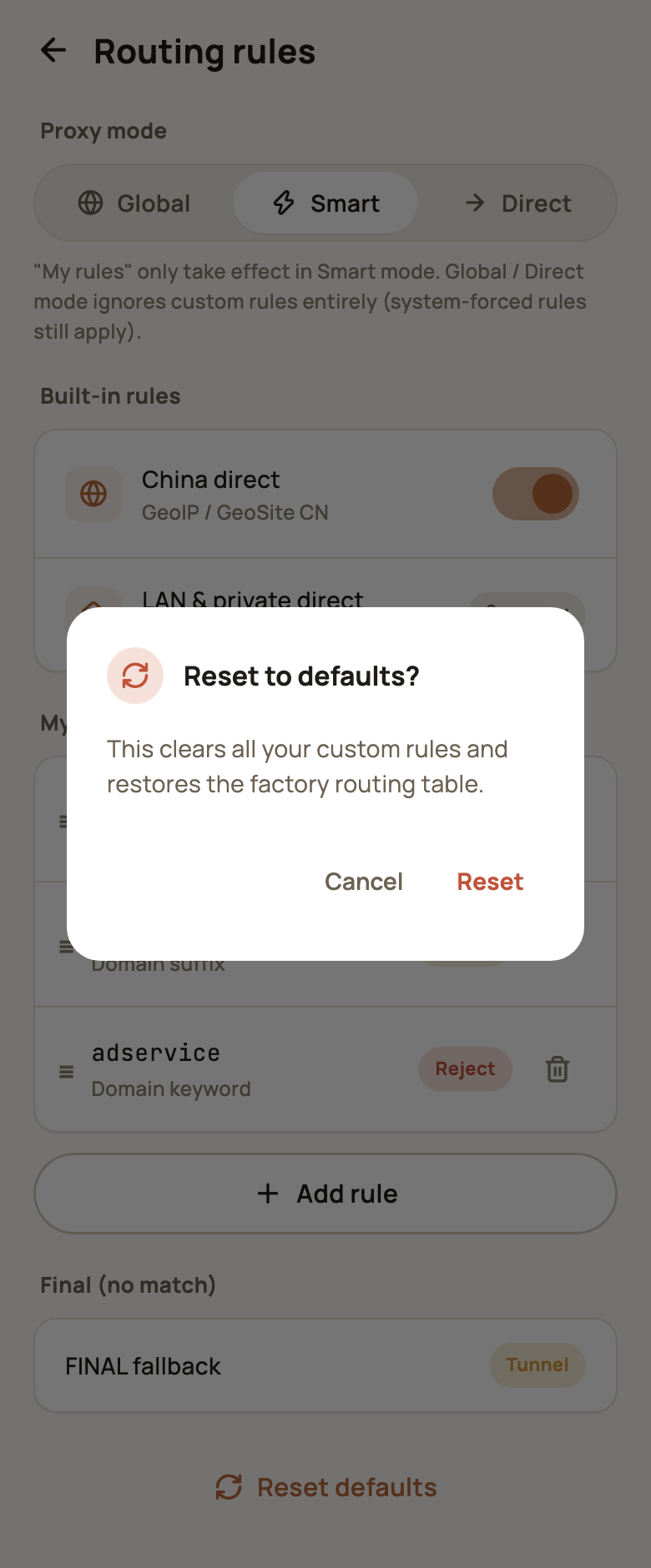
- Reset defaults: at the bottom of the page, this clears all your rules and restores the factory setup (Smart mode with China direct). You’ll be asked to confirm.
Common setups
| You want to… | Rule |
|---|---|
| Reach your company intranet directly | Domain suffix company.internal → Direct |
| Connect directly to an overseas site (say, one with its own China network) | Domain suffix example.com → Direct |
| Route a mainland China site through the tunnel because it only works that way | Domain suffix example.cn → Tunnel |
| Block ad or tracking domains | Domain keyword adservice → Reject |
| Send an IP range direct | IP range 203.0.113.0/24 → Direct |
Sites stopped loading after you changed rules? Check for a stray Reject rule, or a rule dragged into the wrong place. If you can’t find the cause, Reset defaults puts everything back. For more ideas, see Can’t connect?.
FAQ
I added a rule but it isn't working.
First check the proxy mode is Smart — your rules only apply there. Then check that a rule higher up isn't matching first (rules are checked top to bottom and the first match wins); drag it higher if needed.
Do rules sync to my other devices?
Yes. Routing rules are saved to your account, so a change on one device is used by your other devices the next time they connect.
Can I use routing rules on the free plan?
Yes. Routing rules are available on both the free plan and Pro.
Don't have Pangolin yet?
Available for iPhone / iPad, Mac, Windows and Android. New accounts get a free 7-day Pro trial.
Download the app