Contents
Install on Android
Download the APK, allow installs from unknown sources, approve the connection request, and keep Pangolin running in the background.
- Requires Android 9 or later
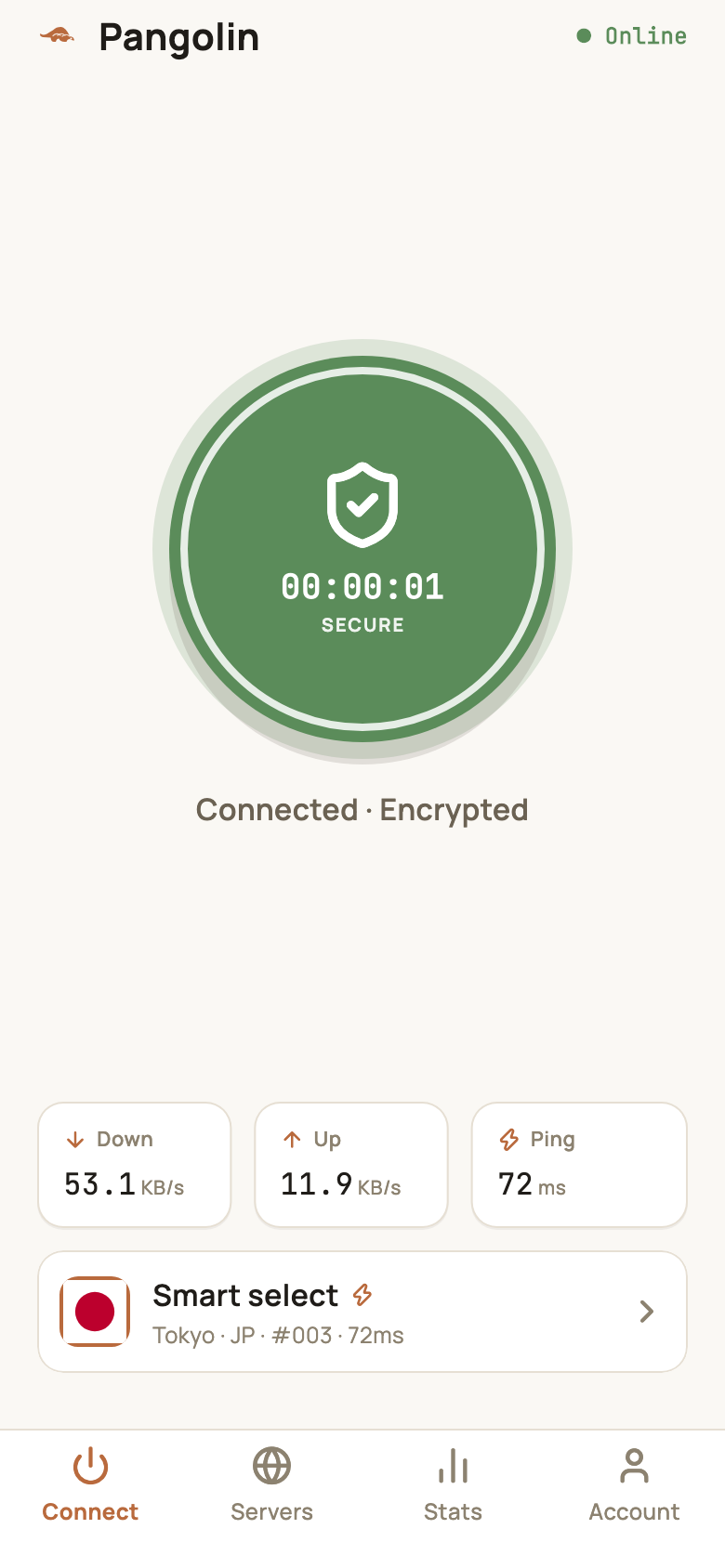
- The Android and iPhone apps share the same phone interface. The screenshots here are from the iPhone app, but the layout and steps are the same.
Step 1: Download and install
- Open the Download section in your phone’s browser and tap Download on the Android card to get the installer (
.apk); - Open the downloaded file. If Android says installs from unknown sources are blocked, follow the prompt into Settings, allow your browser (or file manager) to Install unknown apps, then go back and finish installing.
The exact wording varies between phone brands, but it always means “allow apps from this source”. You can switch the permission back off once Pangolin is installed.
Step 2: Sign up or log in
Open the app, go through the intro screens, then sign up or log in. See Accounts, sign-in and security for the sign-up steps.
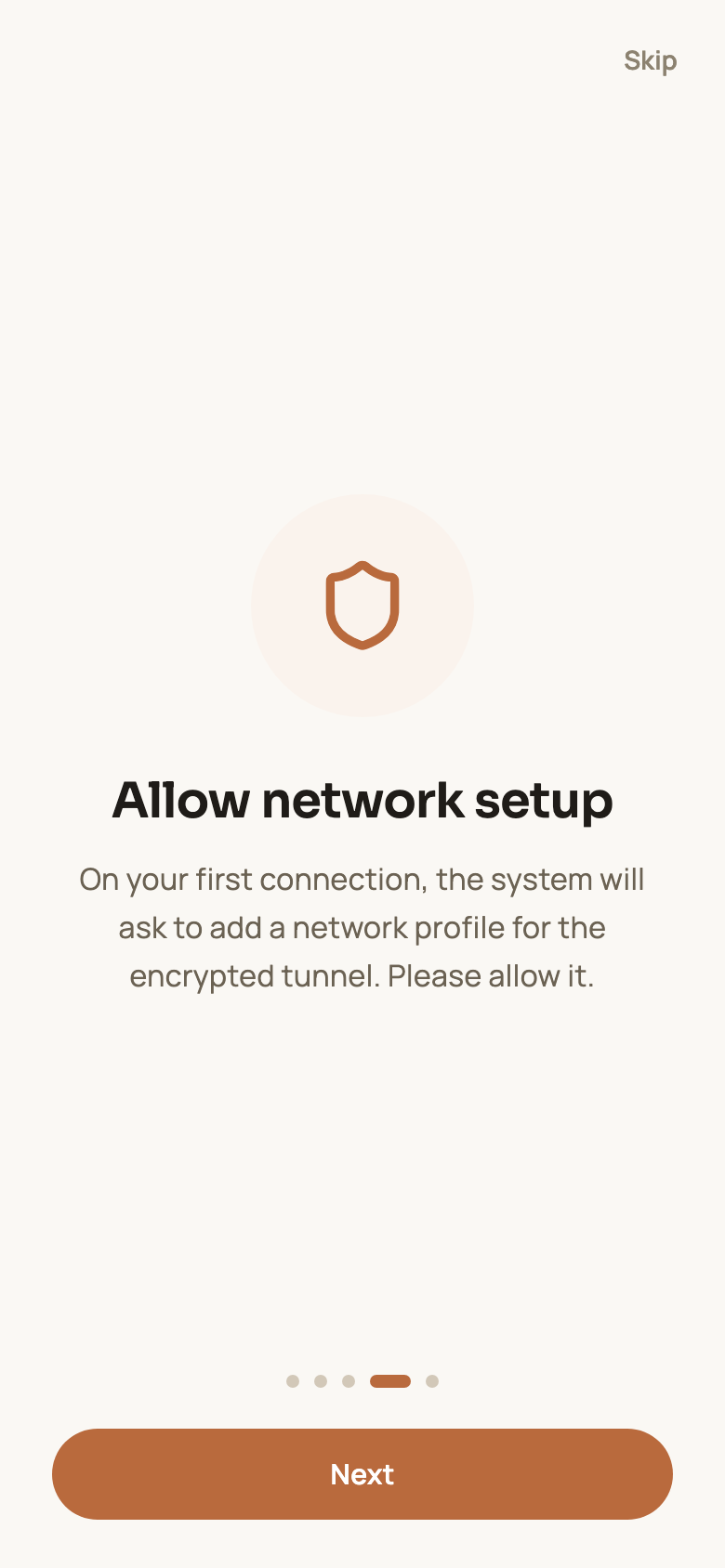
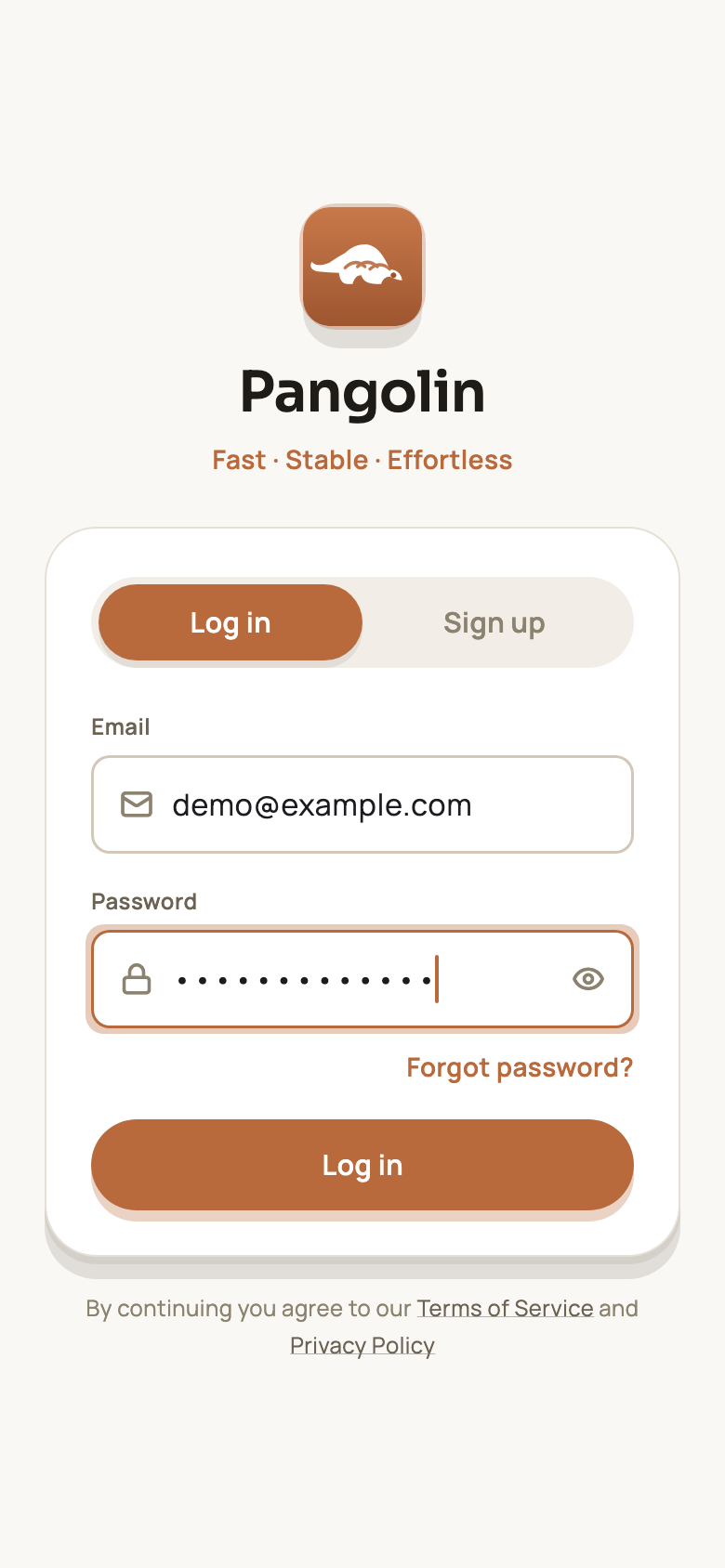
Step 3: Approve the connection request on first connect
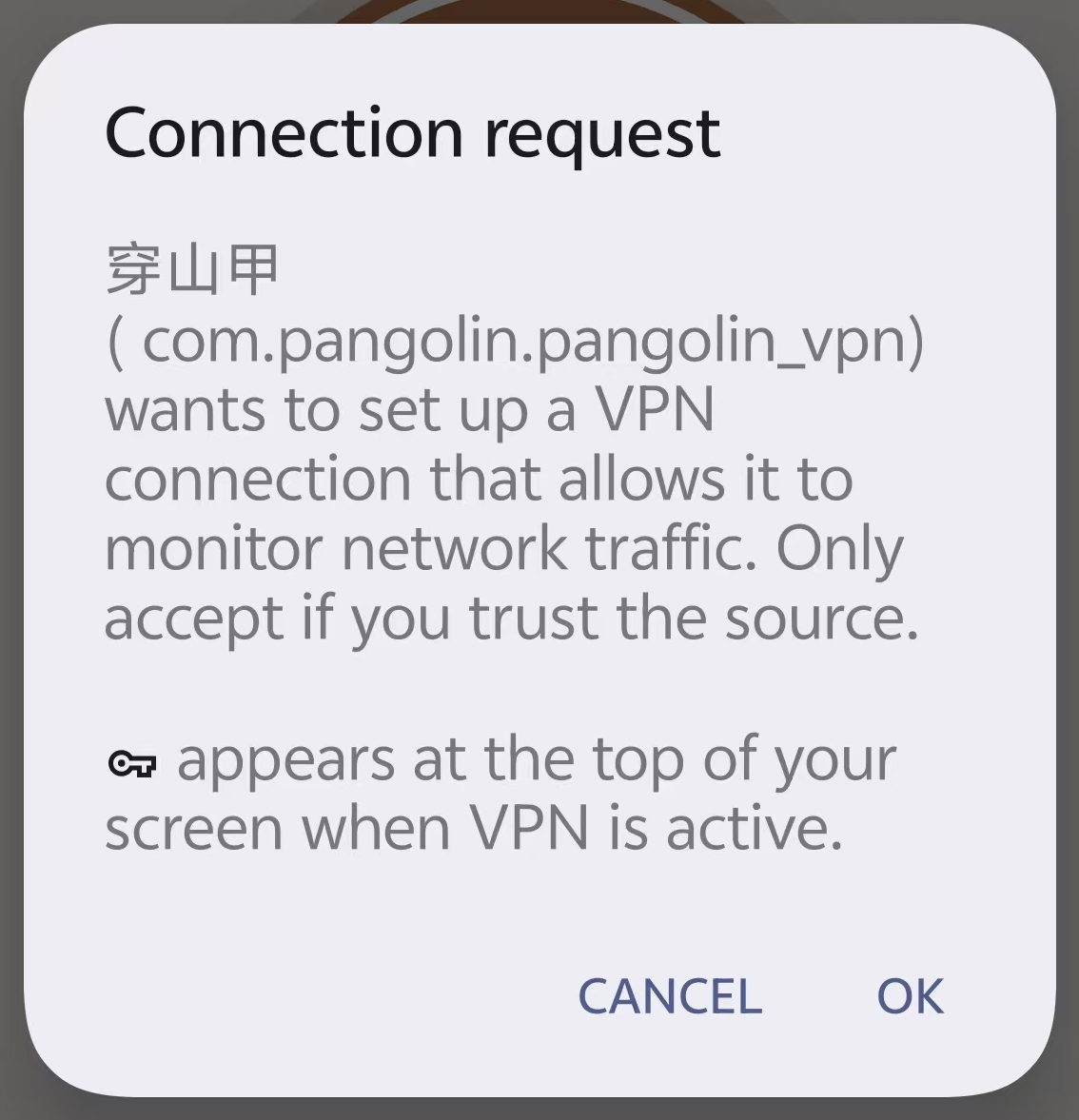
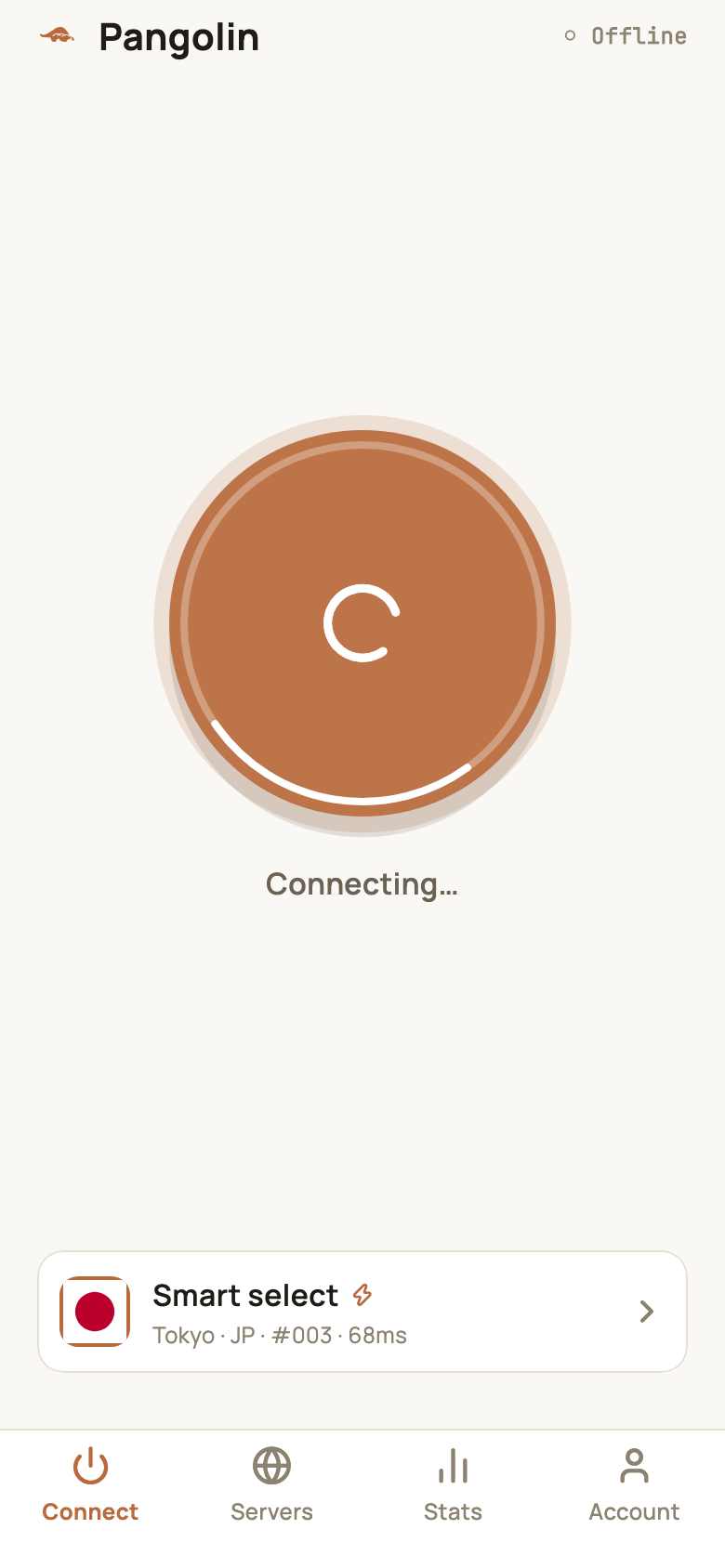
Tap the button in the middle of the Connect screen. The first time, Android shows a Connection request explaining that Pangolin wants to set up a VPN connection that can monitor network traffic. Tap OK.
Once connected, you’ll see a persistent notification and a small key icon in the status bar, meaning your traffic is going through the encrypted tunnel.
Keep it running in the background
After your first successful connection, Pangolin asks Android to let it always run in the background. Tap Allow so the system doesn’t close it to save battery:
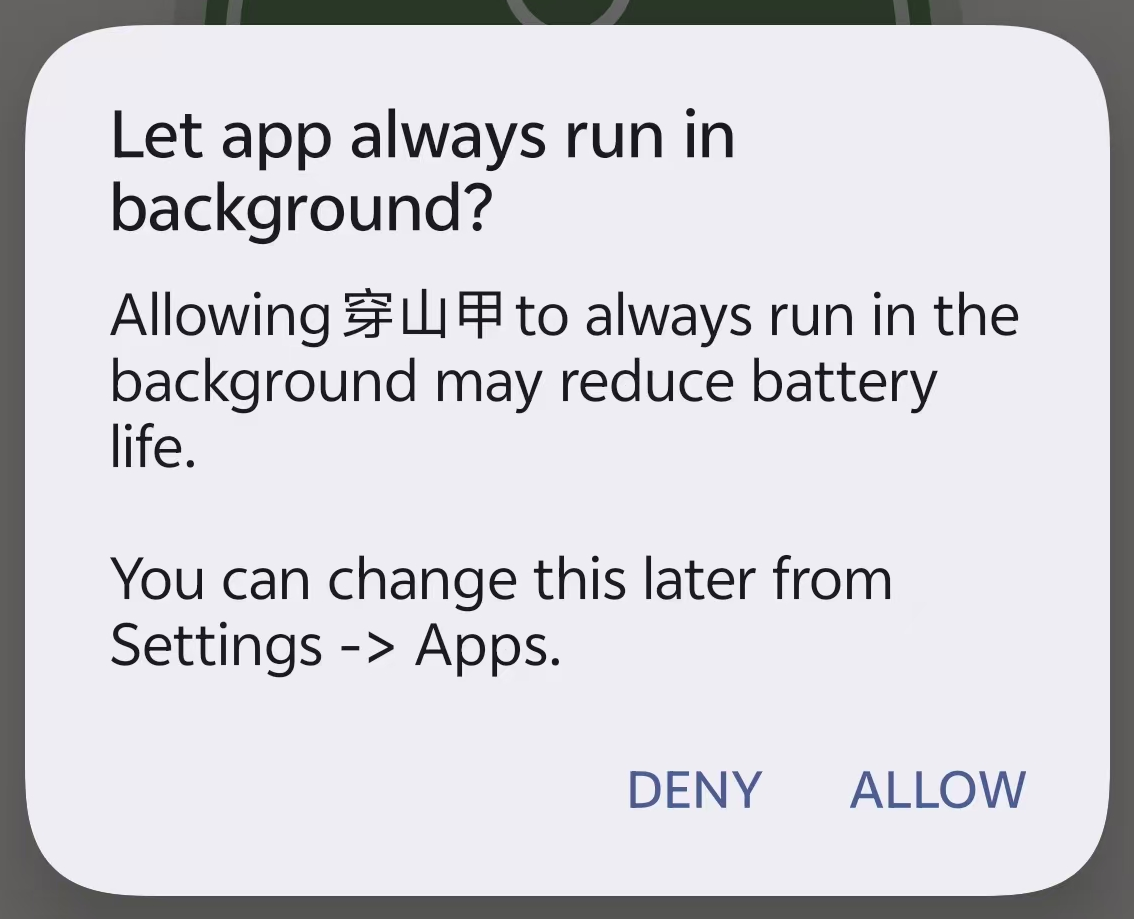
If you tapped Deny, or your phone has aggressive battery saving, it may still close apps in the background and drop the connection. We recommend:
- Going to Settings → Apps → Pangolin → Battery and choosing Unrestricted (or allowing background activity);
- Not swiping Pangolin away in the recent apps list (on many phones you can long-press its card and lock it).
Menu names vary by brand — search Settings for “battery optimization” or “background activity”.
Free plan limits
The free plan includes 10 minutes and 500 MB a day, shared across all your devices and reset every day at 00:00 UTC (08:00 Beijing time). When you run out you’re disconnected automatically — it resets the next day, or you can upgrade to keep going. See Free plan limits.
Troubleshooting
| Problem | What to do |
|---|---|
| ”There was a problem parsing the package” | The download didn’t finish. Download it again |
| It disconnects after a short while | Turn off battery optimization and allow background activity |
| No connection request appears when I tap Connect | If another VPN app is currently connected, disconnect it first, then connect in Pangolin |
For more on connecting, see Connecting and switching servers.
FAQ
Why isn't it on Google Play?
For now the Android app is distributed as an APK from our website. Only download it from there — never from third-party mirrors.
It disconnects after a while — why?
Usually your phone's battery saver is closing the app in the background. Follow the "Keep it running in the background" section below to turn off battery optimization for Pangolin.
Does the Android app look like the iPhone app?
Yes. They share the same phone interface; the screenshots in this guide are from the iPhone app.
Don't have Pangolin yet?
Available for iPhone / iPad, Mac, Windows and Android. New accounts get a free 7-day Pro trial.
Download the app