Contents
Install on Windows
Install Pangolin on Windows 10 / 11, approve the administrator prompt when it opens, connect, and set it to start with Windows.
- Requires Windows 10 / 11 (64-bit)
- The Windows and Mac apps share the same desktop interface. The screenshots here are from the Mac app, but everything looks and works the same on Windows.
Step 1: Download and install
- In the Download section, click Download on the Windows card to get the installer (
.exe); - Double-click it and follow the steps.
If a blue Windows protected your PC screen appears, click More info, then Run anyway. Windows shows this for newly released software.
Step 2: Open Pangolin and approve the admin prompt
Pangolin needs to create a virtual network adapter, so it runs as administrator. When you open Pangolin, Windows normally shows a User Account Control prompt asking whether to allow the app to make changes to your device. Click Yes — if you click No, Pangolin won’t start.
This is Windows’ standard permission prompt: the screen dims and asks “Do you want to allow this app from an unknown publisher to make changes to your device?”, naming pangolin_vpn.exe. It says Publisher: Unknown because the Windows build isn’t code-signed yet — that’s expected. As long as you downloaded the installer from our website, click Yes. If your Windows session already runs programs as administrator, or these prompts are turned off, you won’t see it — Pangolin simply opens.
Turn on Launch at startup under Settings → Connection and Pangolin starts automatically when you sign in to Windows — without the prompt.
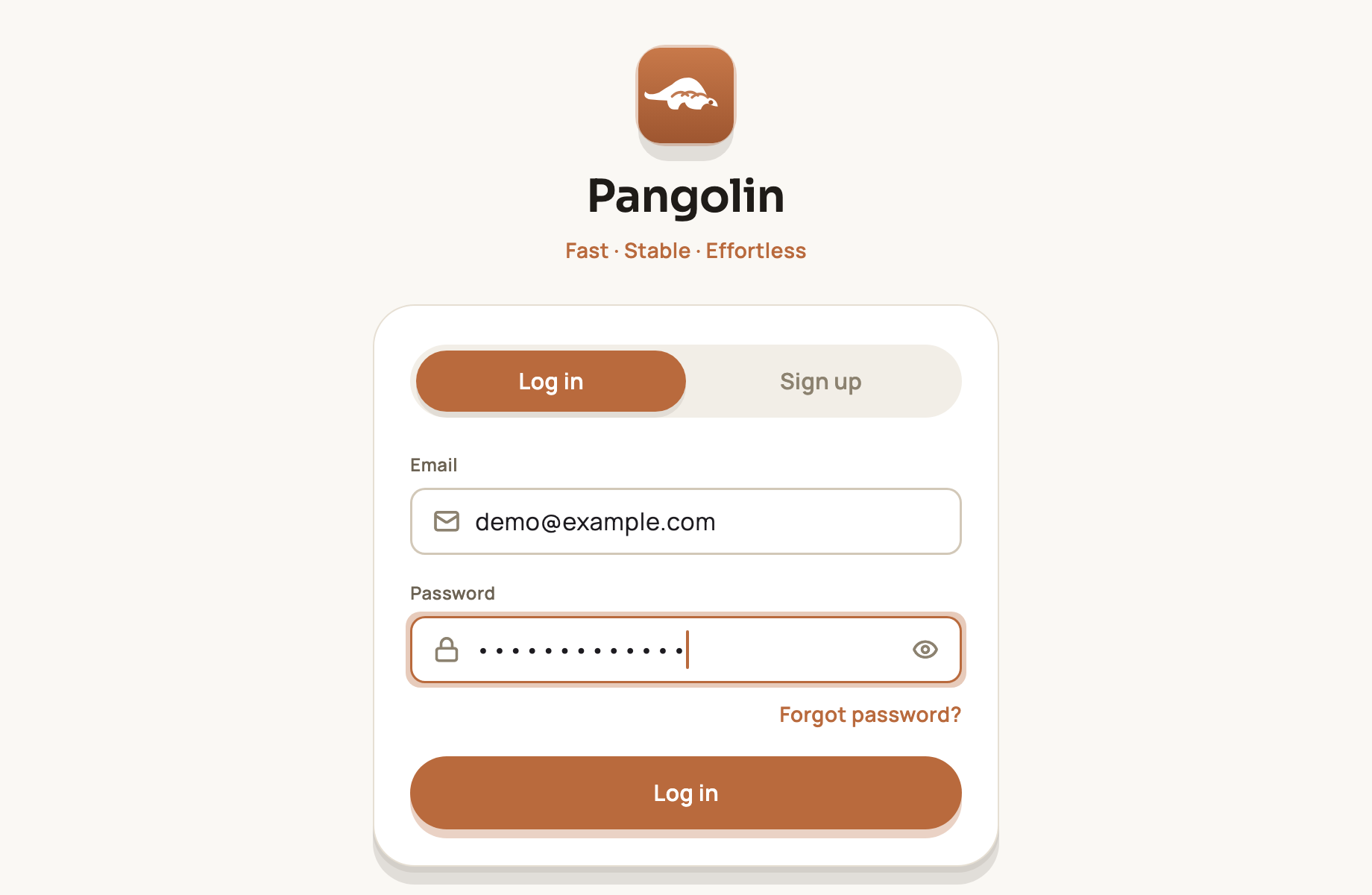
Step 3: Sign up or log in
Sign up or log in — it’s the same account you use on your phone. See Accounts, sign-in and security for the sign-up steps.
Step 4: Connect
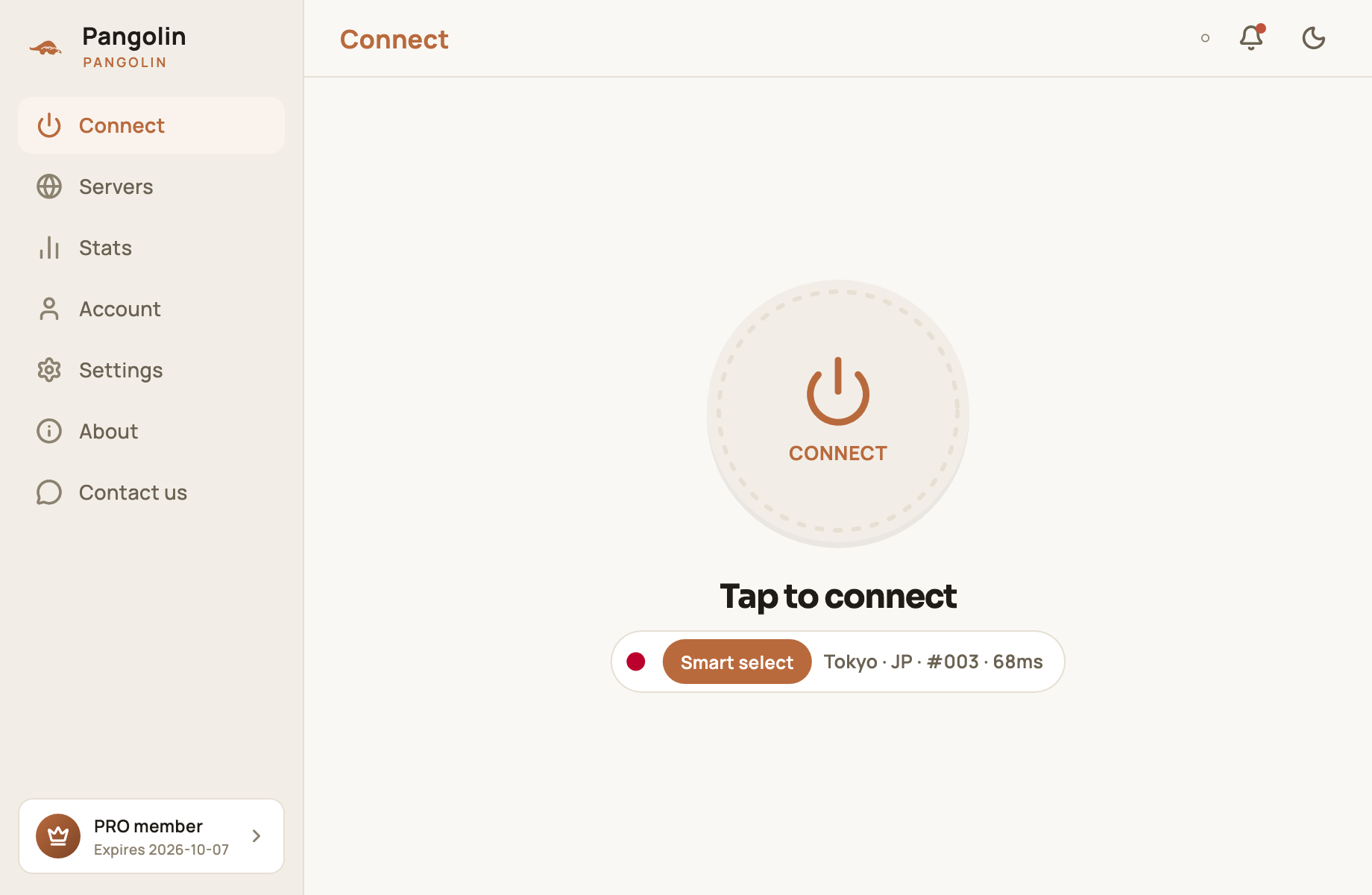
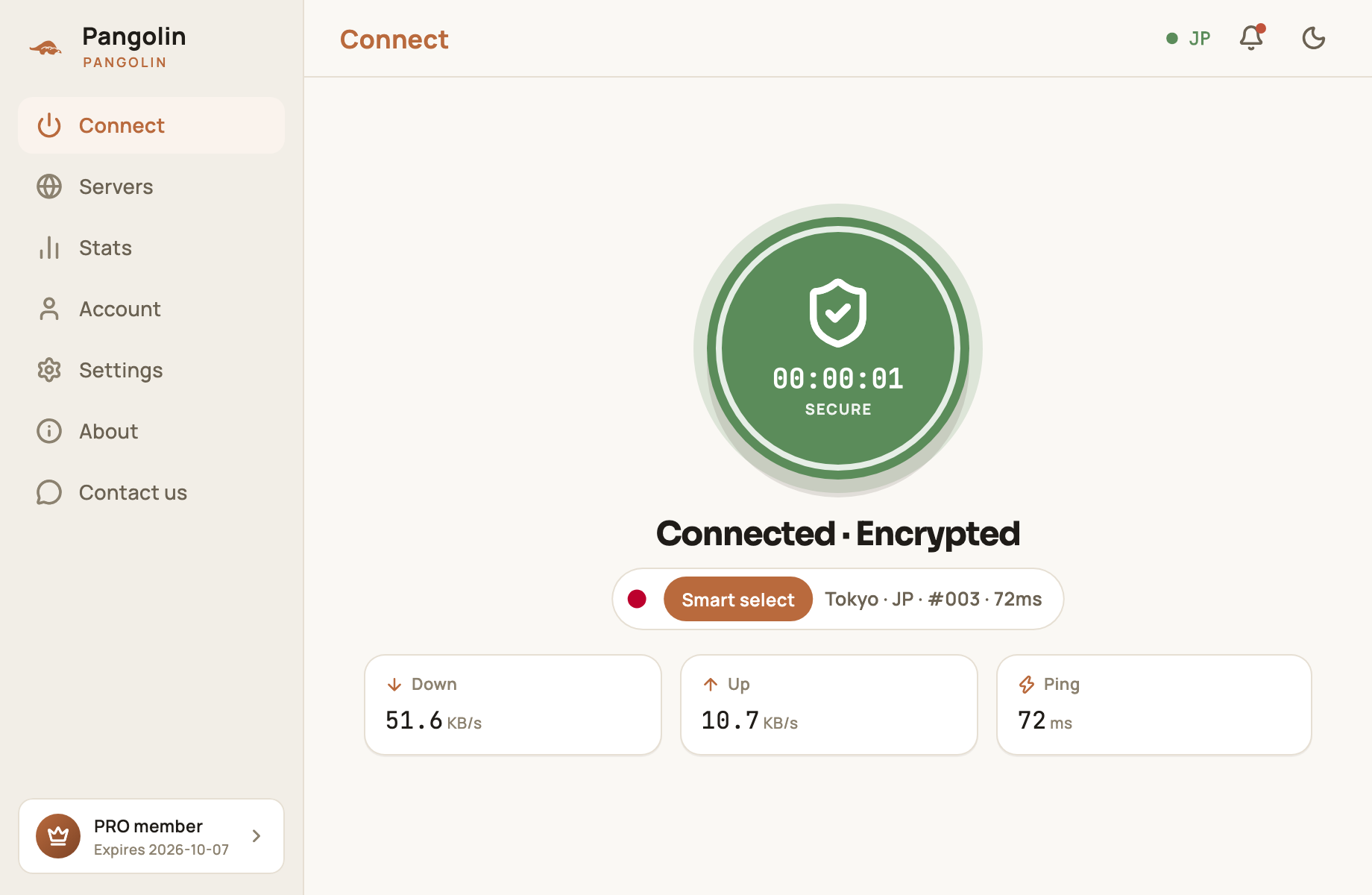
Click the button in the middle of the Connect screen. When it turns green and reads Connected · Encrypted, you’re connected.
The tray icon
While Pangolin is running, its icon sits in the notification area at the bottom right of the taskbar. Closing the main window keeps the app running in the background, and your connection stays up:
- Click the tray icon to open the main window;
- Right-click it for a menu with Show Window and Quit.
Connect and disconnect from the Connect screen in the main window. To exit completely, choose Quit from the tray icon’s right-click menu.
Start with Windows and auto-connect
Under Settings → Connection, turn on Launch at startup and Auto-connect. Pangolin then opens and connects as soon as you sign in to Windows, with no User Account Control prompt. See Settings explained for details.
Troubleshooting
| Problem | What to do |
|---|---|
| Pangolin doesn’t open when I double-click it | You clicked No on the User Account Control prompt. Open it again and click Yes |
| Nothing happens when I connect, or it fails immediately | Quit Pangolin (right-click the tray icon → Quit), open it again and reconnect; if it still fails, switch servers |
| My antivirus blocks it | Add Pangolin to your antivirus allow list and connect again |
| Some apps don’t go through the tunnel | With smart routing on, sites in mainland China connect directly by design. To change what goes where, use routing rules — see Settings explained |
For more on connecting, see Connecting and switching servers.
FAQ
Why does Pangolin ask for administrator permission every time it opens?
Pangolin creates a virtual network adapter to route your traffic, and Windows only lets an administrator do that, so the Windows app runs as administrator and User Account Control asks you to confirm each time you open it. The permission is only used to set up the connection. With Launch at startup on, Pangolin starts automatically when you sign in, without the prompt.
My antivirus flags it — what should I do?
Only download the installer from our website. If your antivirus blocks the virtual adapter driver, add Pangolin to its allow list and connect again.
Is the Windows app the same as the Mac app?
Yes. Both share the same desktop interface. The screenshots in this guide are from the Mac app, but the layout and steps on Windows are identical.
Don't have Pangolin yet?
Available for iPhone / iPad, Mac, Windows and Android. New accounts get a free 7-day Pro trial.
Download the app